Configure and schedule a Wellness form
Set up Wellness monitoring for your players in two stages: configure the questionnaire from a template, then schedule the player monitoring events that send it to your players.
Configure the Wellness questionnaire
-
In the menu, expand Insights.
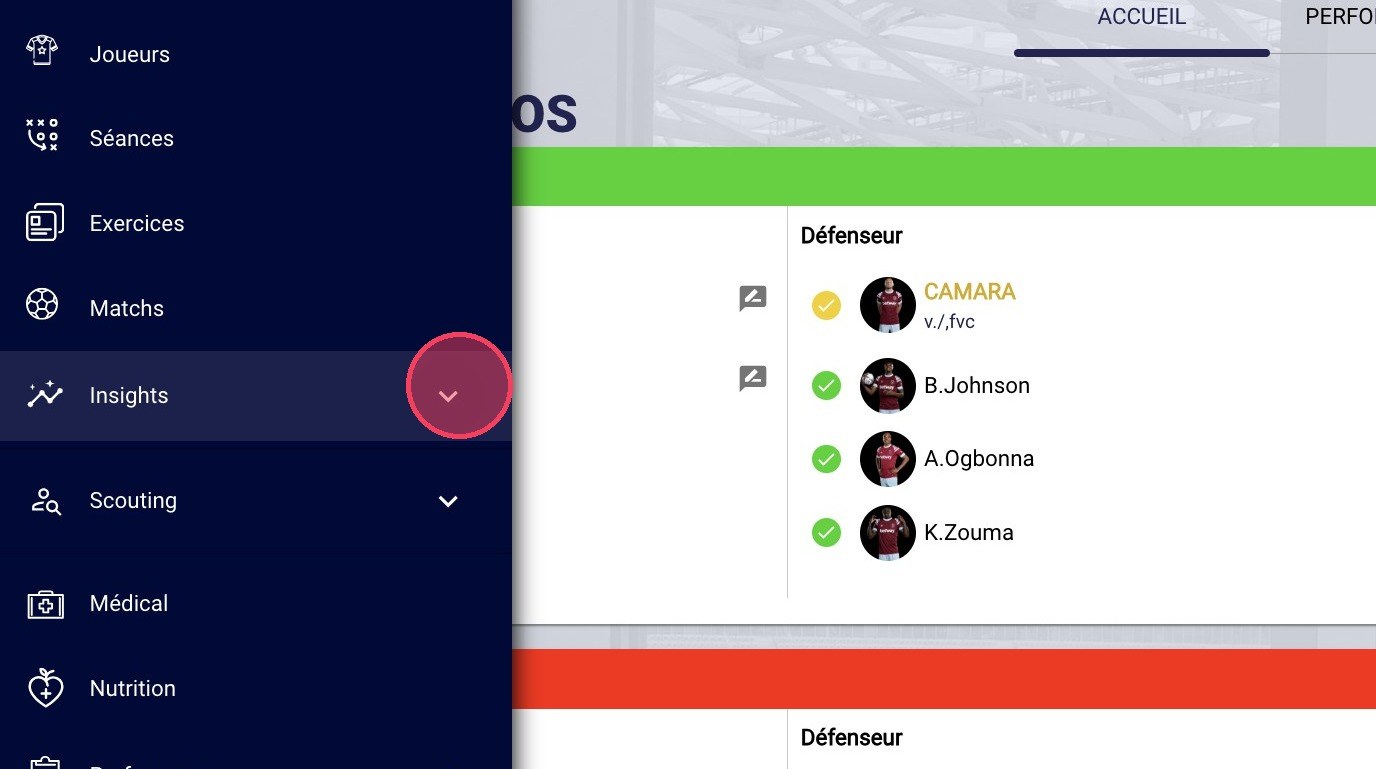
The Insights menu
Required access rightConfiguring questionnaires requires a specific access right.
-
Click Questionnaires.
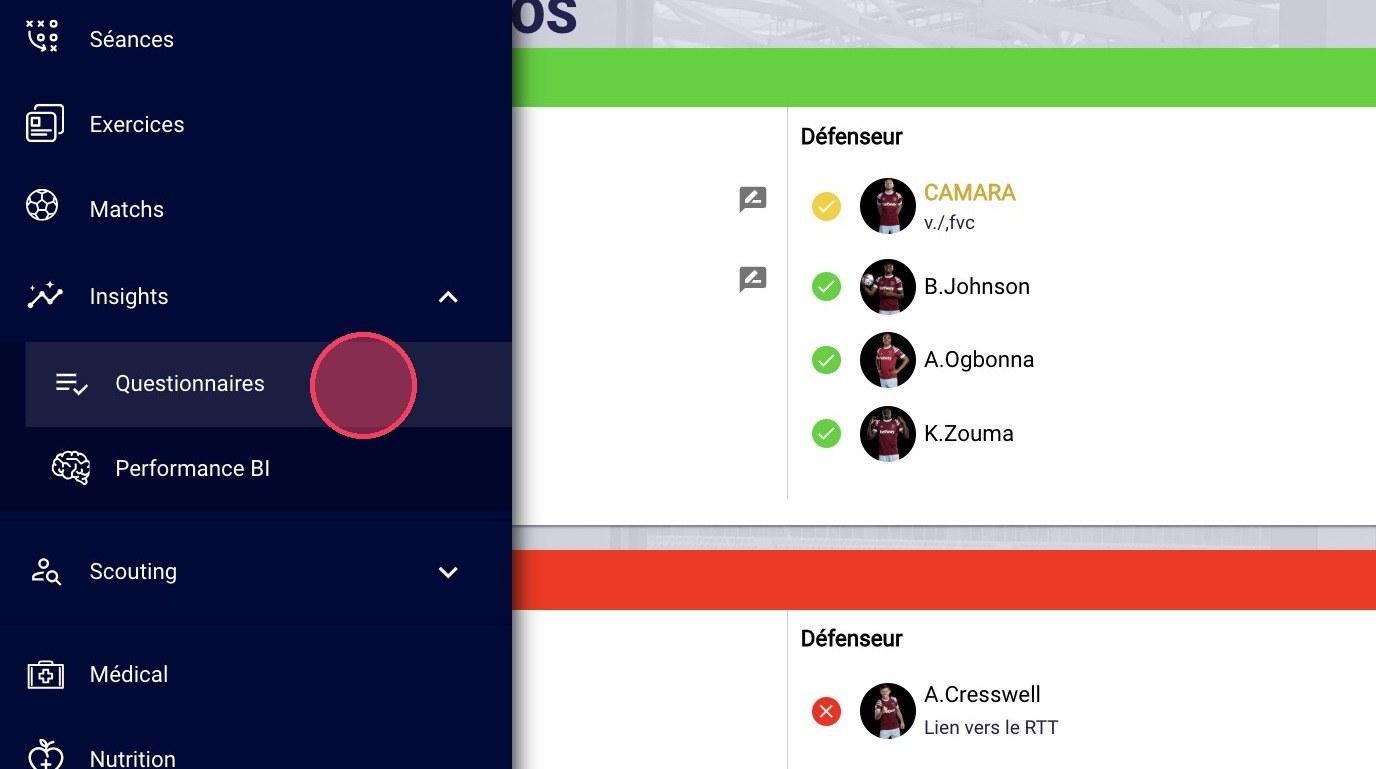
The Questionnaires submenu
-
Click the CONFIGURATION tab.
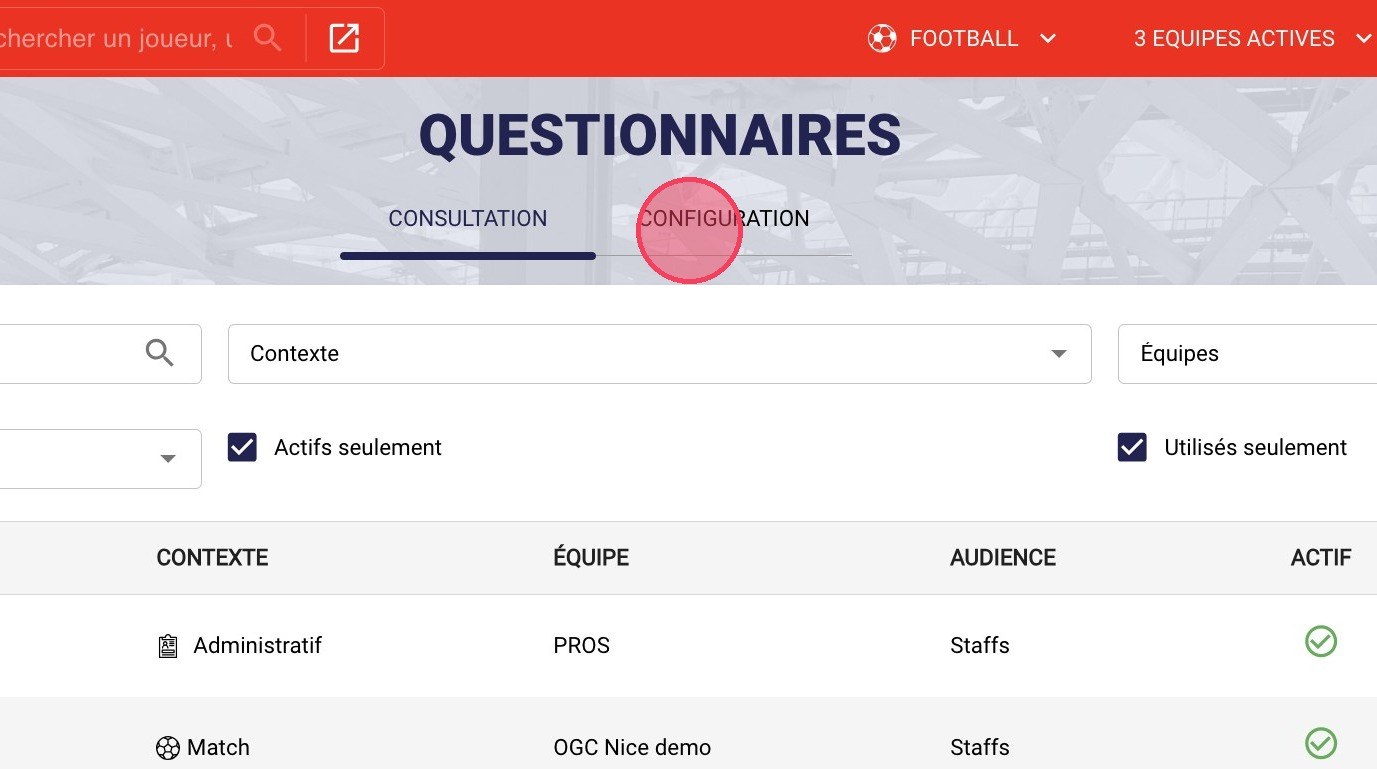
The Configuration tab
-
Click ADD.
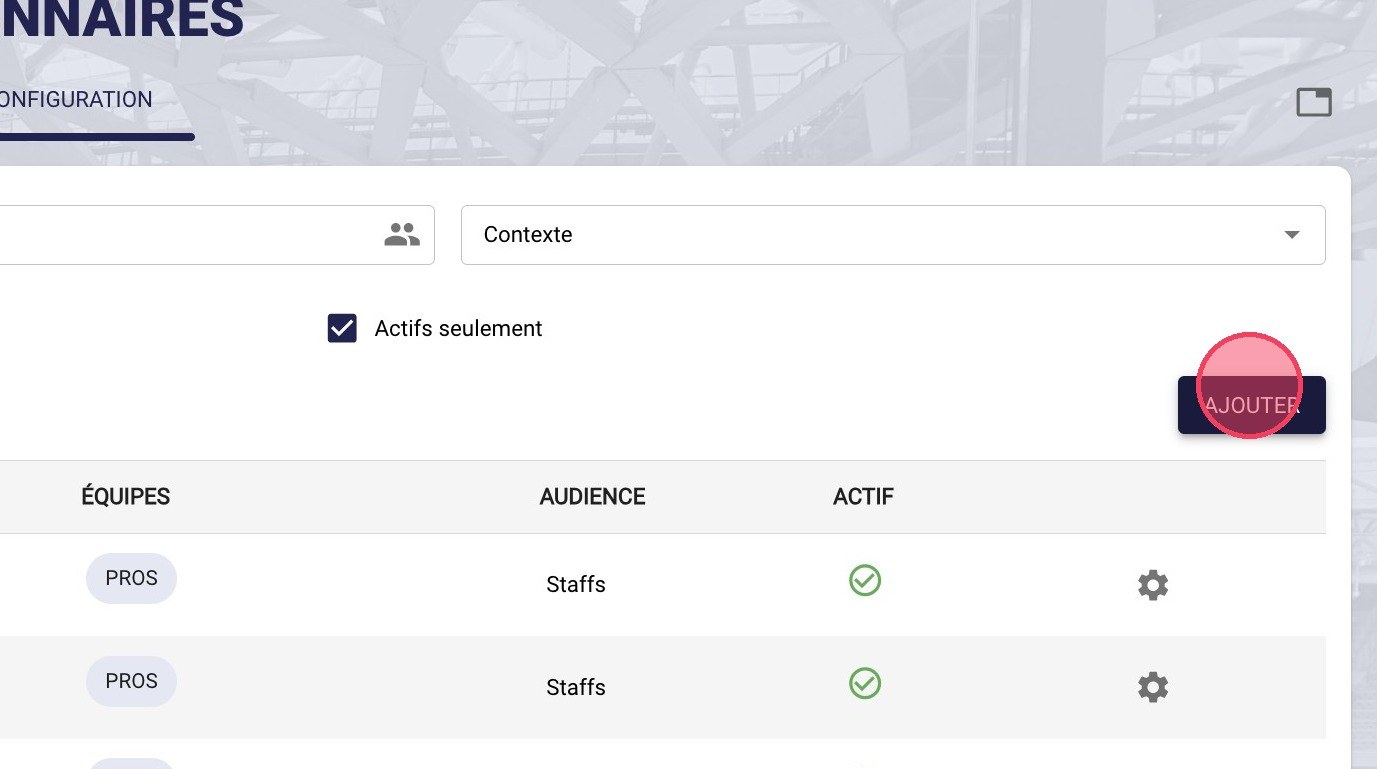
The Add button
-
Select Duplicate from template.
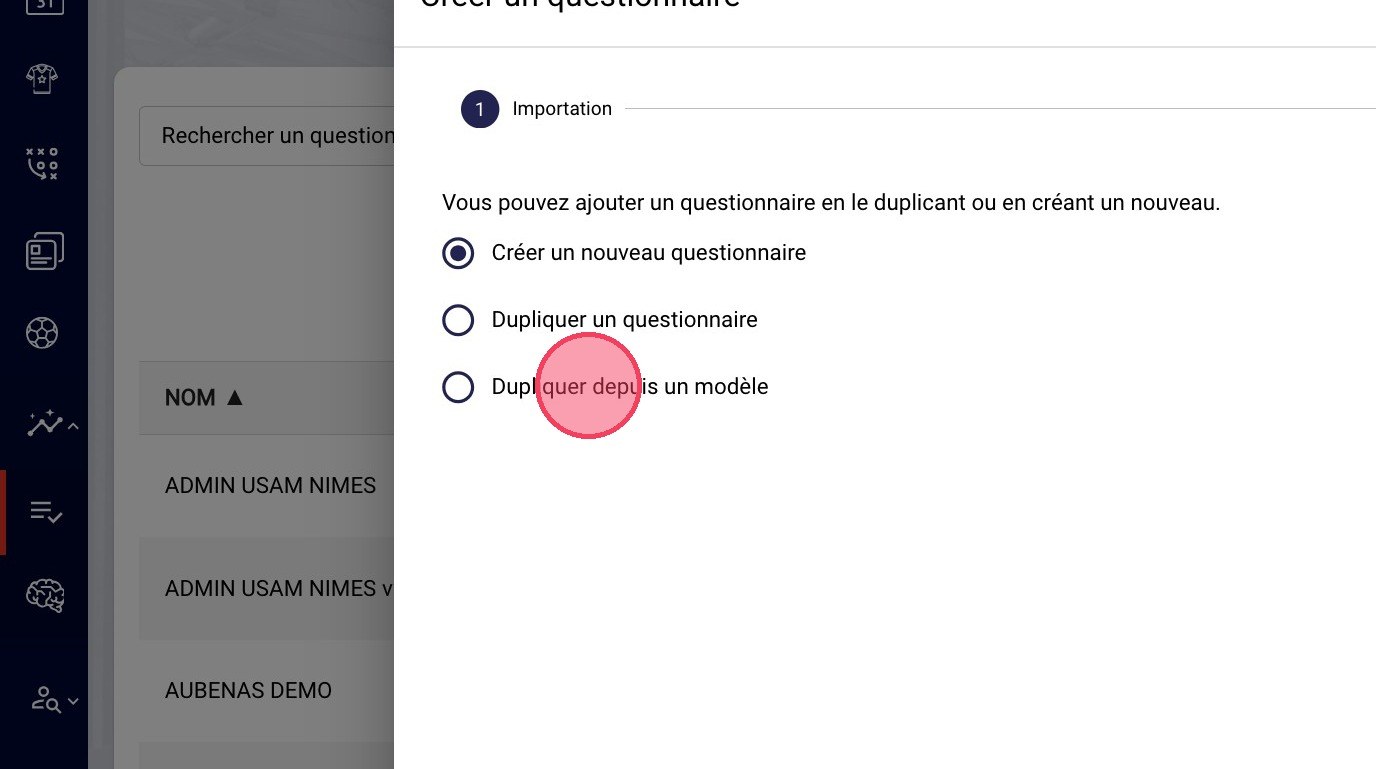
The Duplicate from template option
-
Click the template dropdown list.
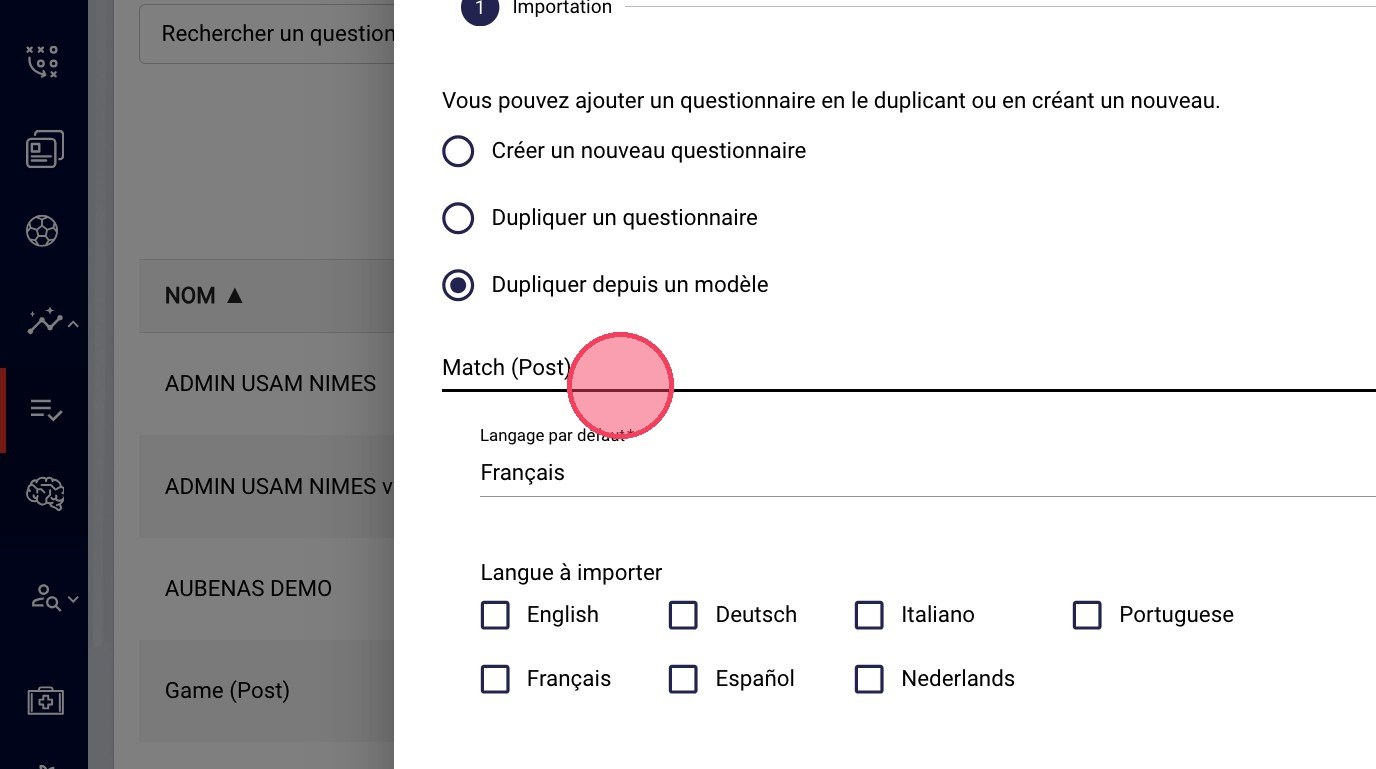
The template dropdown list
-
Choose one of the two Wellness templates available.
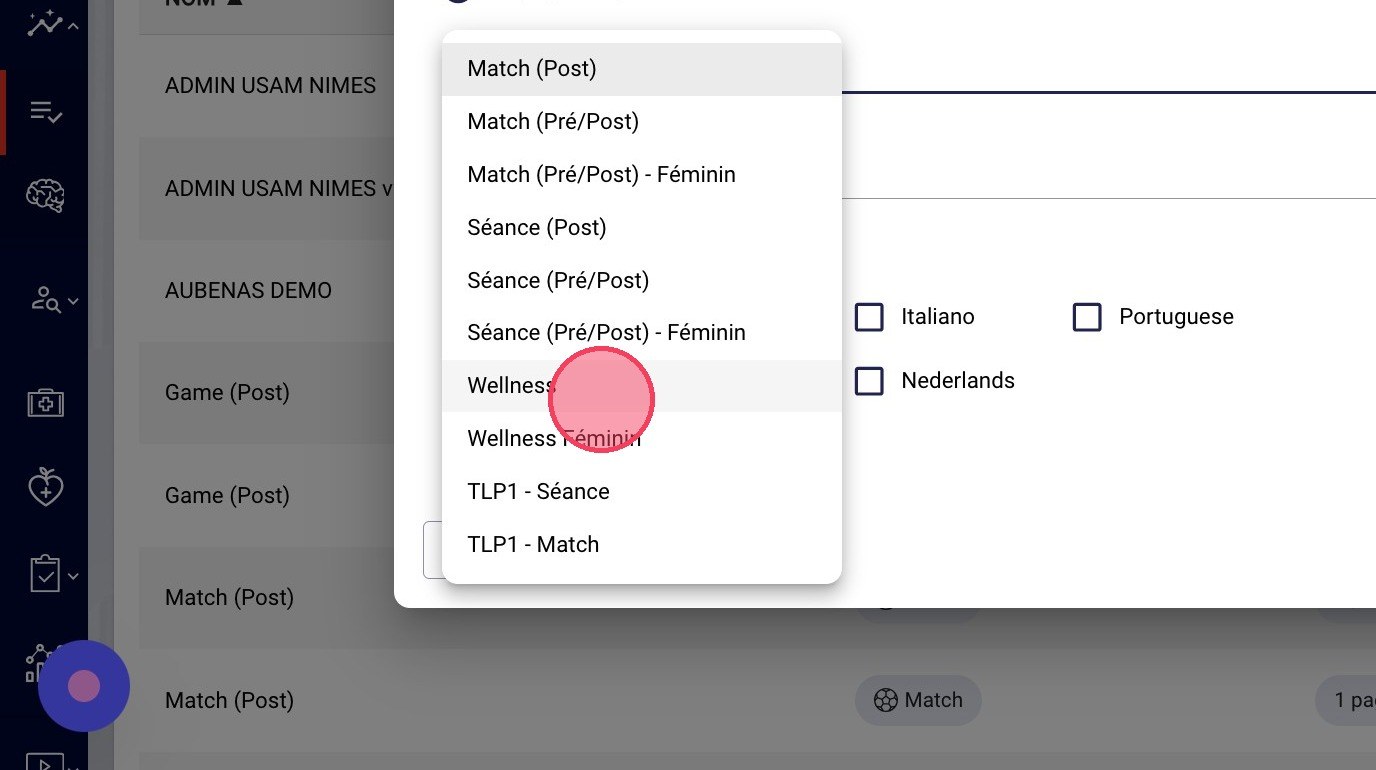
The Wellness templates
-
Click NEXT.
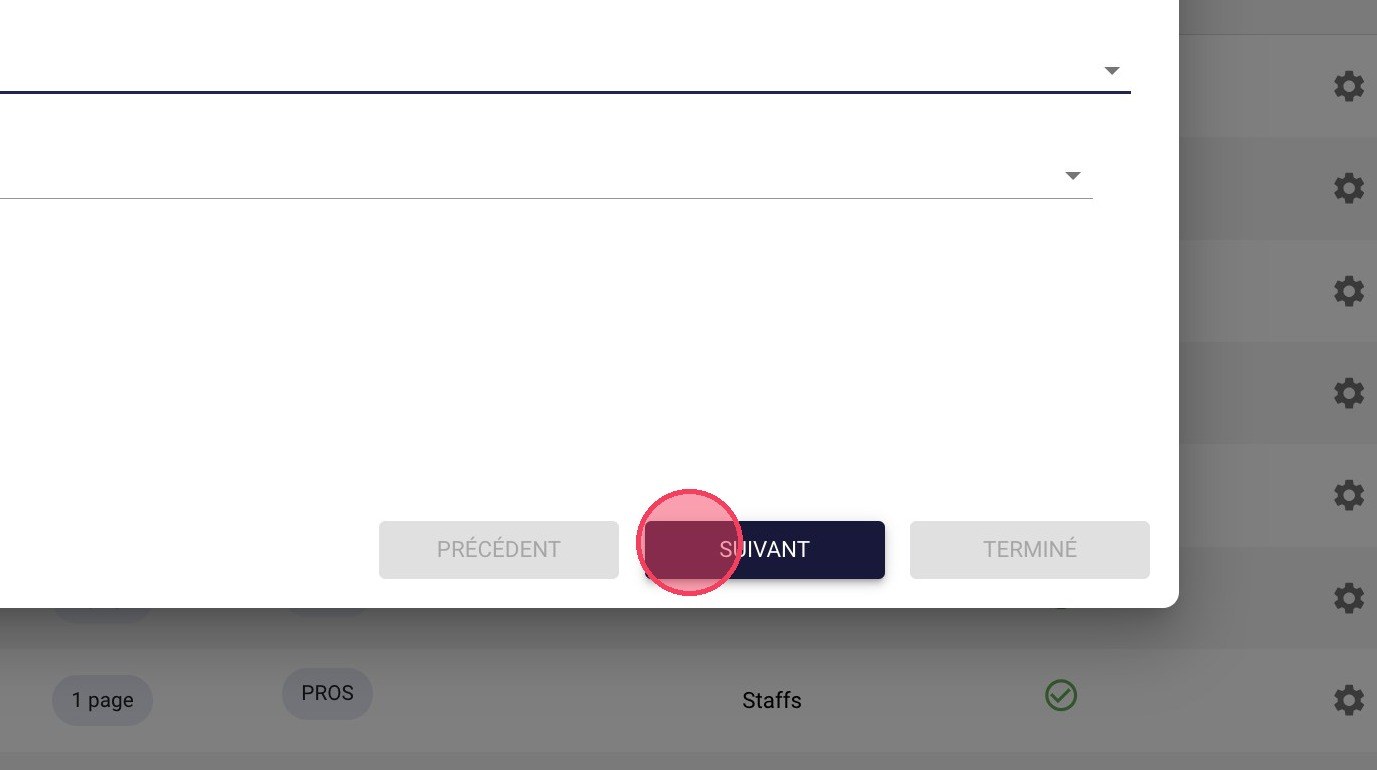
The Next button
-
Keep the context on Fitness status: other contexts exist, but this one ensures optimal use of the questionnaire.
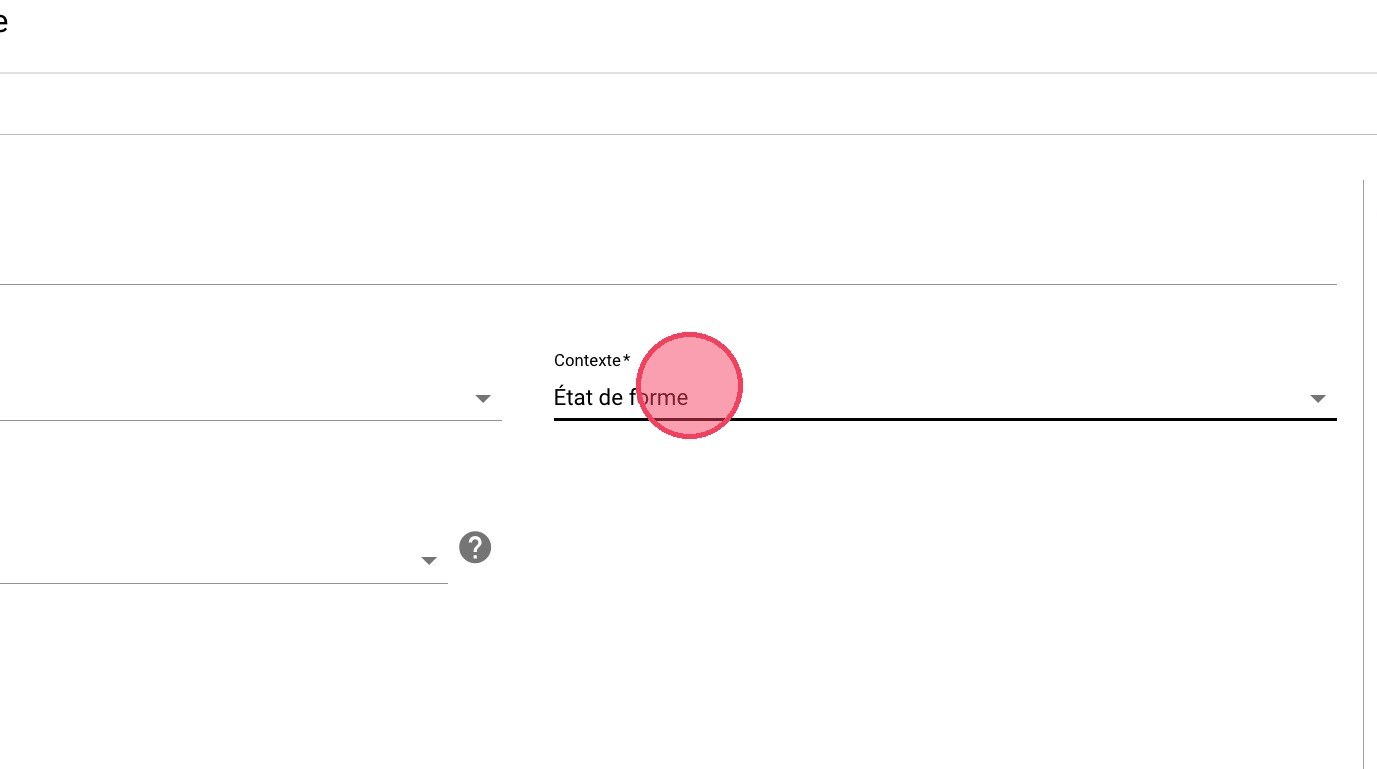
The Fitness status context
-
Click DONE.
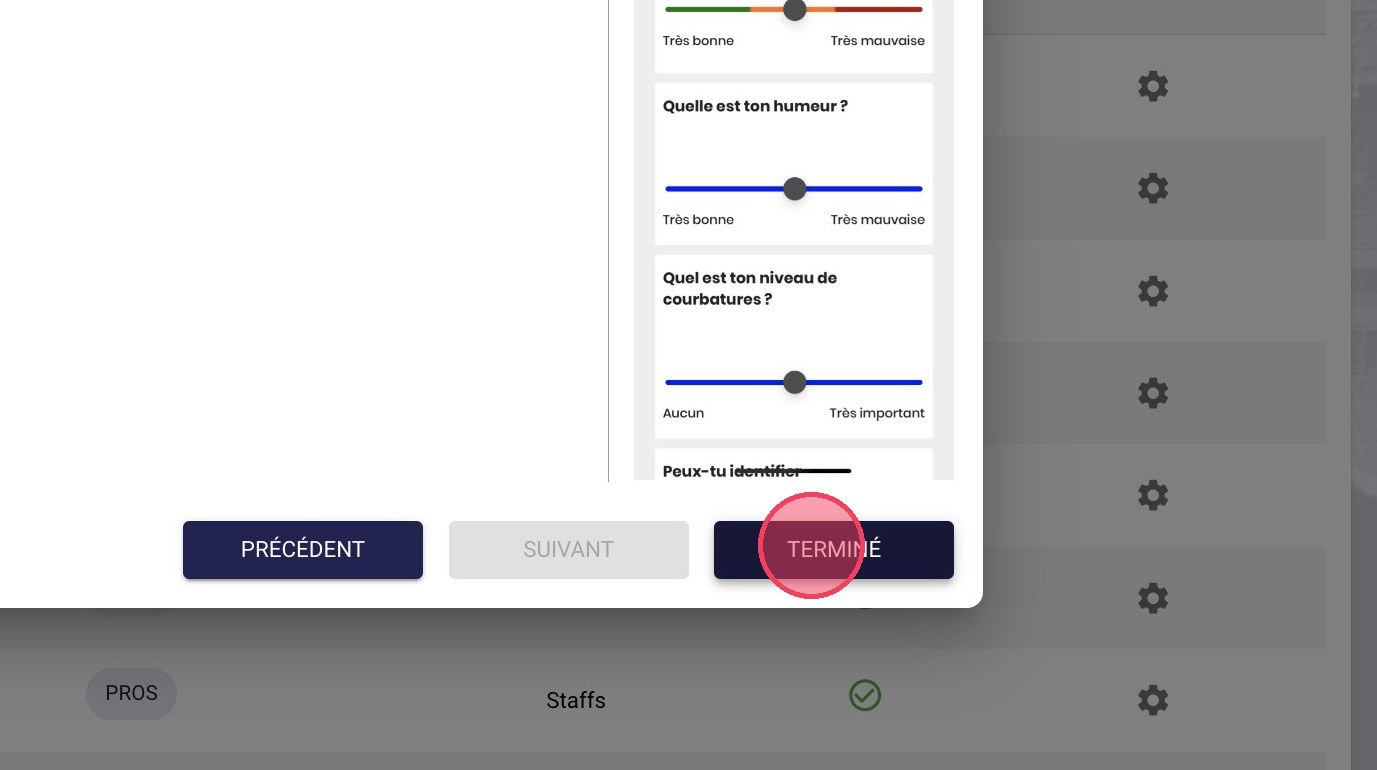
The Done button
Automatic activationQuestionnaires configured with a player monitoring context are activated by default.
Schedule player monitoring events
-
Click the Calendar module.
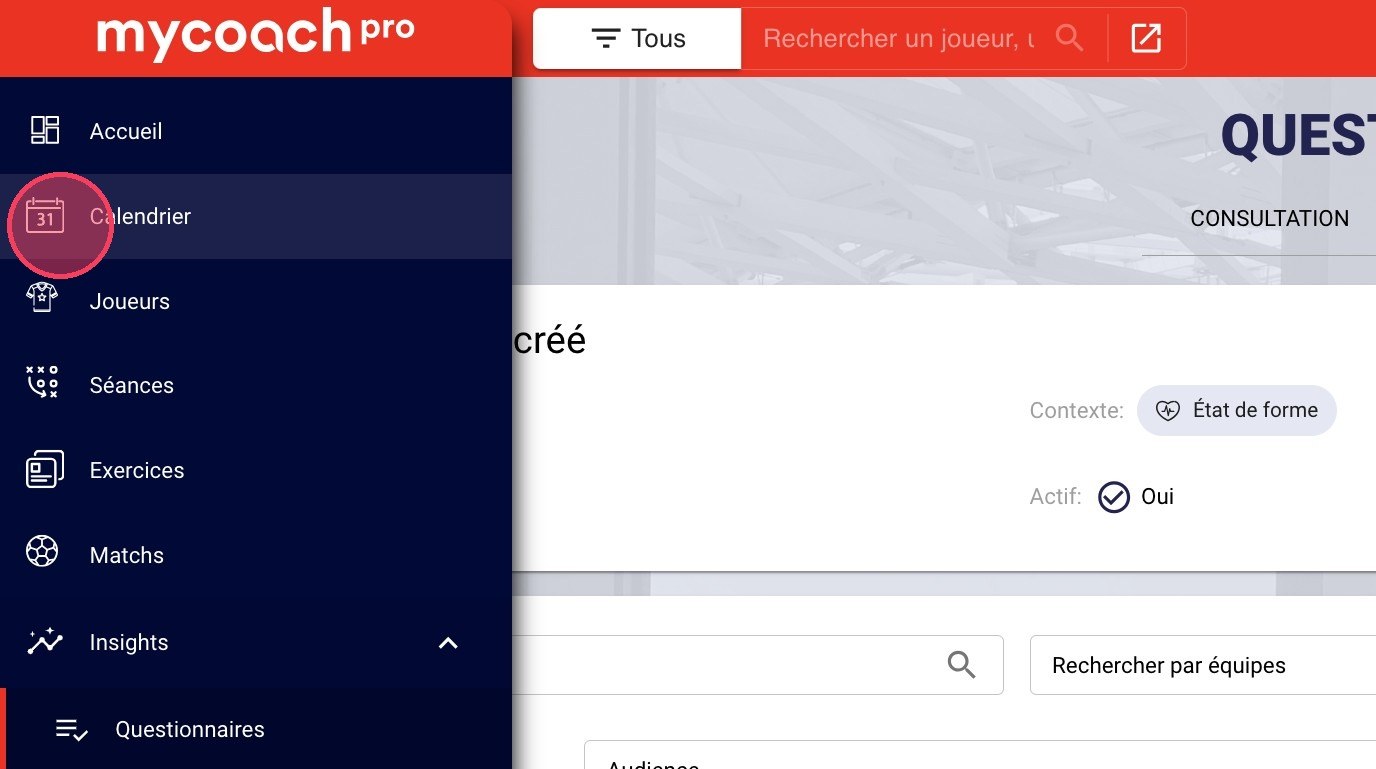
The Calendar module
-
Click the + button at the bottom right of your schedule.
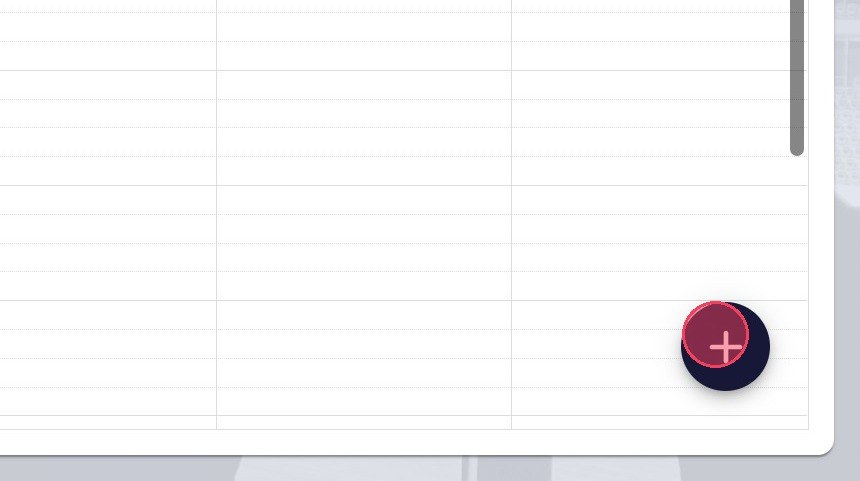
The + button
-
You can also click directly on the desired date to open the creation menu.
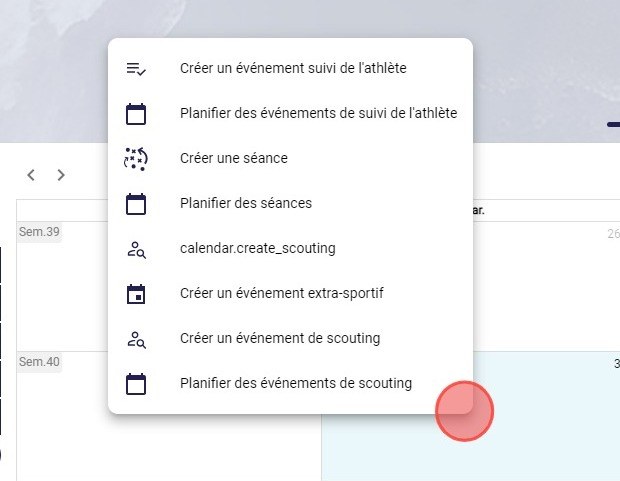
The creation menu from a date
-
Click Schedule player monitoring events.
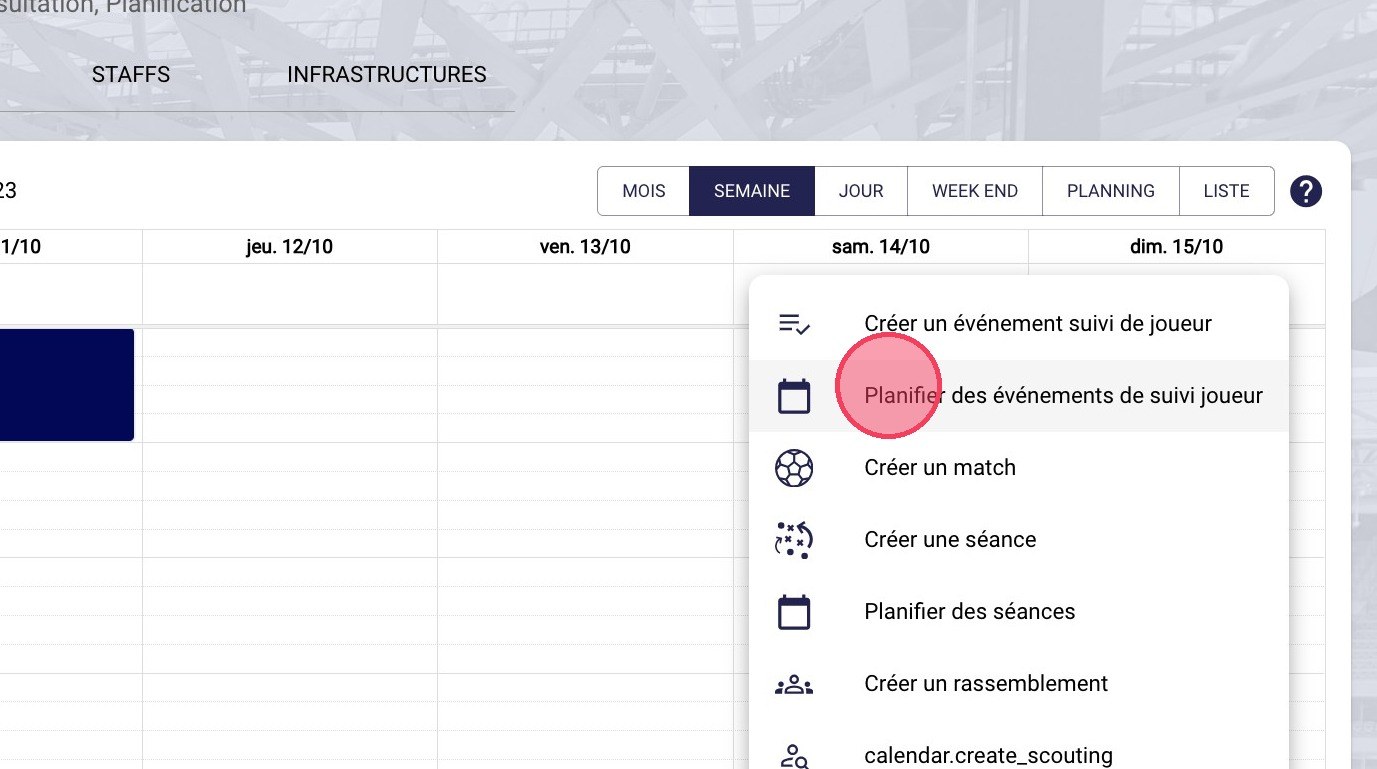
The Schedule player monitoring events option
-
Choose the team concerned, the call-up type and the date range of the schedule.
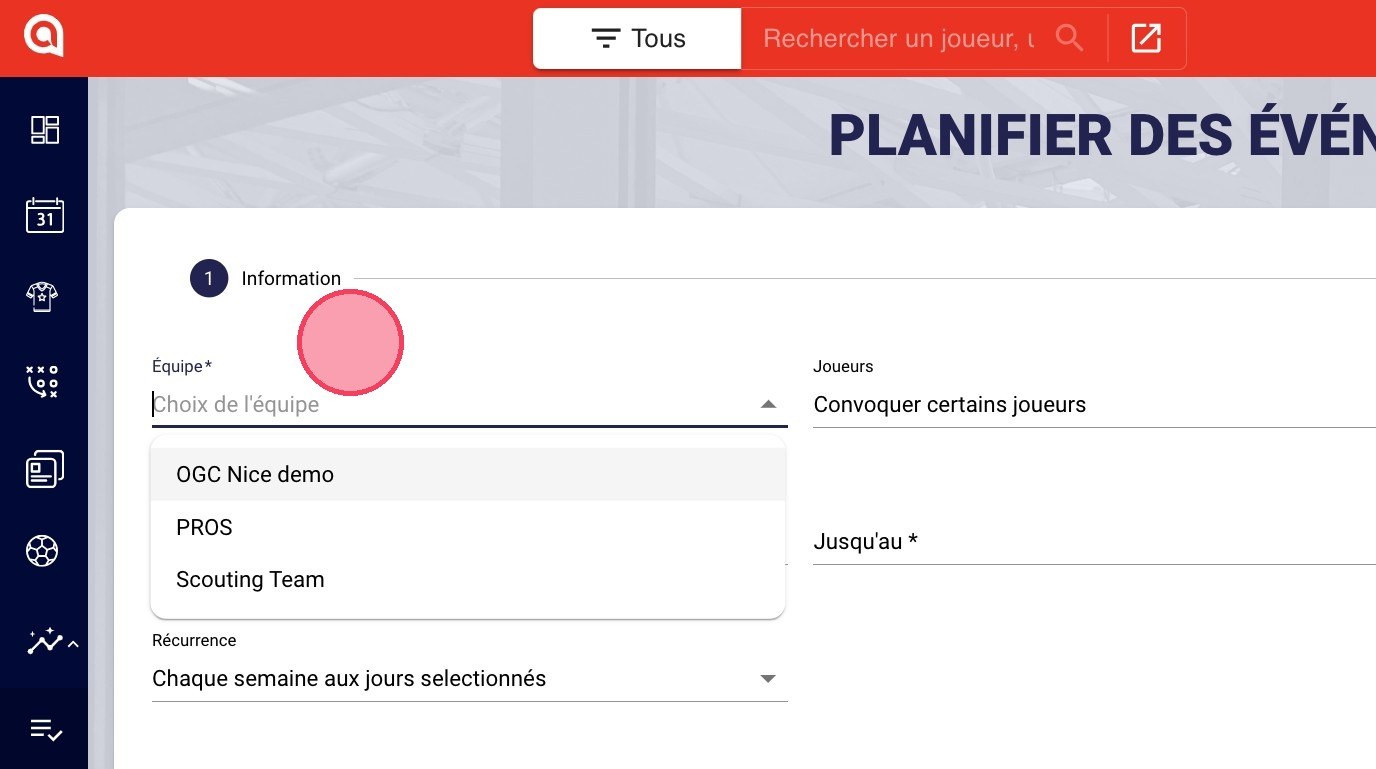
The team, call-up and date range
-
Click the Event type field.
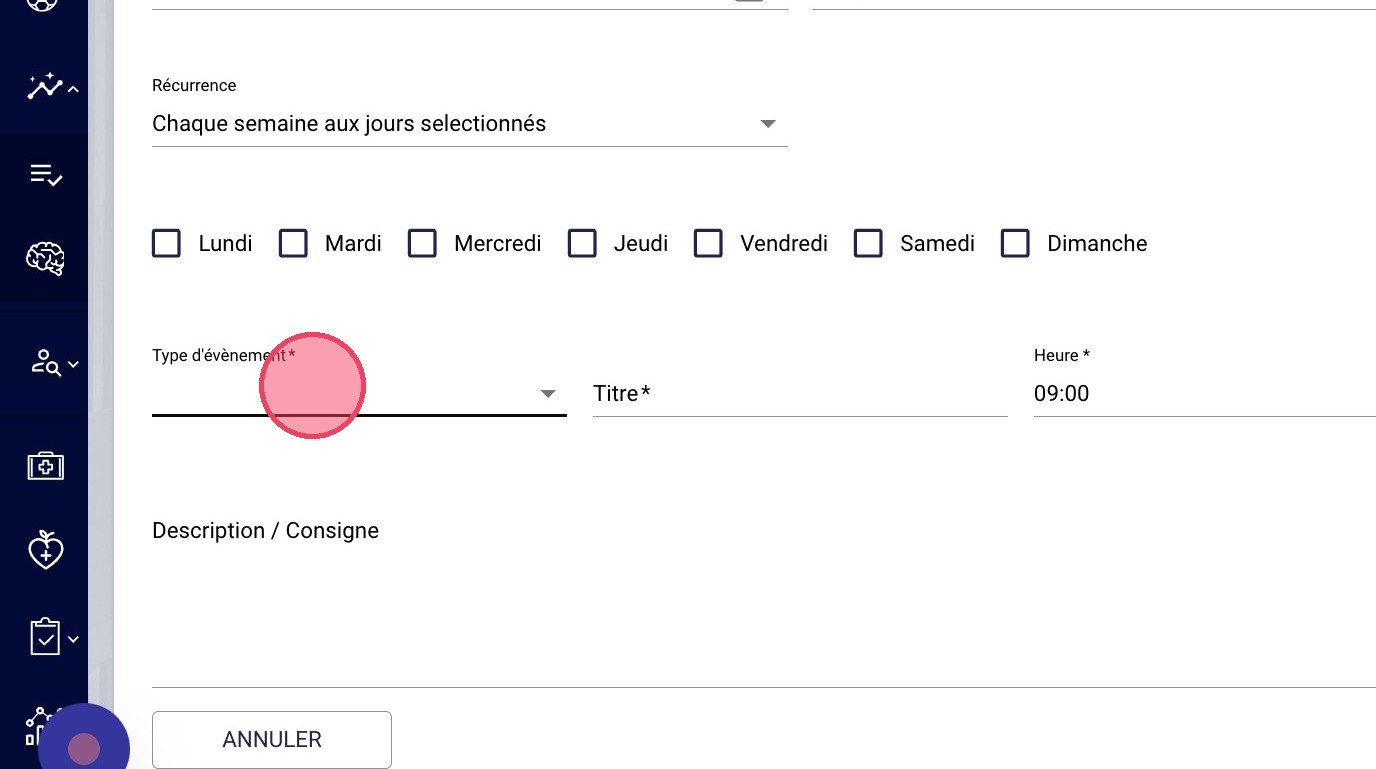
The Event type field
Event type and questionnaireThe questionnaire can only be selected if you choose the event type (or context) it was configured with.
-
Select Fitness status, our questionnaire's context.
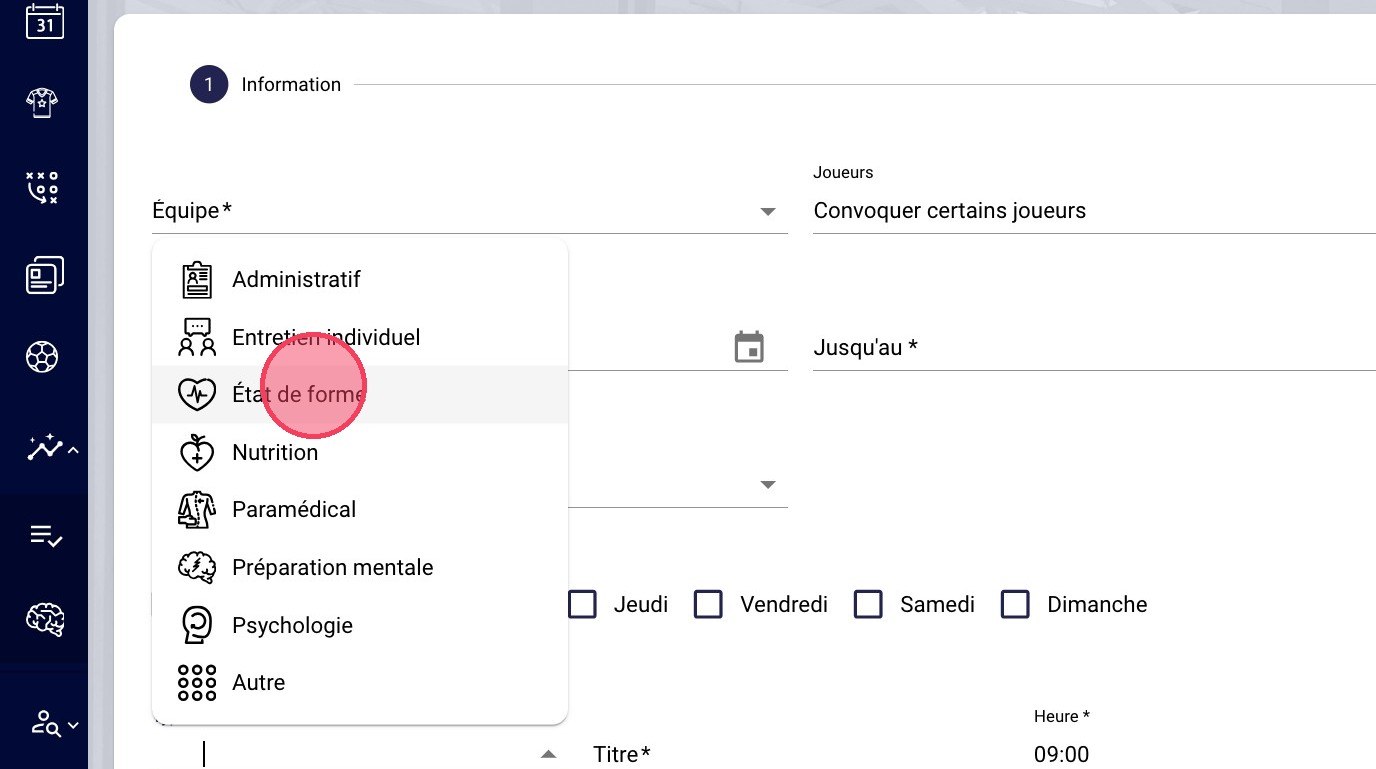
The Fitness status event type
-
Choose the event time.

The Time field
Response deadlineThe time you choose is the deadline by which you expect an answer. Your athletes receive a first notification 90 minutes before, and 6 notifications in total up to the scheduled time.
-
Your questionnaire is selected automatically. Give the event a title, choose its duration, then click DONE.
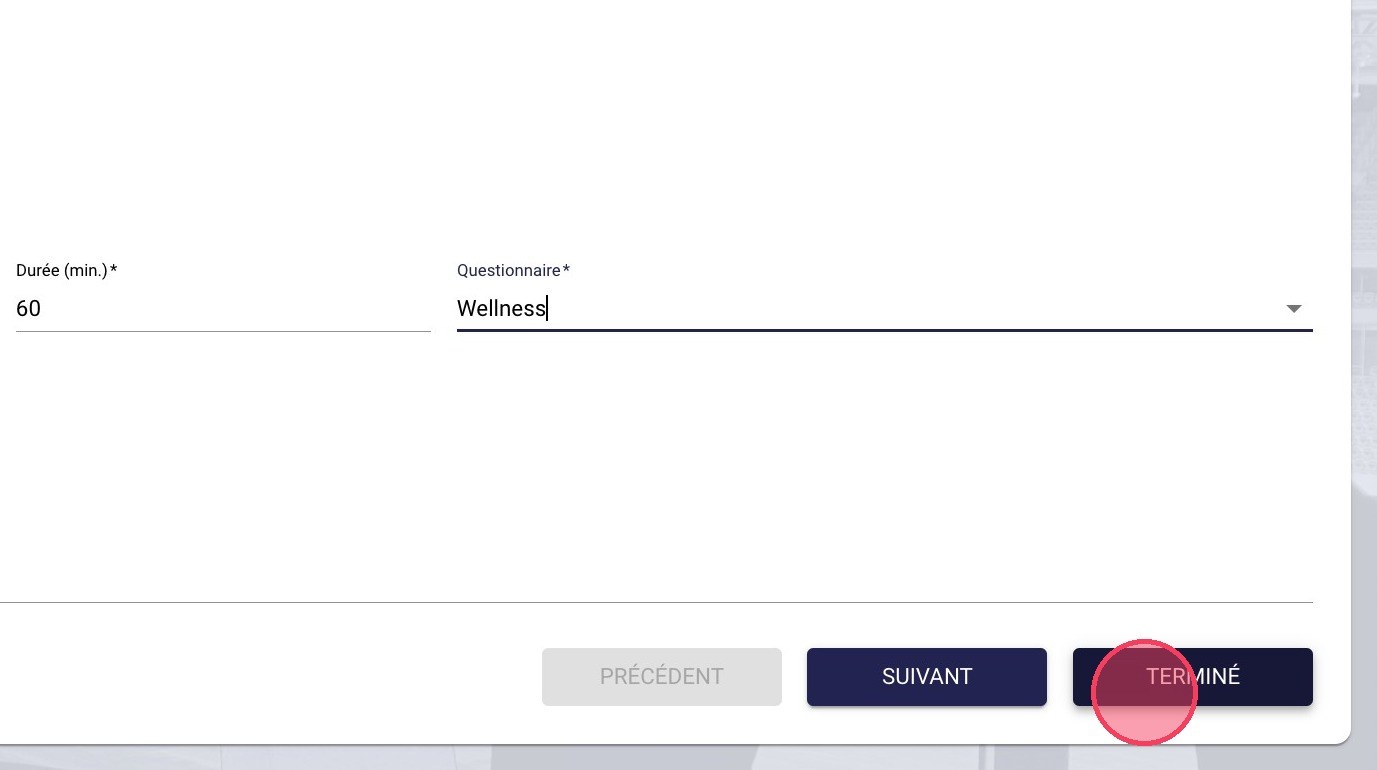
The duration, questionnaire and Done button
Duration and summaryThe duration only sets the size of the event in your calendar. Click NEXT instead of DONE to see a summary of your schedule.
-
Your player monitoring events appear in your calendar.
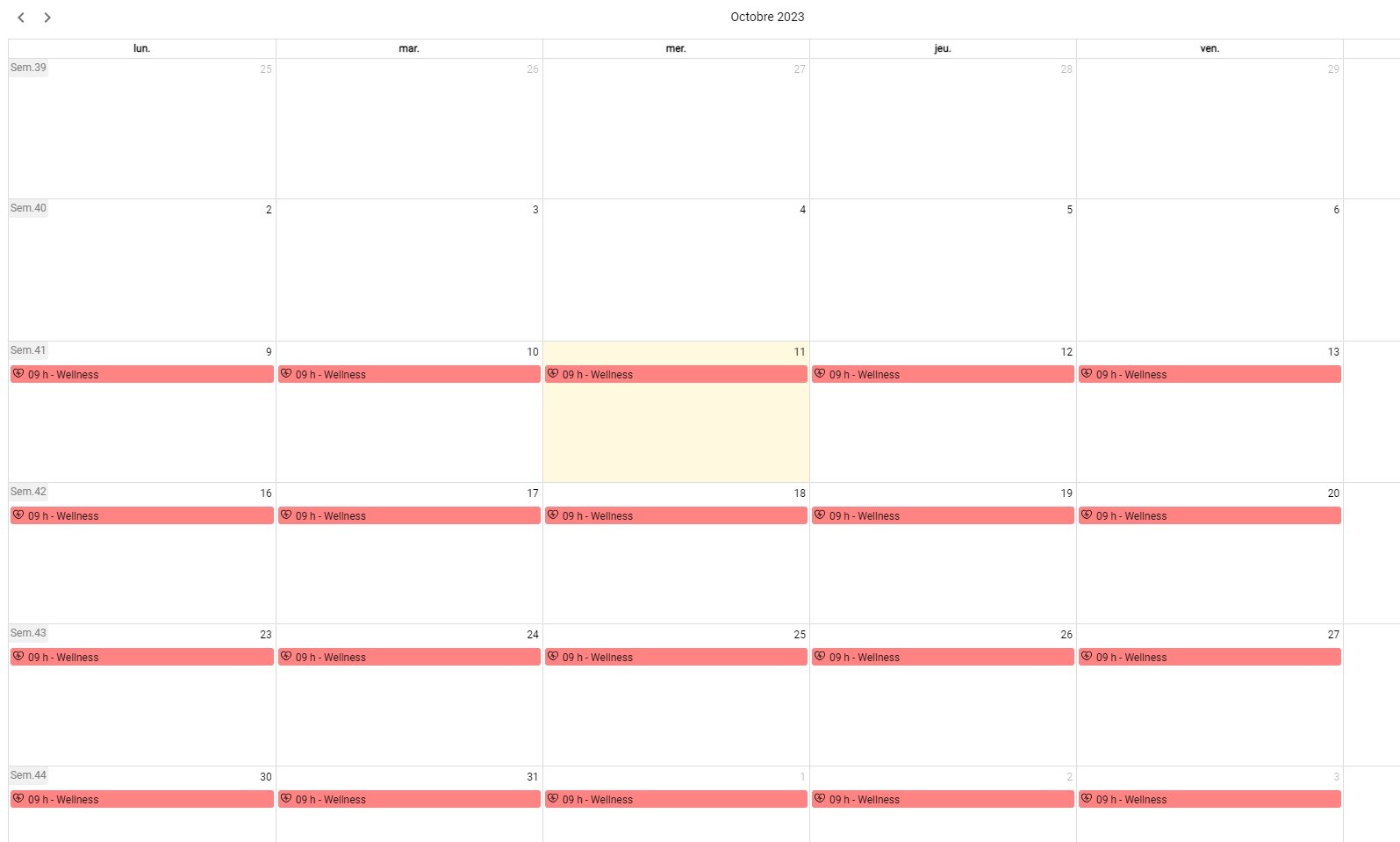
The schedule in the calendar
Need help
Email support@mycoachpro.io with any questions about configuring and scheduling Wellness forms.