Organise and view your calendar
Organise your calendar the way you want: move your events, switch views, check a player's or staff member's calendar and use the filters to display only what matters.
- Move an event
- Display an event's options
- Switch views
- Display a player's or staff member's calendar
- Filter the calendar
Move an event
-
Drag an event and drop it on another date to move it.
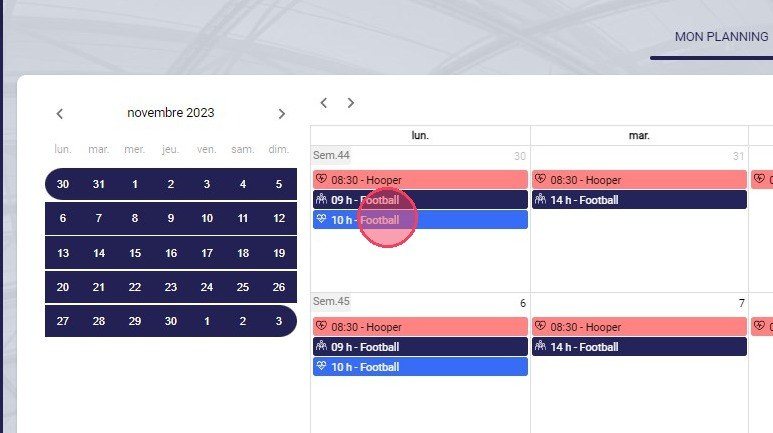
Moving an event by drag and drop
Events you cannot moveDrag and drop does not work for:
- birthdays and official matches;
- events that include an infrastructure booking;
- events you are not the owner of.
-
If the event is part of a schedule, confirm the move with OK. It will then no longer be linked to the event recurrence.
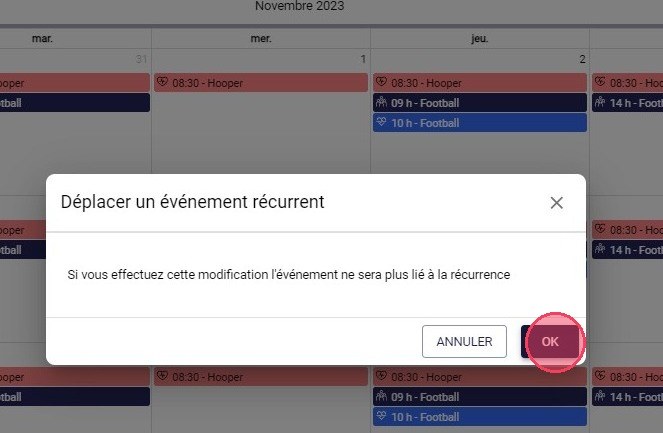
The Move a recurring event window
Display an event's options
-
Click an event to display a list of shortcuts or options.
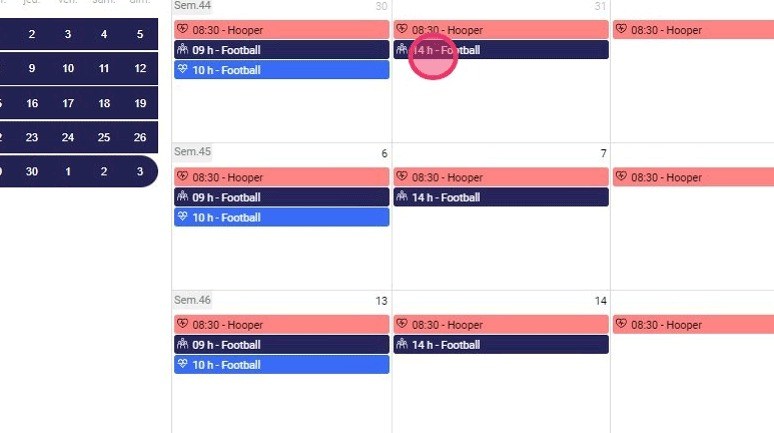
An event's shortcuts and options
Options by eventThe list of shortcuts may differ depending on the event type.
Switch views
-
Choose your schedule view: Monthly, Weekly, Day, Weekend, Schedule or List.
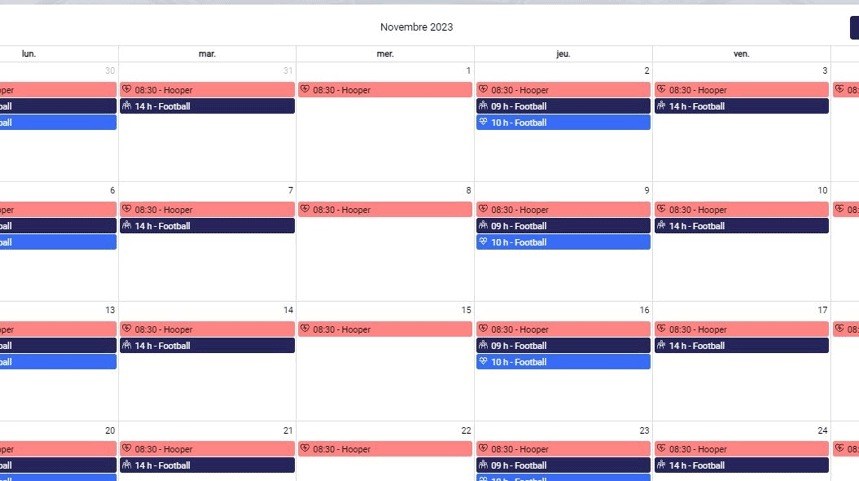
The available calendar views
Display a player's or staff member's calendar
-
Click the PLAYERS tab, search for the player, then click their name. You see the events they are called up to and their attendance status, in all views.
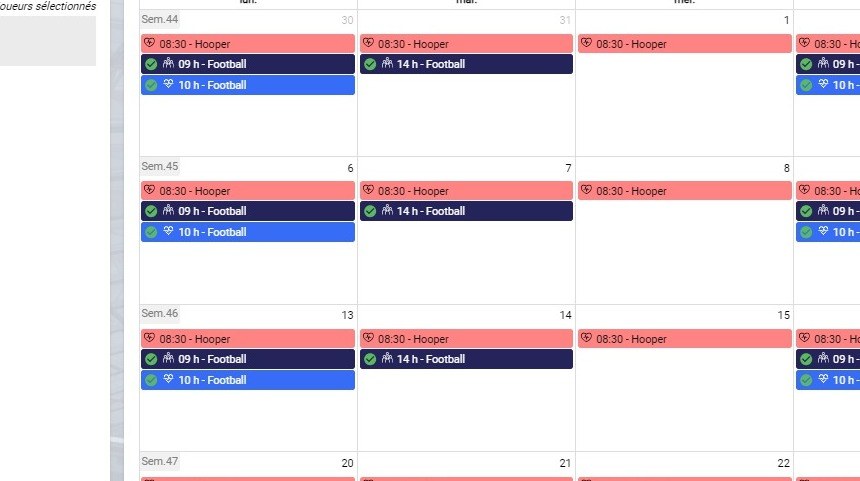
A player's calendar
-
Click the STAFF tab, search for the staff member, then click their name. You see the events they created, in all views.
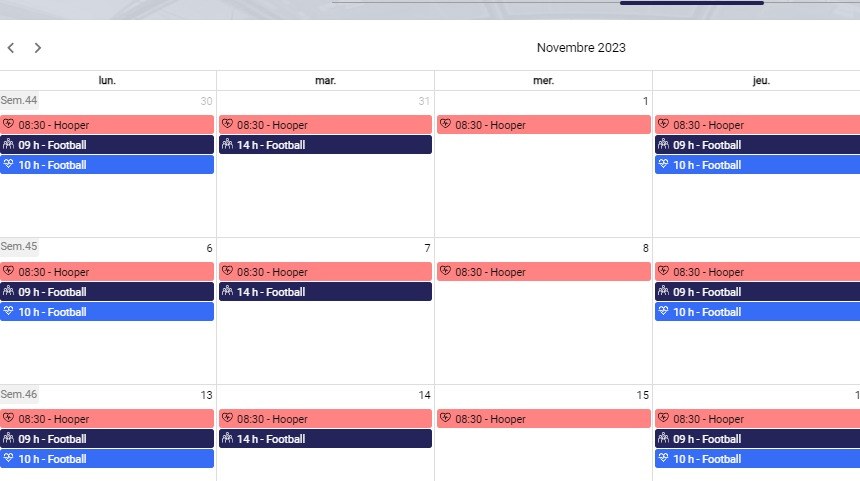
A staff member's calendar
Filter the calendar
-
Click the filters button in the upper right corner.
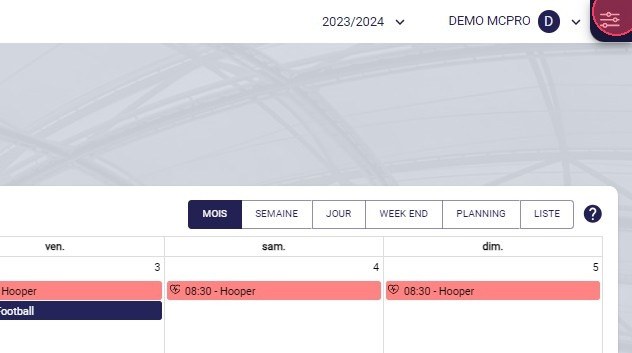
The filters button
-
Uncheck the boxes for the event types, teams or session types you want to hide.
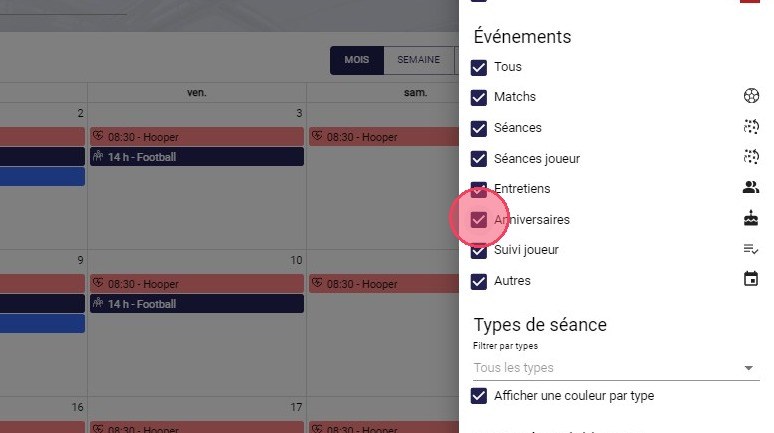
The event type checkboxes
-
Under Session types, check Display a colour per type to colour each session by its type.
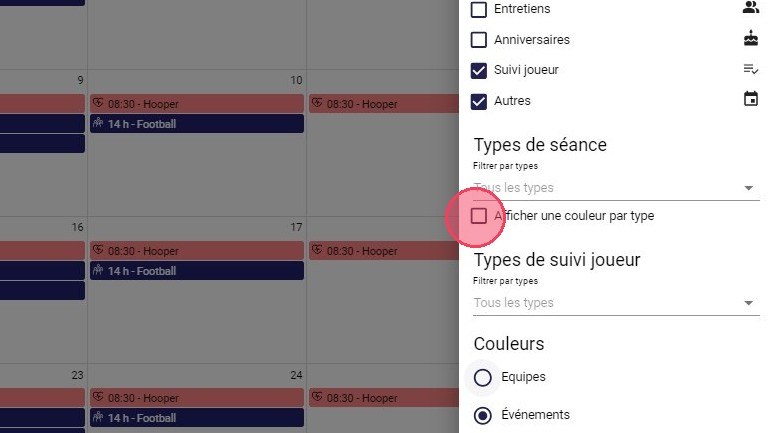
The Display a colour per type option
-
Under Colours, choose to display a colour per Teams or per Events.
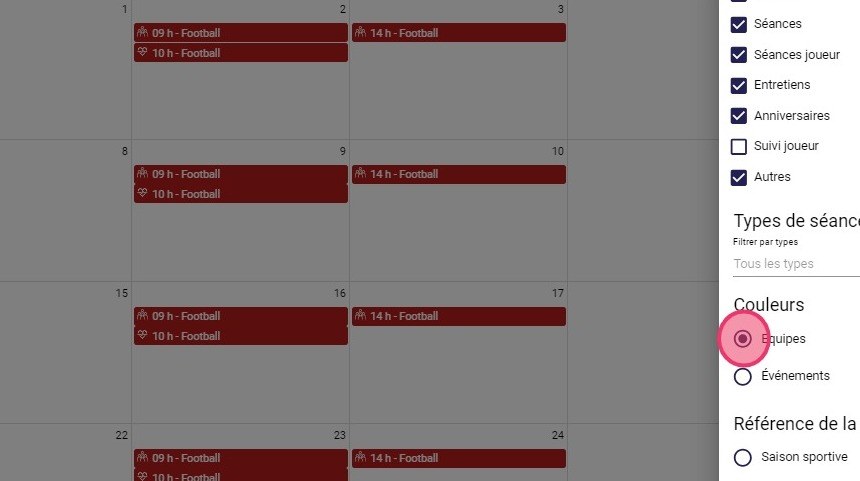
The calendar colour choice
Need help
Email support@mycoachpro.io with any questions about organising your calendar.