Set up the MyCoach Pro MCP connector
MyCoach Pro lets you create an MCP (Model Context Protocol) link between your AI assistant and your MyCoach Pro account. Once the connector is set up, you can ask in plain language for your sessions, players, stats and reports, and the assistant will fetch the data directly from your account.
Before you start
Make sure you meet these three conditions to activate the connector:
- An Expert license. See our plans.
- A signed DPA (data processing agreement).
- Access enabled by MyCoach Pro. Write to support@mycoachpro.io to open MCP access, and Insight Hub if needed.
- Reminder: activation is done on a per-user basis.
- Is your club paying for MyCoach Pro? Check with your administrator to confirm you meet the requirements.
- Need help with these requirements? Write to support@mycoachpro.io, we'll guide you.
Use the same MCP server URL on every platform:
https://mcp.mycoachpro.io/mcp
Set up your MCP on the assistant of your choice
Go to the section for your assistant below, find your license, and follow the steps.
Claude
- Free — available. Only one custom connector allowed, you add it yourself.
- Pro / Max — available. You add it yourself, no limit.
- Team / Enterprise — an organization Owner adds the connector, then everyone signs in with their own credentials.
-
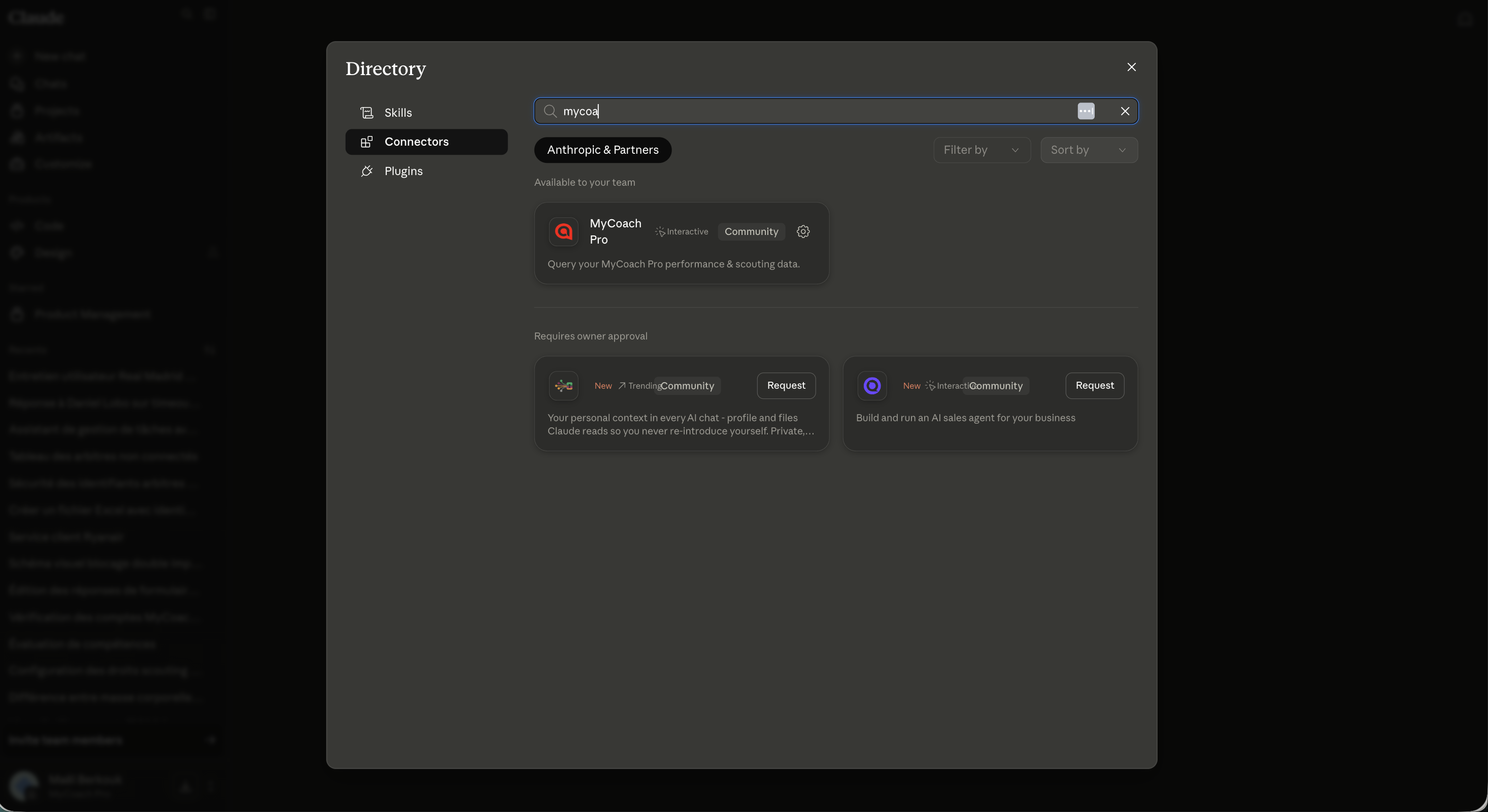
In Claude, open Settings → Connectors, then search for MyCoach Pro.
-
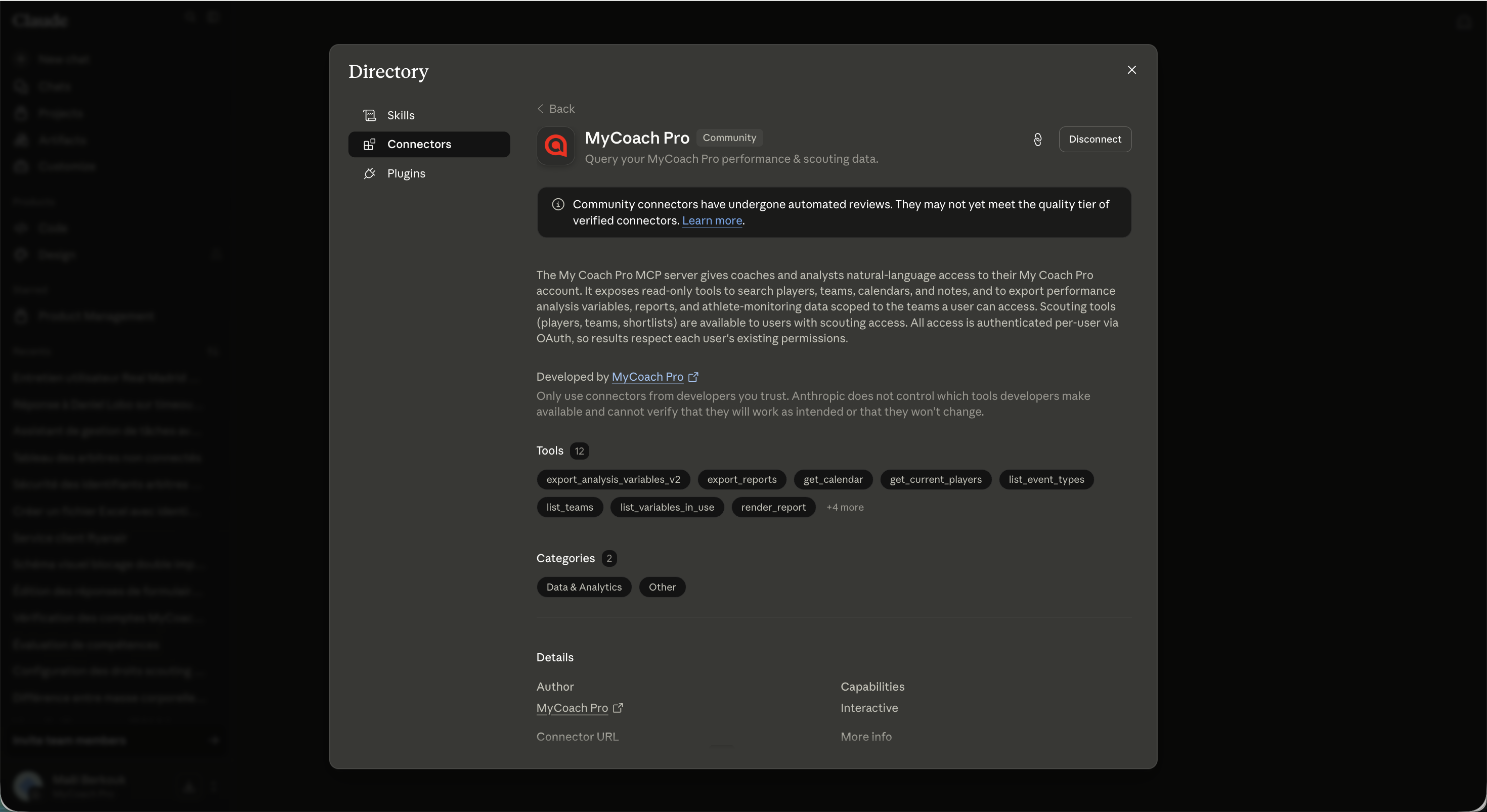
Open the MyCoach Pro listing, then click Connect.
-
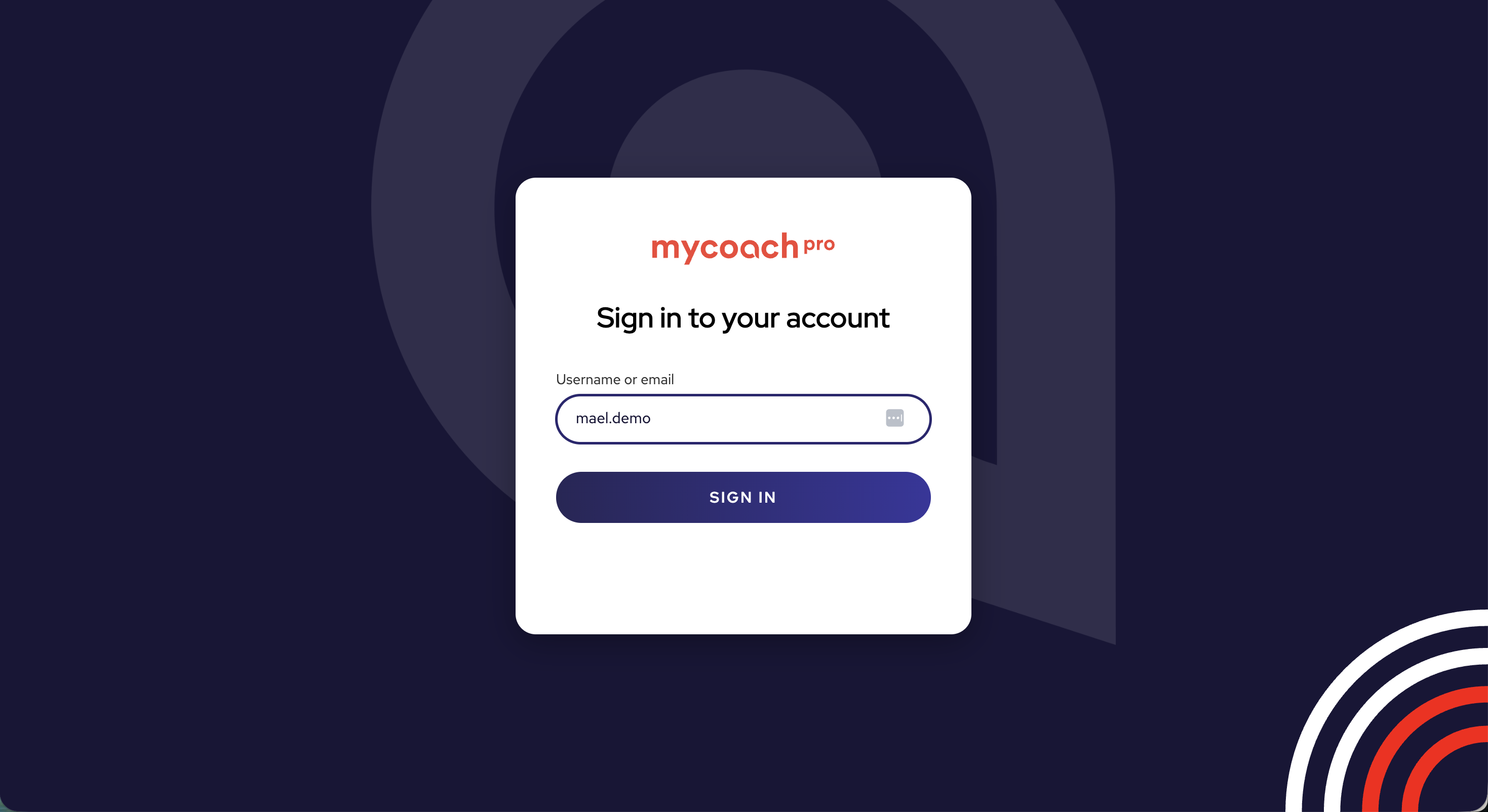
Enter your MyCoach Pro username, then SIGN IN.
-
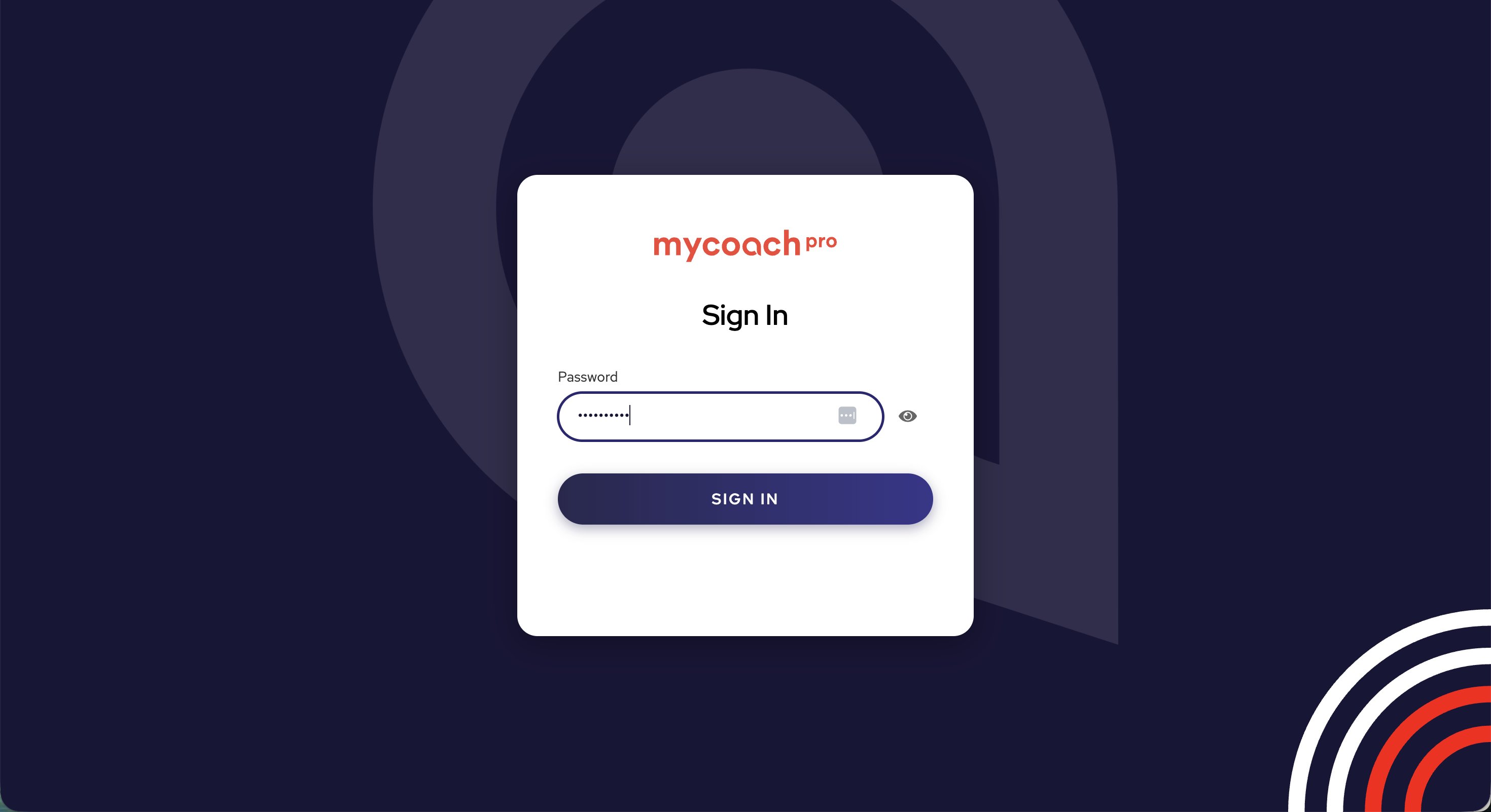
Enter your password, then SIGN IN.
-
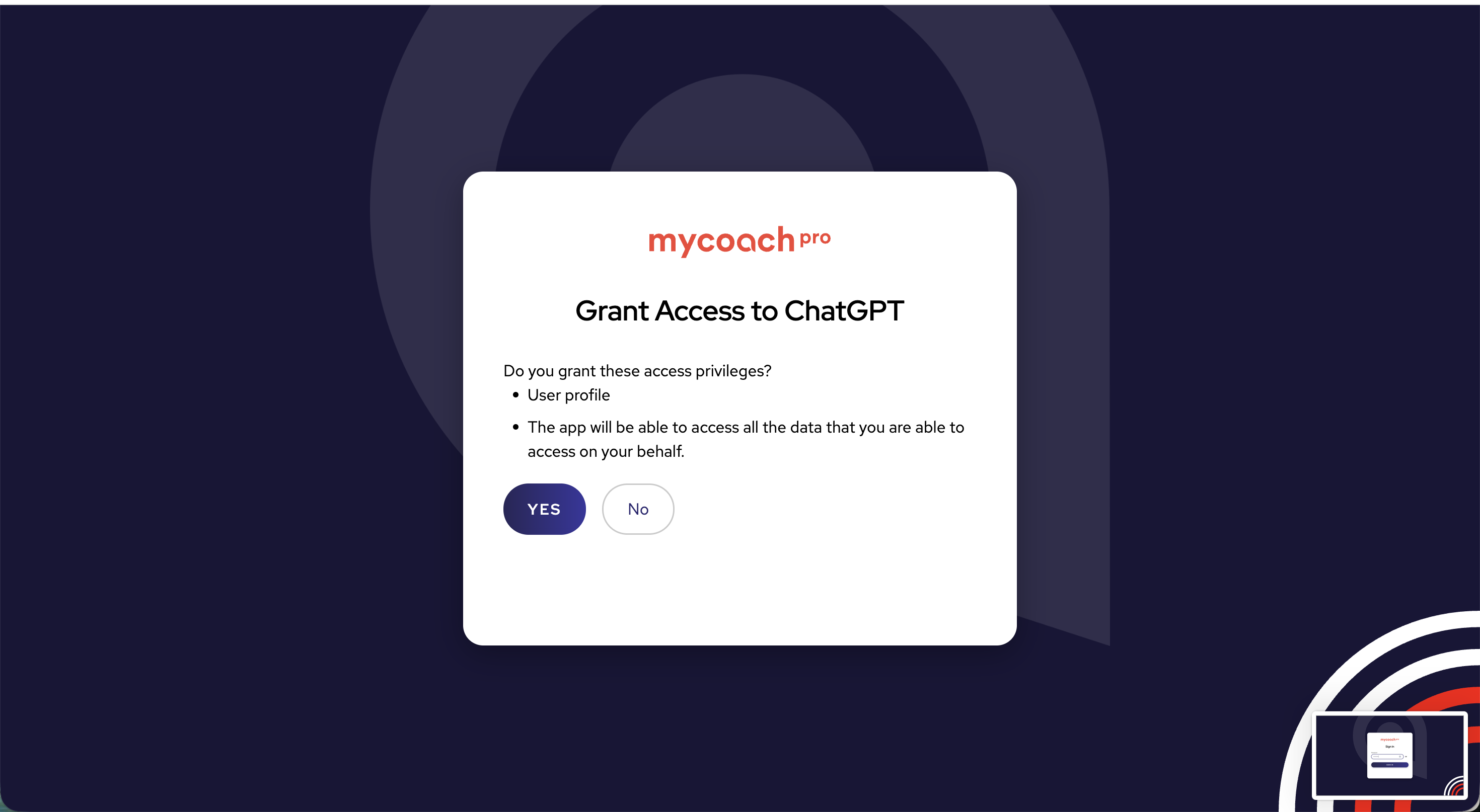
Grant access by clicking YES. The connection is confirmed.
-
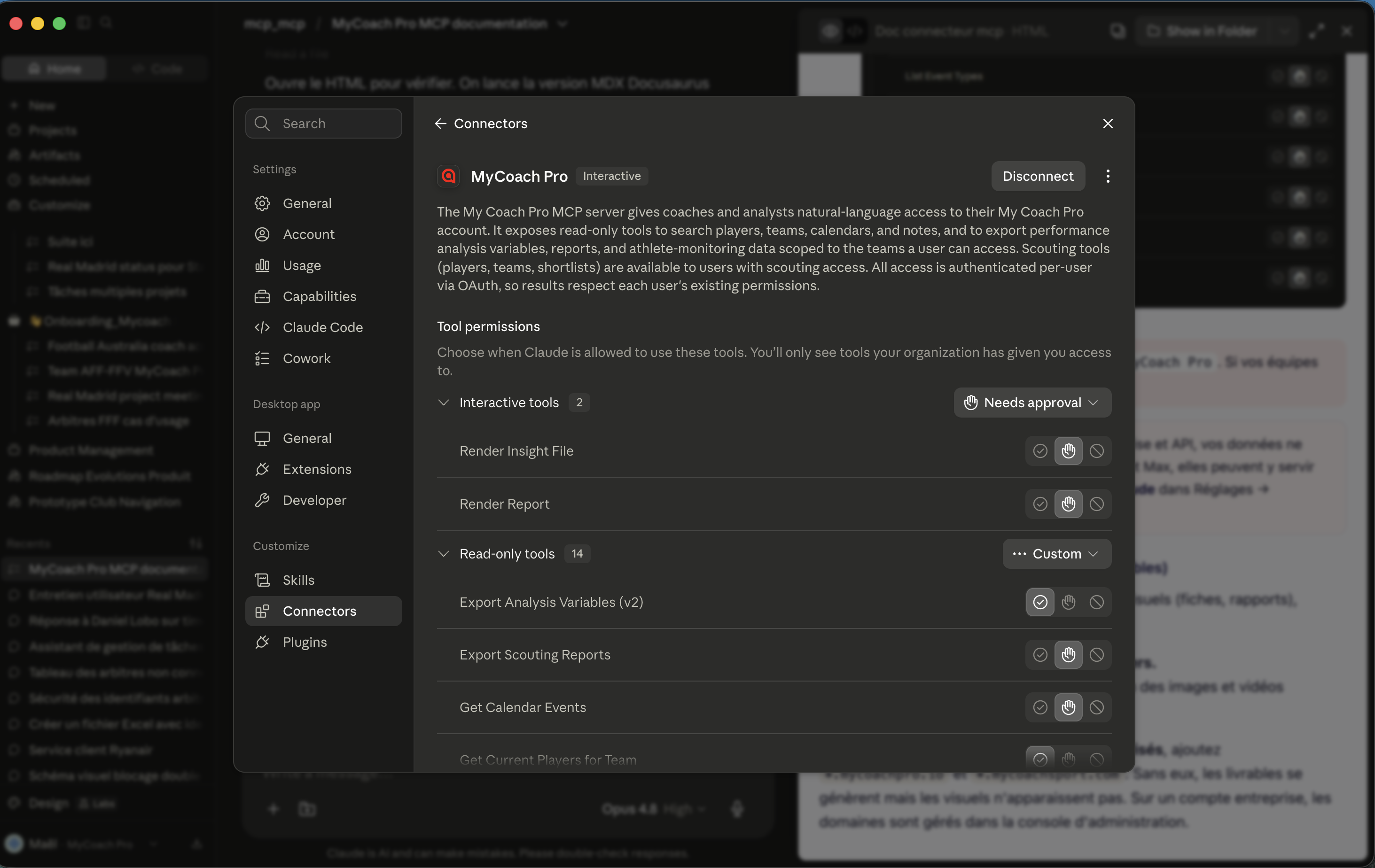
Choose which MyCoach Pro tools Claude is allowed to use. The connector is active by default, and can be disabled at any time.
To check it works: type List my teams in MyCoach Pro. If your teams appear, you're good to go.
On Team, Enterprise and API, your data is never used for training. On Free, Pro and Max, it may be used by default: turn off Help improve Claude in Settings → Privacy.
Enable capabilities (to generate deliverables)
For Claude to produce deliverables with visuals (sheets, reports), enable in Settings → Capabilities:
- Code execution and file creation.
- Allow network access (to fetch exercise images and videos).
Then, under Additional allowed domains, add *.mycoachpro.io and *.mycoachsport.com. Without them, deliverables are generated but visuals won't show up. On an enterprise account, domains are managed from the admin console.
ChatGPT
- Free — available. Enable Developer mode to add the connector.
- Plus / Pro — available. Enable Developer mode to add the connector.
- Business / Enterprise — an administrator enables Developer mode for the workspace.
The connector works on every plan, including free. The only requirement is to enable Developer mode once (see the dropdown below). On Business and Enterprise, an administrator enables it.
Enable Developer mode (one-time step)
-
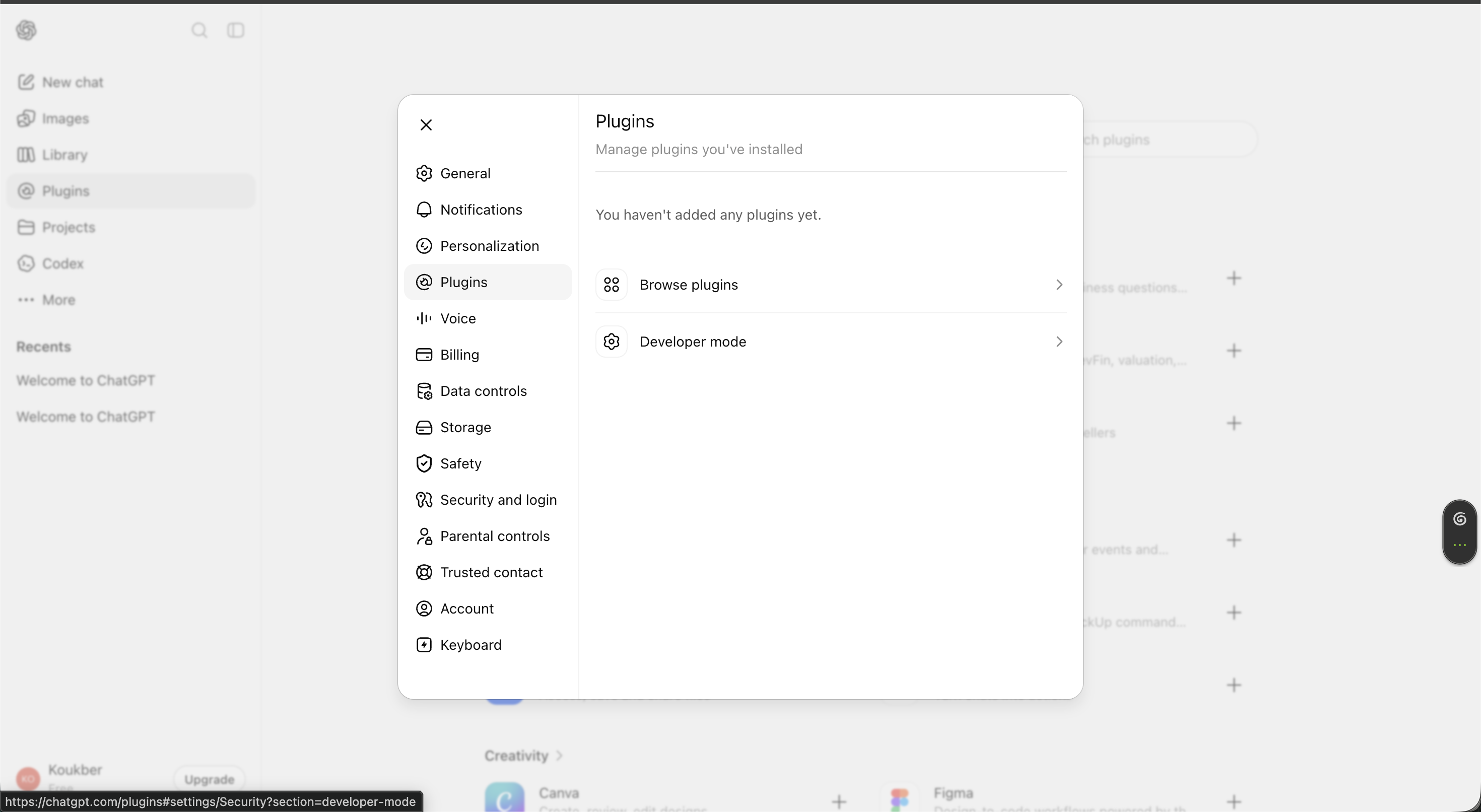
Open Settings → Plugins, then click Developer mode.
-
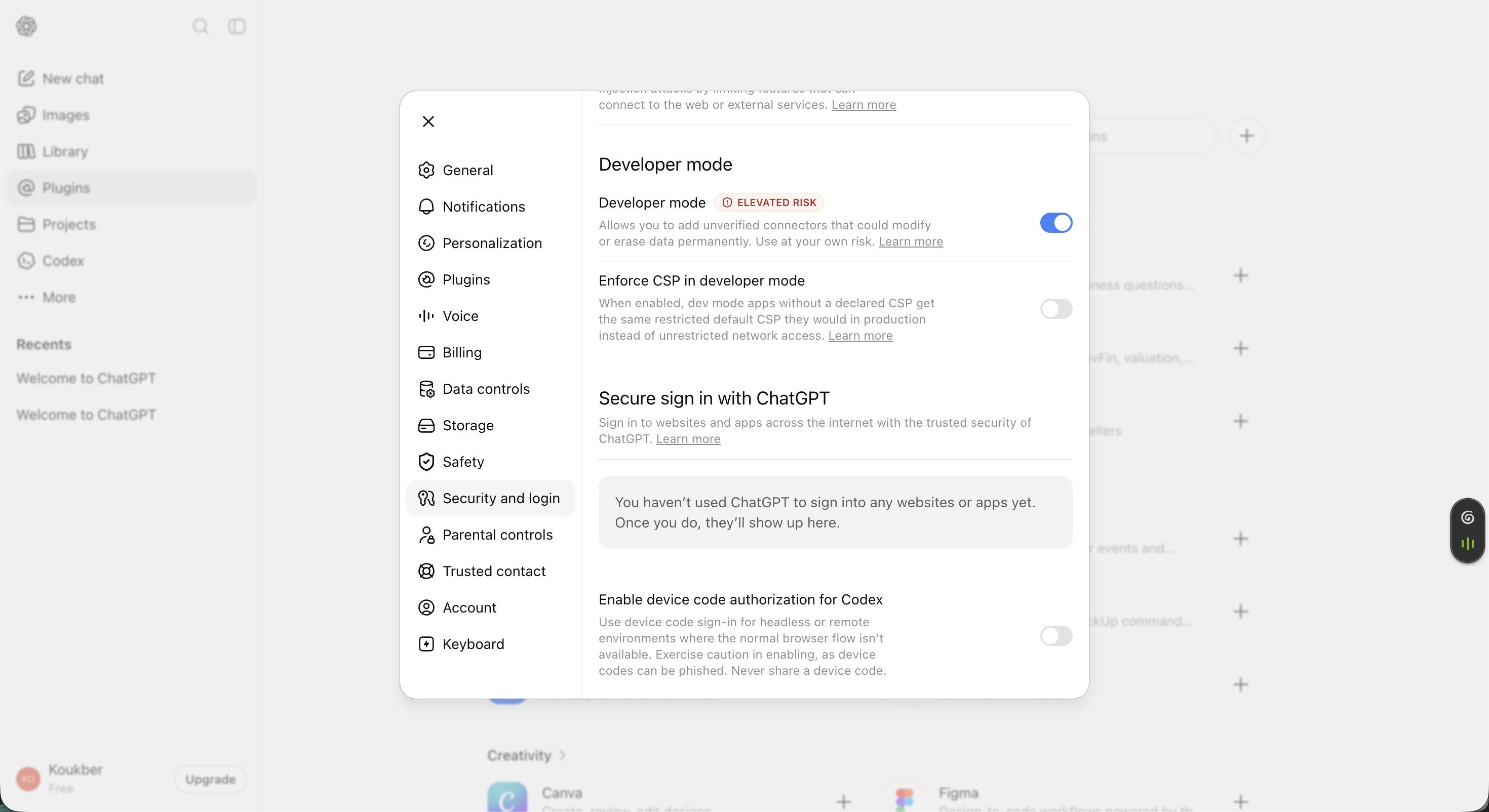
Under Security and login → Developer mode, turn on the toggle. ChatGPT shows a "high risk" warning: that's normal for a custom connector.
-
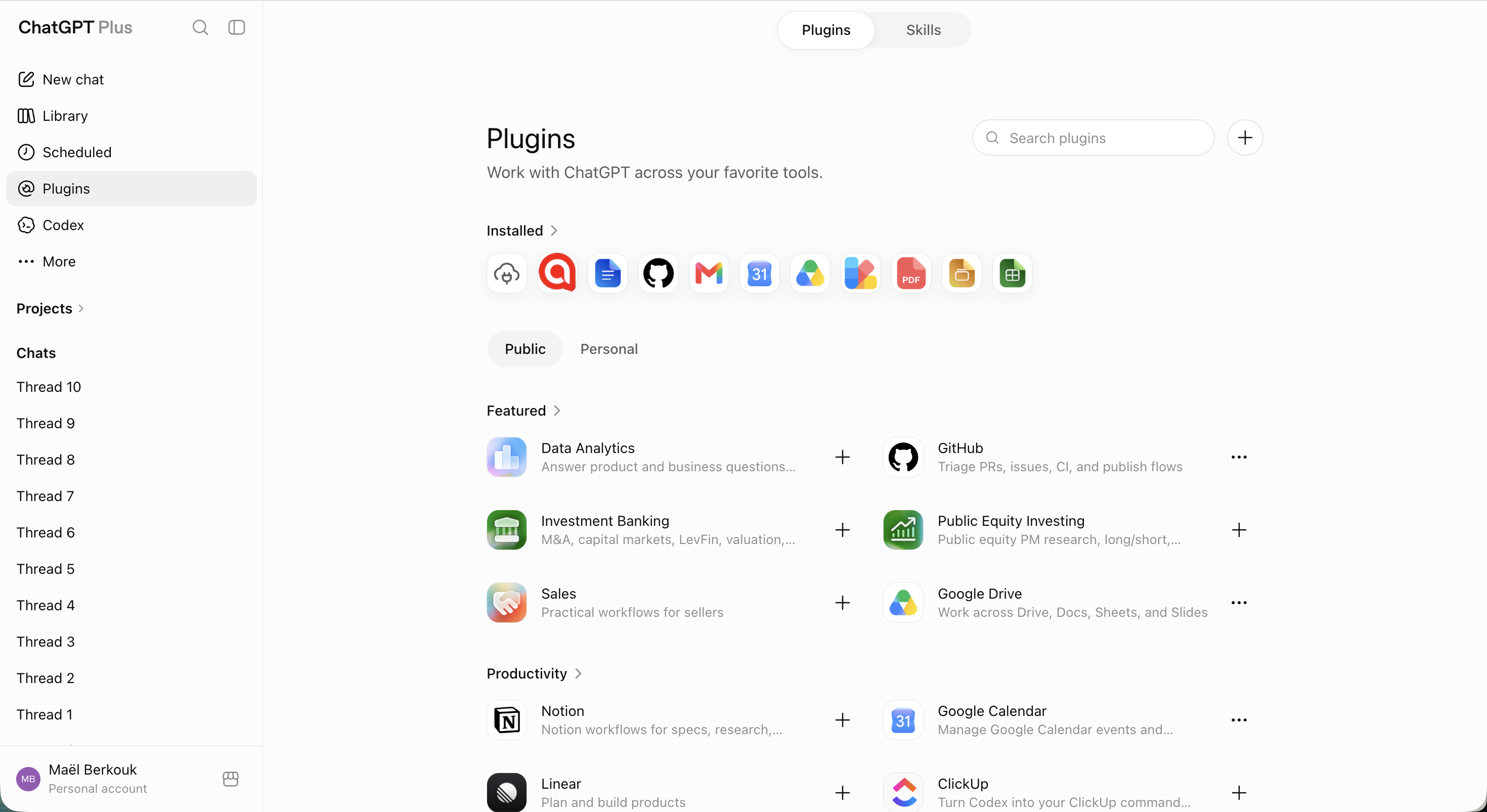
In the left menu, open Plugins, then click the + button in the top right.
-
Fill in the new plugin: a name (e.g. "MyCoach Pro"), Connection = Server URL with
https://mcp.mycoachpro.io/mcp, Authentication = OAuth (in Advanced OAuth settings, leave Client registration on Dynamic Client Registration (DCR)). Check I understand and want to continue, then Create.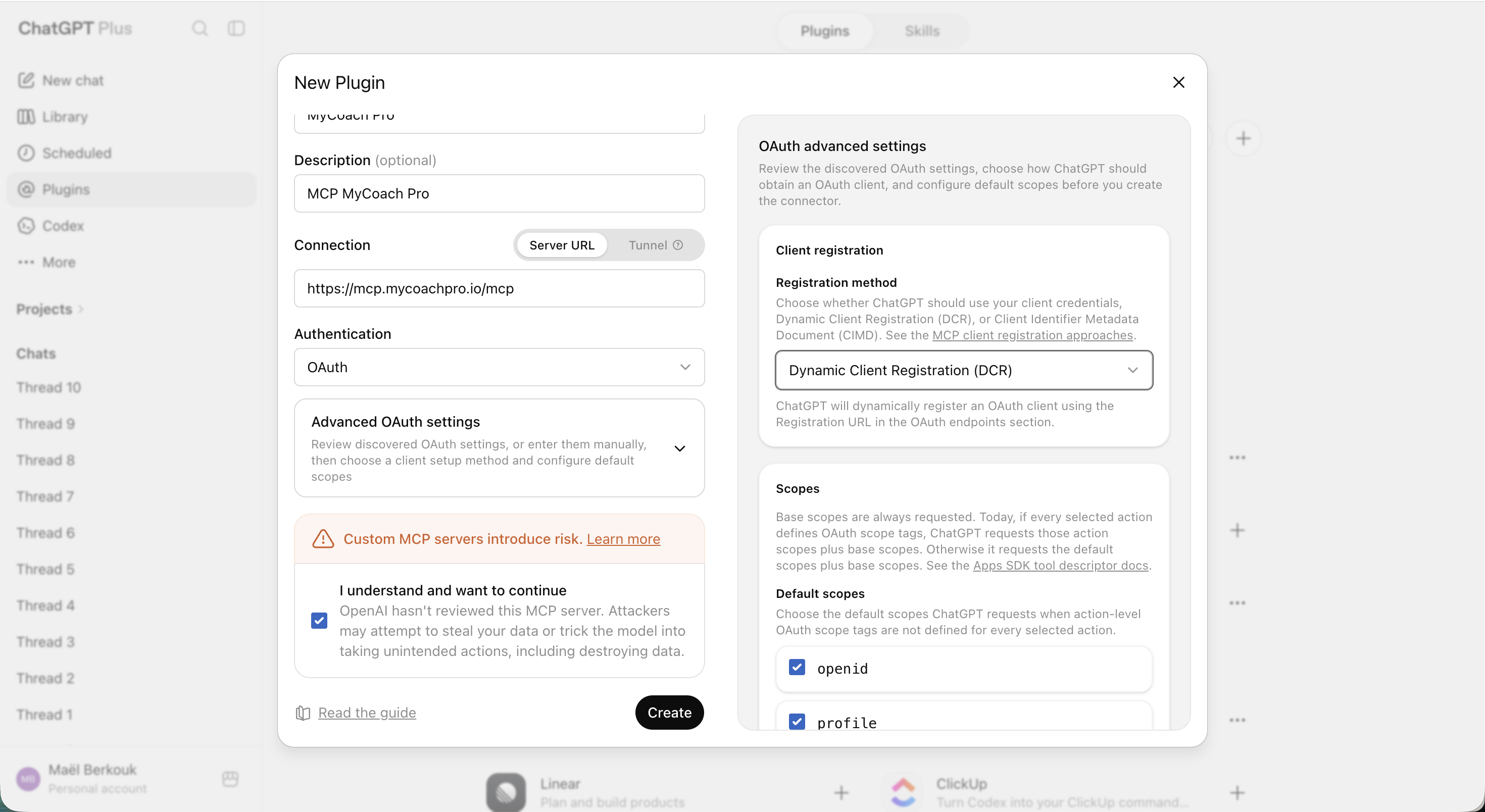
-
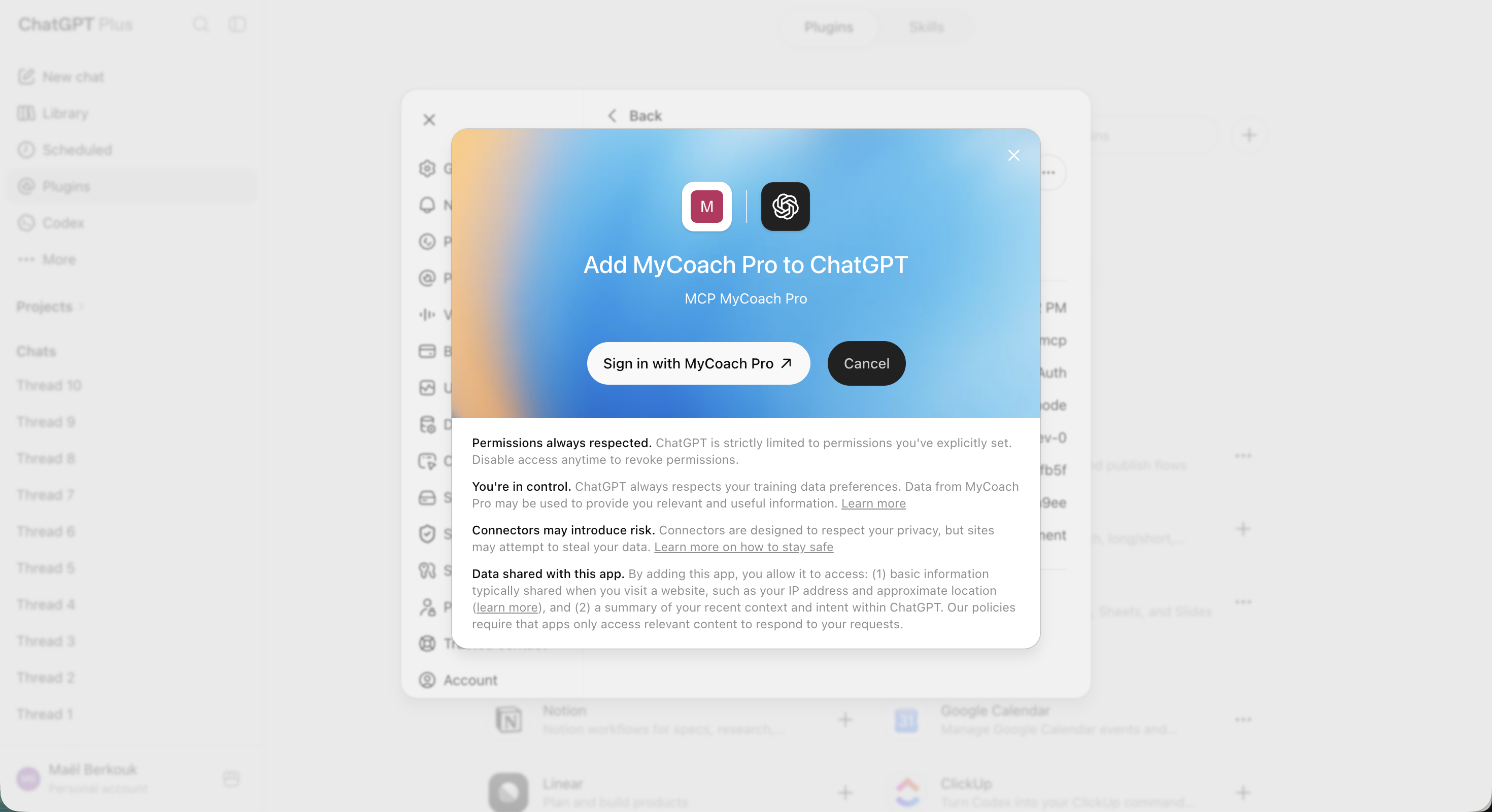
Click Sign in with MyCoach Pro.
-
Enter your MyCoach Pro username, then SIGN IN.
-
Enter your password, then SIGN IN.
-
Grant access by clicking YES.
To check it works: type List my teams in MyCoach Pro. If your teams appear, you're good to go.
On Business, Enterprise and API, your data is never used for training. On Free, Plus and Pro, it's used by default: turn off Improve the model for everyone in Settings → Data controls.
Mistral
- Free / Pro / Student — available. You add it yourself.
- Teams / Enterprise — available. You add it yourself.
-
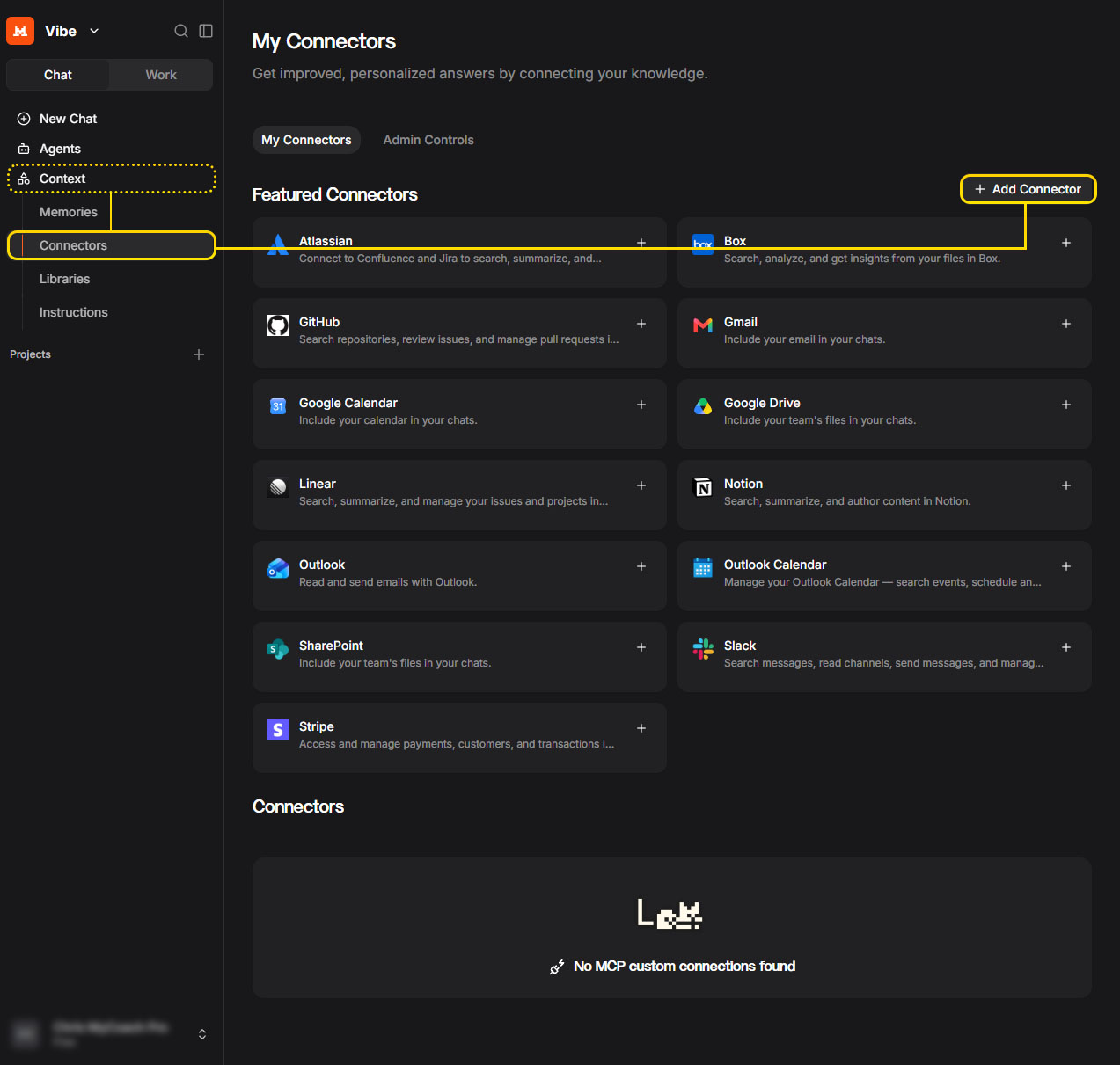
In Mistral, go to Context, then Connectors, then + Add connector.
-
On the Custom MCP connector tab, give it a title, and enter the URL
https://mcp.mycoachpro.io/mcpin Connector server. Leave the suggested OAuth 2.1, choose the visibility, then Connect.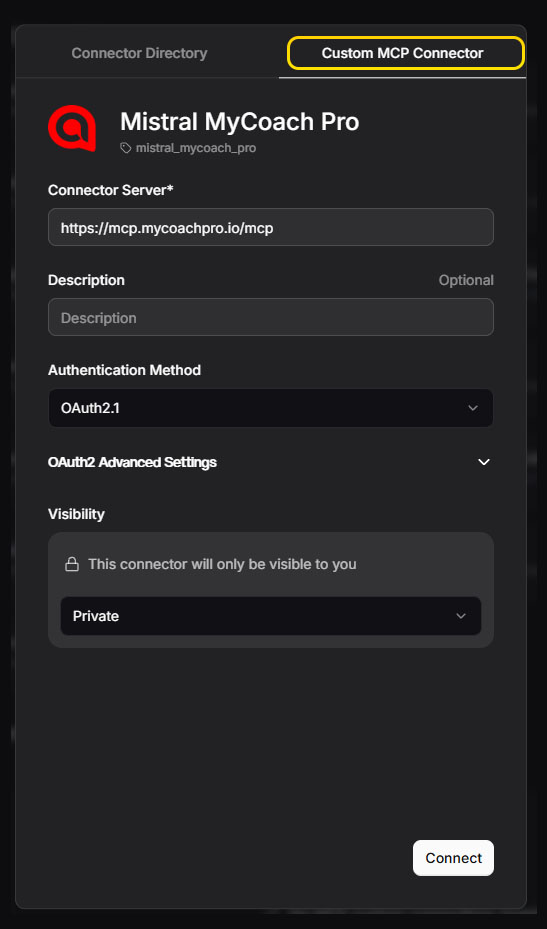
-
Enter your MyCoach Pro username, then SIGN IN.
-
Enter your password, then SIGN IN.
-
Grant access by clicking YES, then open a New chat: the connector is active.
To check it works: type List my teams in MyCoach Pro. If your teams appear, you're good to go.
On Teams and Enterprise, your data is never used for training. Otherwise, turn off Allow your interactions to be used to train our models (Admin Console → Le Chat → Privacy), or uncheck Enable data sharing on mobile.
Lovable
- Free / Pro — available. You add it yourself.
- Business / Enterprise — available. You add it yourself.
-
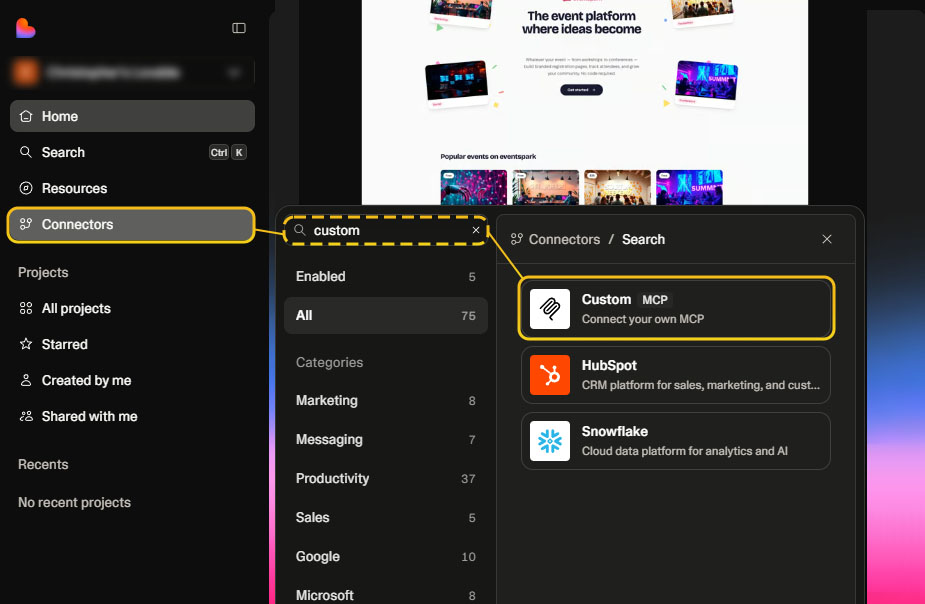
In Lovable, go to Connectors, search for Custom MCP and select it.
-
Fill in the name, the URL
https://mcp.mycoachpro.io/mcp, the OAuth authentication, then Add & Authorize.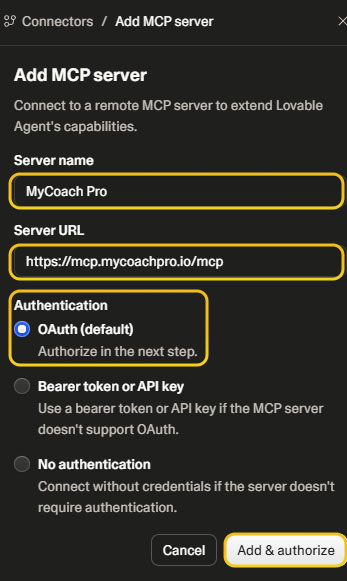
-
Enter your MyCoach Pro username, then SIGN IN.
-
Enter your password, then SIGN IN.
-
Grant access by clicking YES.
To check it works: type List my teams in MyCoach Pro. If your teams appear, you're good to go.
Lovable does not train its models on your identifiable data. Full opt-out via Settings → Privacy & security (Business / Enterprise) or on request to support (Free / Pro).
Dust
- All plans — available. Your data is never used for training and is not retained on the model side. Nothing to configure.
-
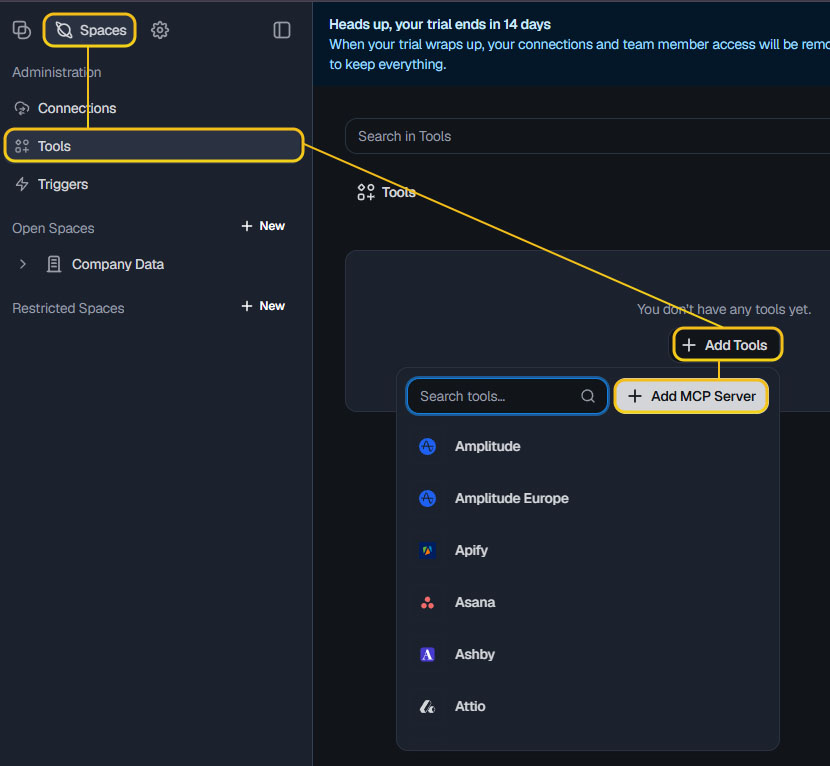
In Dust, go to Spaces, Tools, Add tools, then Add MCP server.
-
Enter the URL
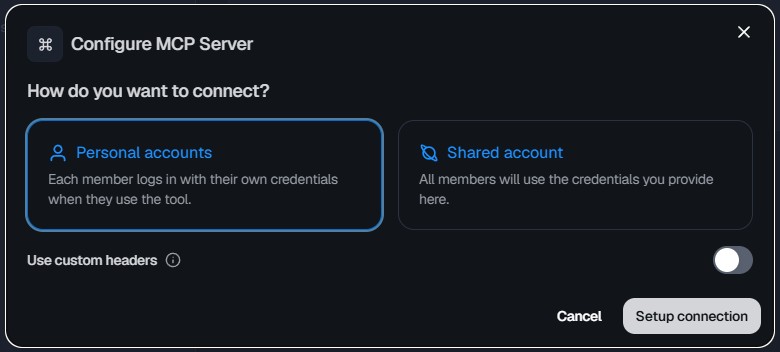
https://mcp.mycoachpro.io/mcp, leave authentication on Automatic, then Save. Choose Personal accounts, then Setup connection.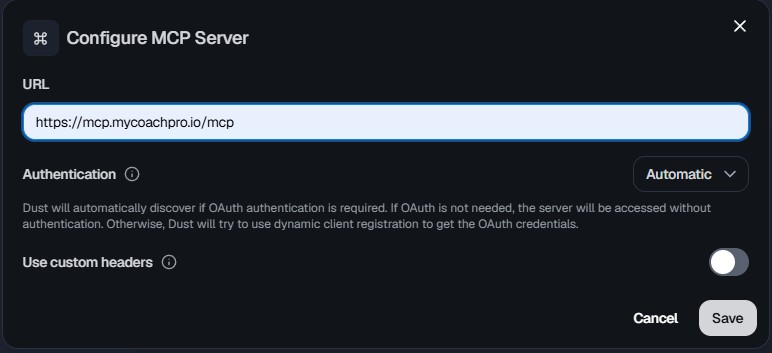
-
Enter your MyCoach Pro username, then SIGN IN.
-
Enter your password, then SIGN IN.
-
Grant access by clicking YES.
To check it works: type List my teams in MyCoach Pro. If your teams appear, you're good to go.
Zero Data Retention. Your data is never used for training and is not retained on the model side. Nothing to configure.
Security and privacy
How it works
Data is entered into MyCoach Pro, stored, then exposed via the API. The MCP connector sits between the API and your assistant and checks your rights on every request. The assistant can never access more than what you can see in MyCoach.
Rights granted on a per-user basis
Even in an equipped club, access is not automatic. It's MyCoach Pro that opens rights, person by person. A user with rights only sees their own scope (their teams, their hubs).
Read-only
The connector never modifies a session, a player, or a stat. The only possible write action is dropping a deliverable into an Insight Hub, always with your confirmation.
Troubleshooting
The assistant can't find MyCoach Pro
Check that the connector is enabled and that your account has been granted MCP access by MyCoach.
Authorization error (403)
The connected account doesn't have access to the requested team. Sign in again or choose a team within your scope.
Images or videos aren't showing up
The domains *.mycoachpro.io and *.mycoachsport.com aren't allowed, or network access is disabled.
The + button doesn't appear in Plugins (ChatGPT)
Enable Developer mode in Settings → Security and login, or check that your plan allows it.
Another question?
Contact support@mycoachpro.io, we're here to help.
Need help
Write to support@mycoachpro.io for activation, rights, or any question about the connector.