Plan player observations
Observation planning lets you assign a scout to observe one or more matches, based on the Opta fixtures. It is launched from the Scouting menu, via the Plan player observations entry.
The process has two stages:
- Search for matches: period, player, team or competition.
- Review the plan: summary, then confirmation.
Any scout can plan observations.
Search for matches
-
In the Scouting menu, open Plan player observations.
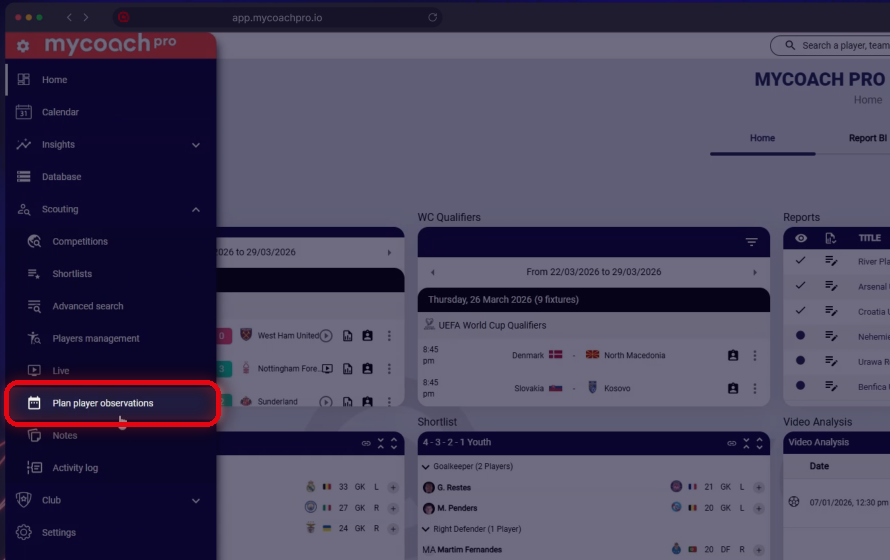
The Plan player observations entry in the Scouting menu
-
Choose the period in the Date range field:
- a preset (last week, next two weeks, etc.);
- or a Custom period, for which you enter the start and end dates.
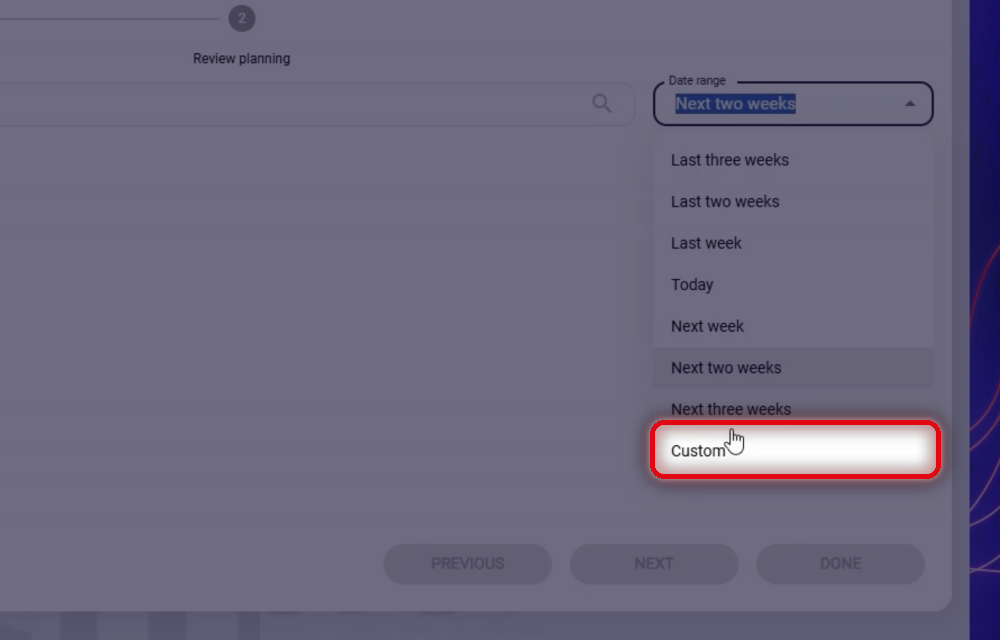
The period presets and the Custom option
-
Search for a player, a team or a competition, then select the result you want. The matching fixtures for the period are displayed.
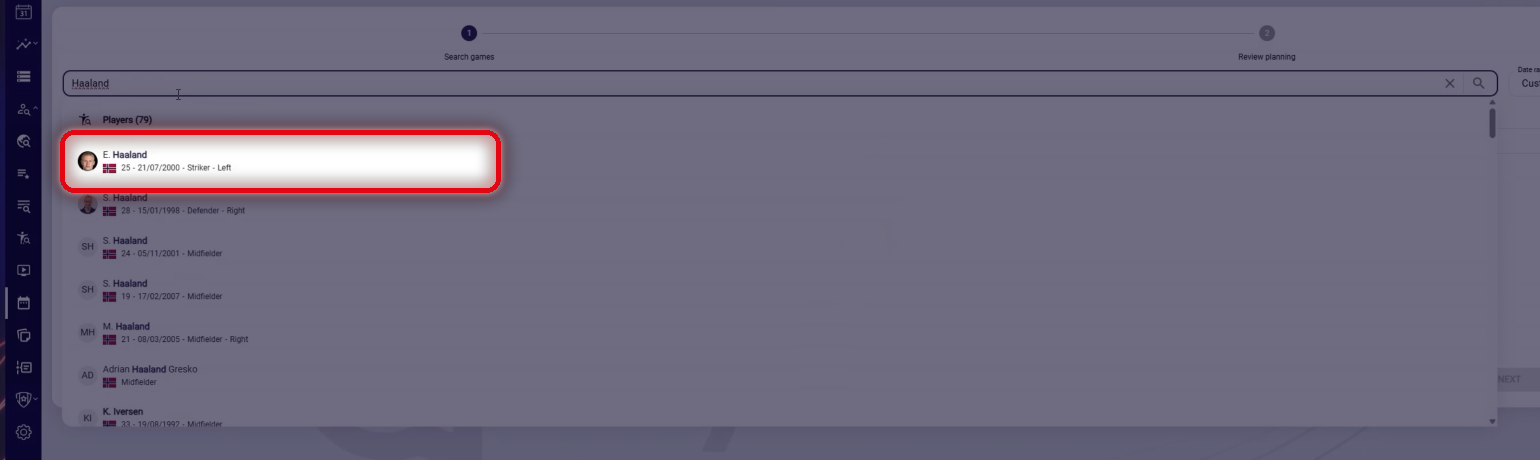
Searching for a player
tipThe search works like MyCoach Pro's global search, on the Opta fixtures.
-
To plan several matches at once, turn on Multiple selection.
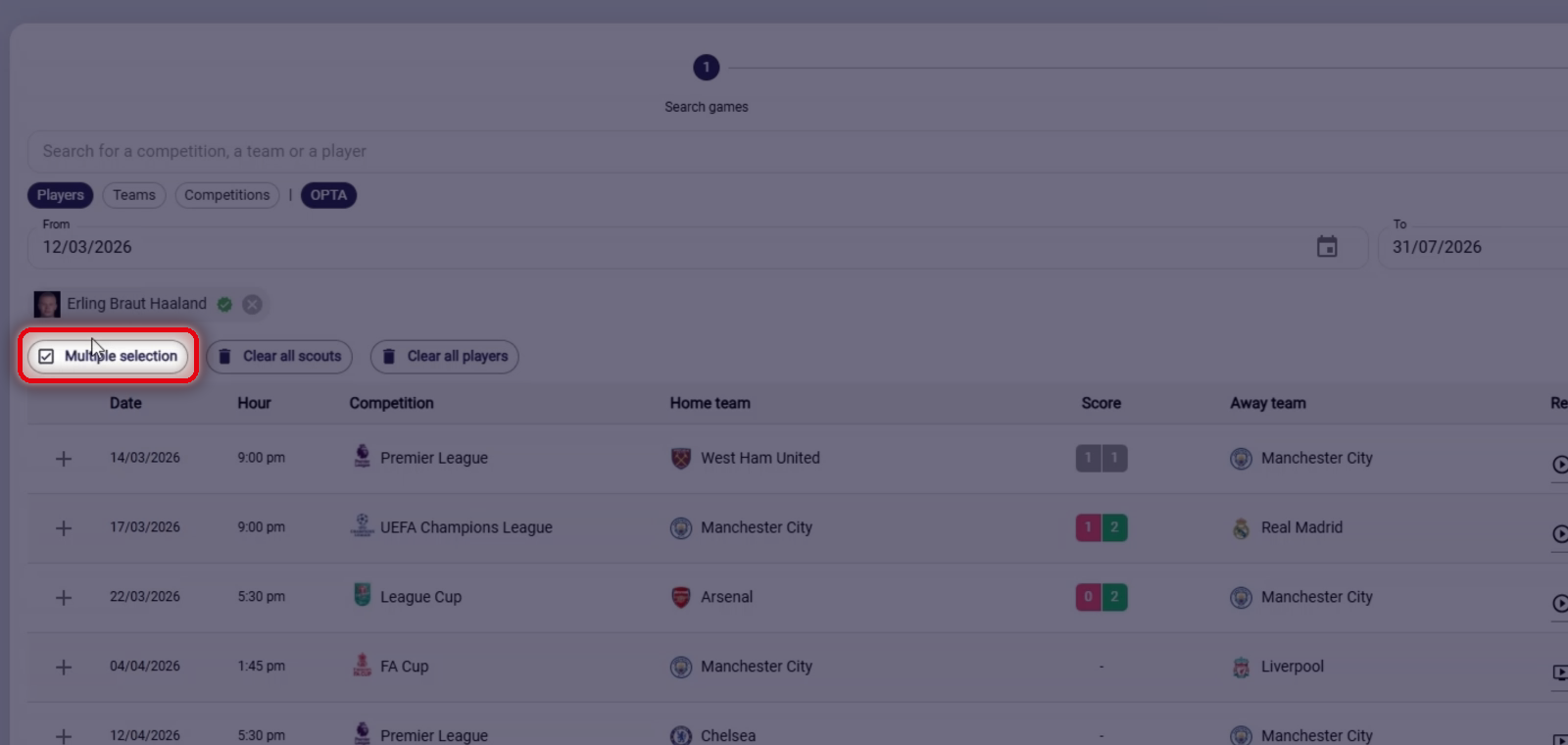
The Multiple selection button
-
Tick the matches to plan, one by one or all at once with the header checkbox. The counter shows how many matches are selected.
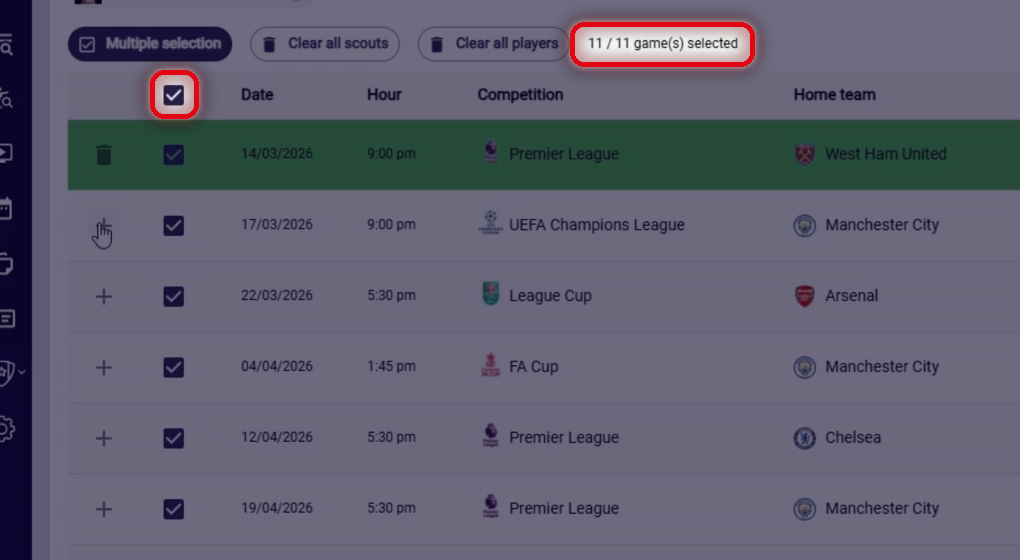
Match selection and the counter
-
For each match, assign the report type, the form and the scout.
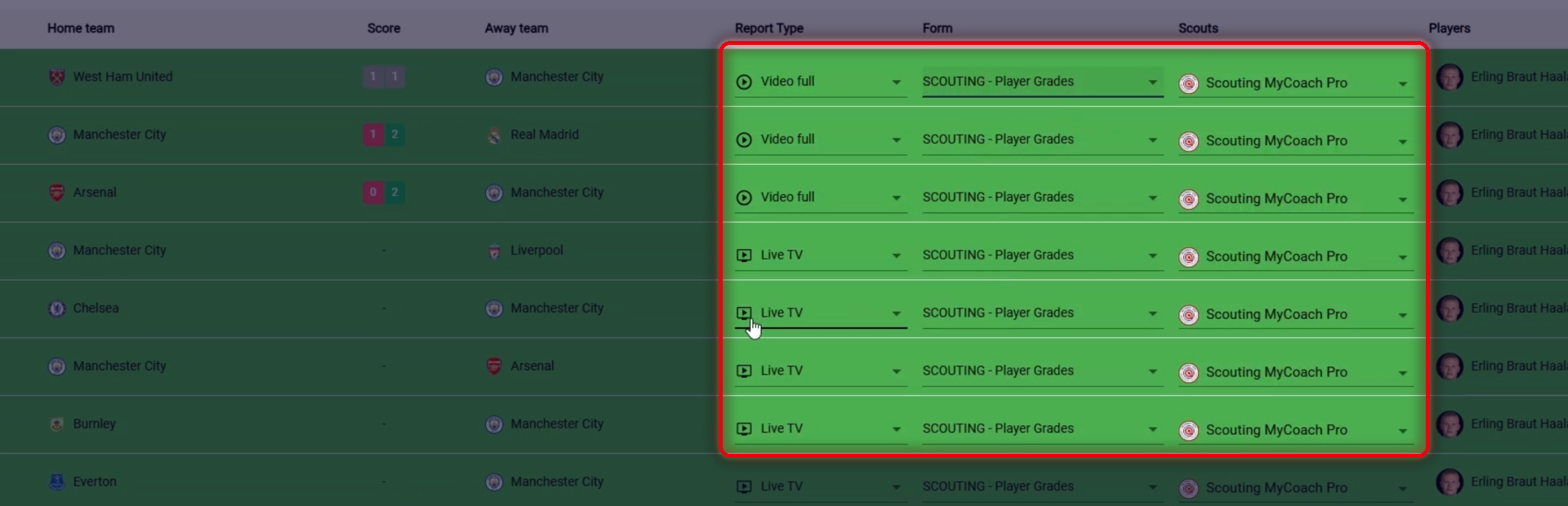
The report type, form and scout columns
Assigning observationsThe report type, form and scout are assigned manually, match by match. With Multiple selection, you can apply the same choices to all the selected matches.
-
Click Next to go to the summary.
The Next button
Review the plan
-
Check the plan, then click Done.
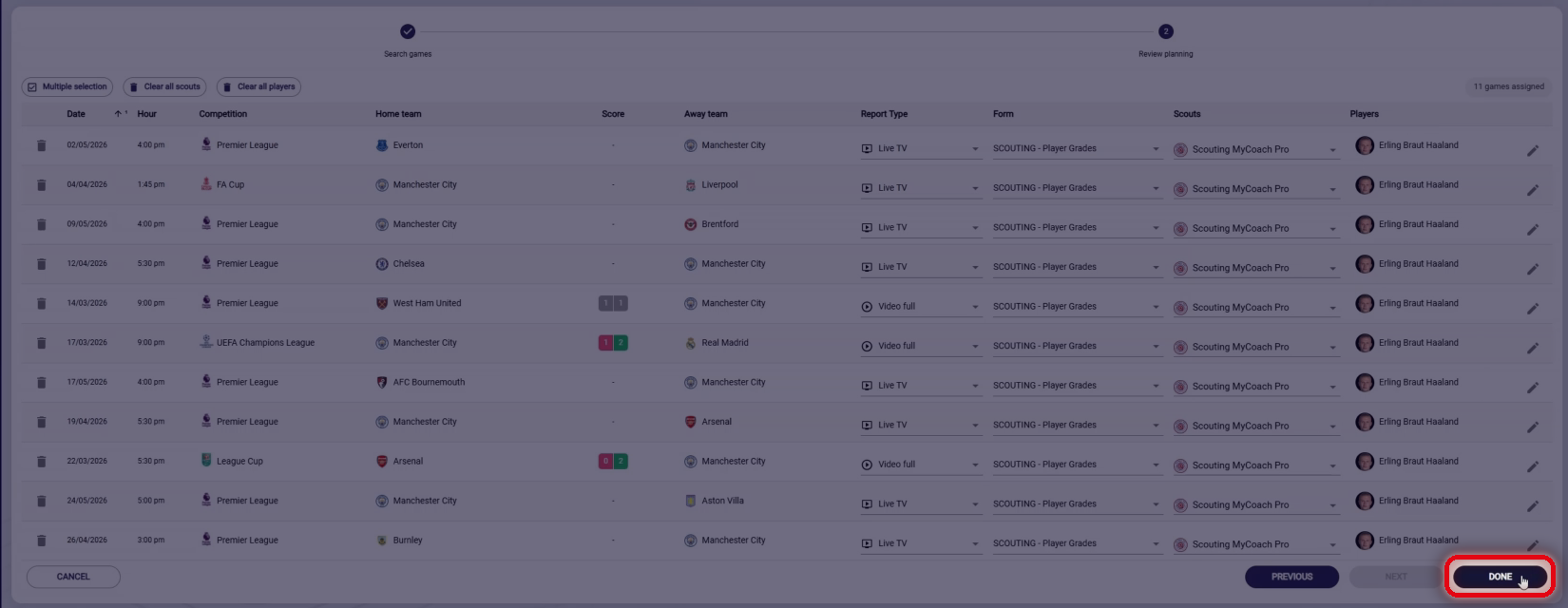
The plan summary and the Done button
-
A message confirms that the observations have been assigned, and the calendar is displayed.
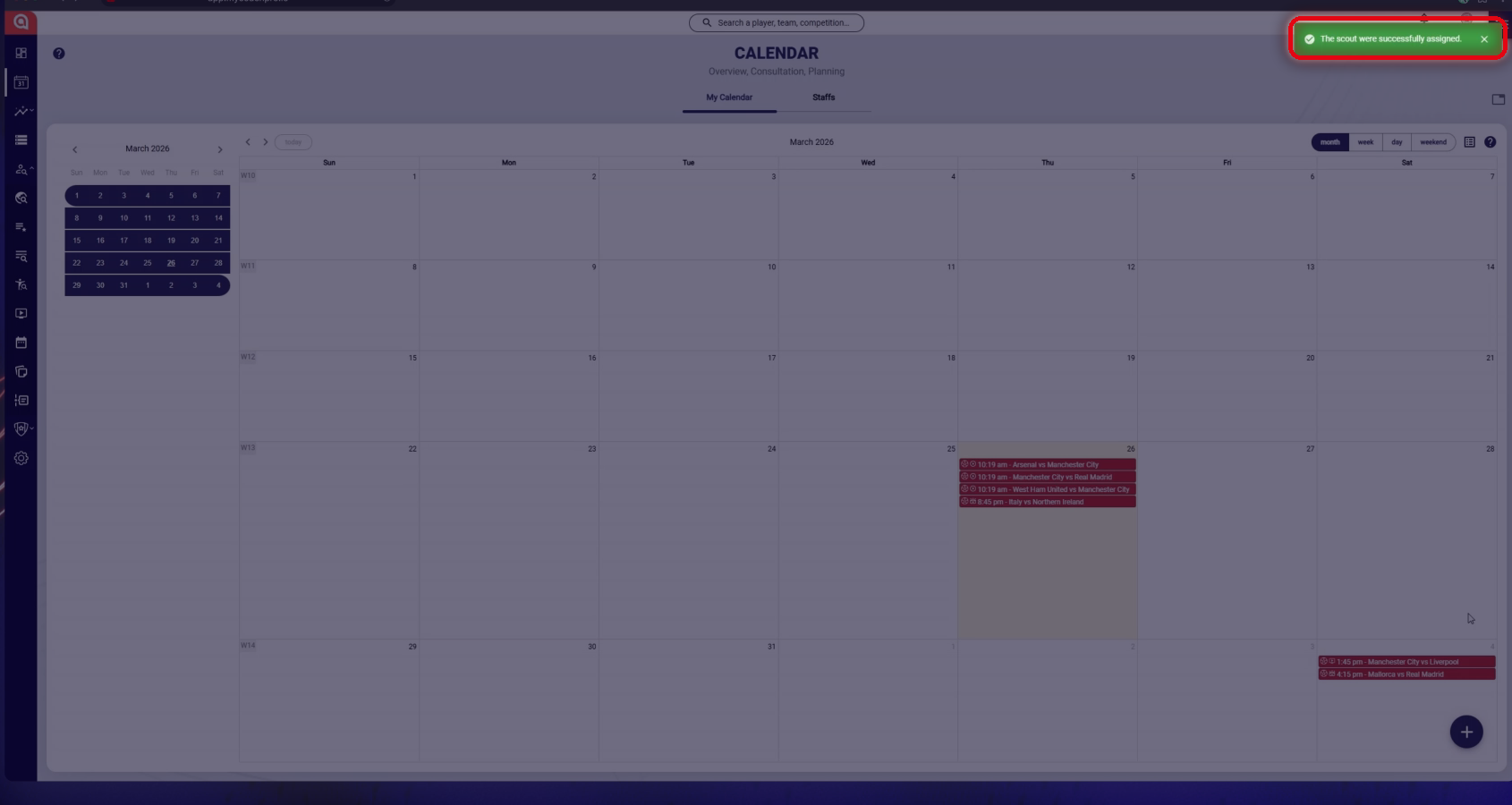
The confirmation message in the calendar
After planning
- The assigned scout receives a notification, on mobile and on the web.
- The assignee can change the assignment.
- Planned observations are visible in the calendar.
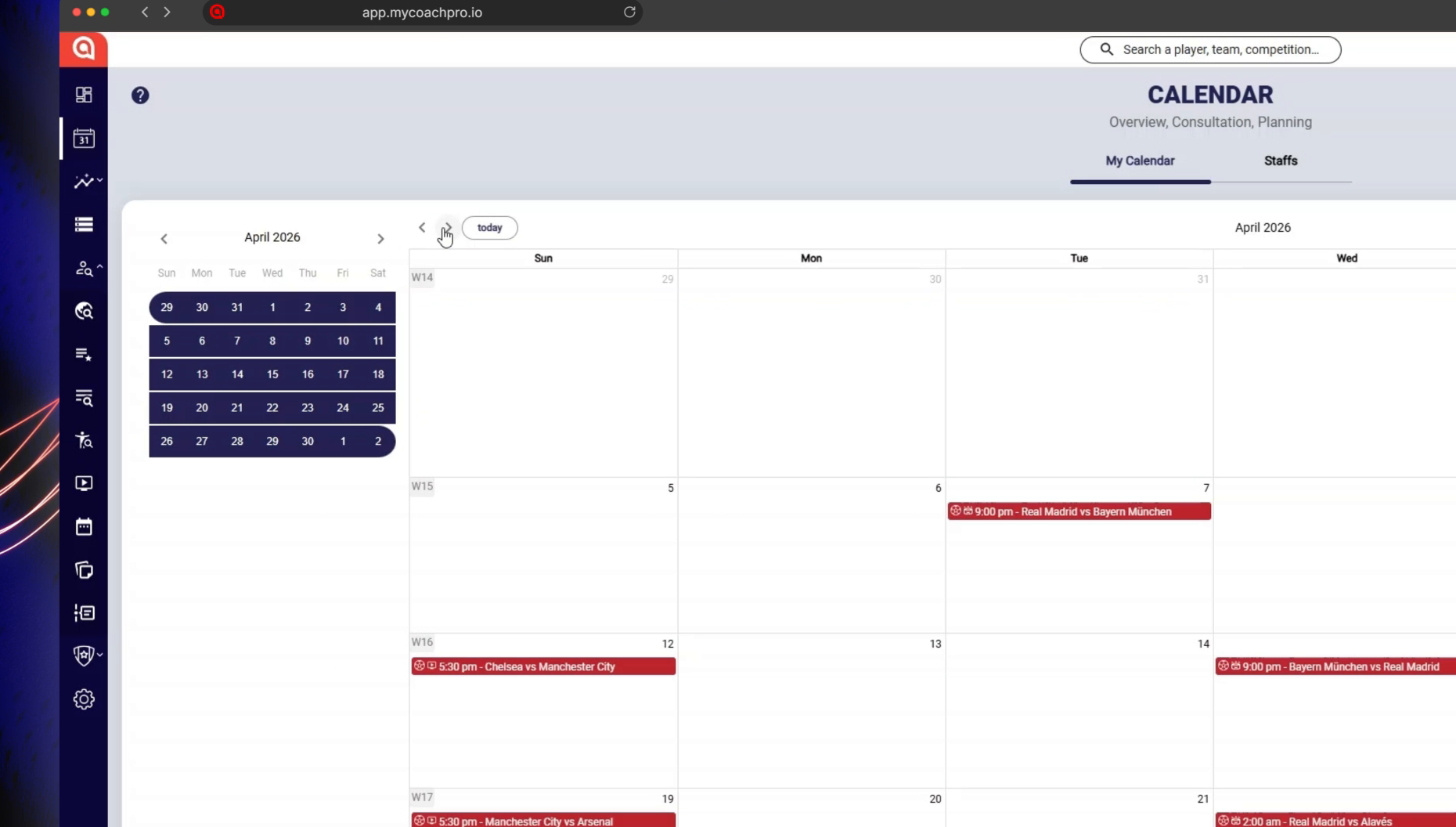
Observations in the calendar
Need help
Email support@mycoachpro.io with any questions about planning observations.