Manage your shortlists
Once created, a shortlist is managed from its page:
- organize players: distribution by position, statuses and display views;
- share and file: access management and folders.
Organize players
-
Open a shortlist from the Shortlists page.
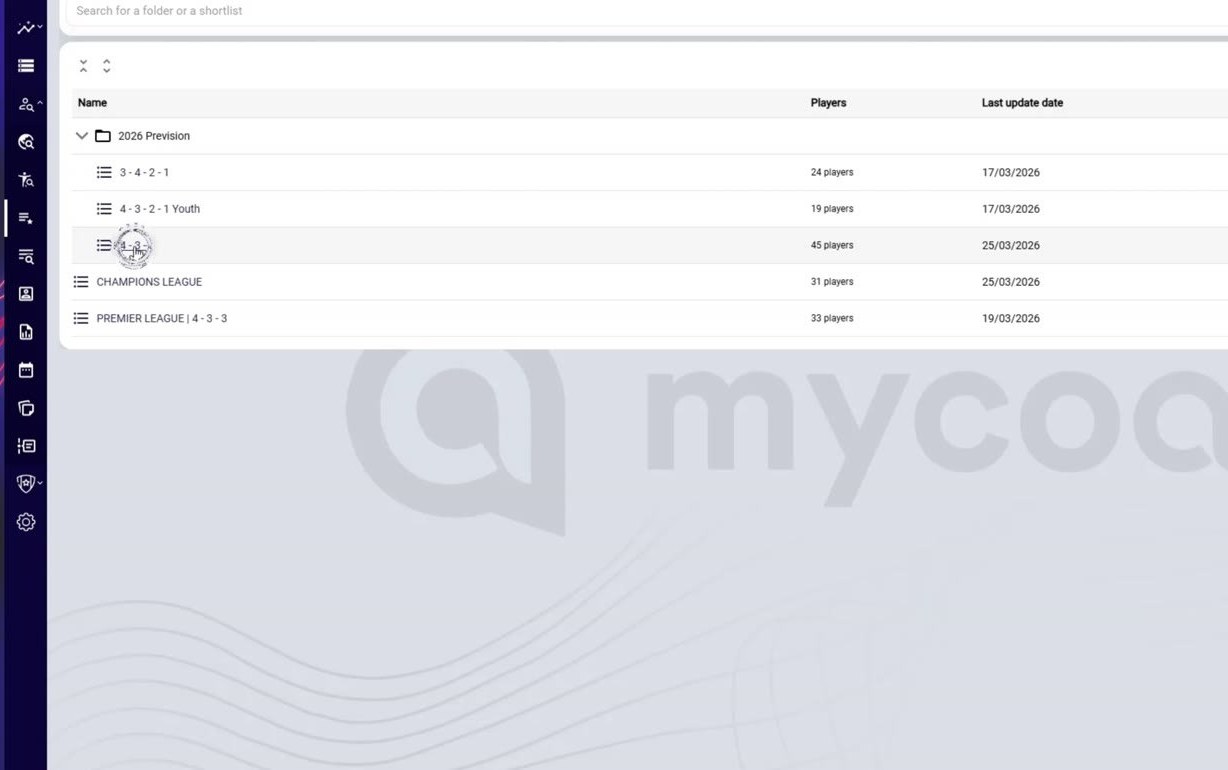
Open a shortlist from the Shortlists page
-
Players are grouped by category, on the table and the pitch.
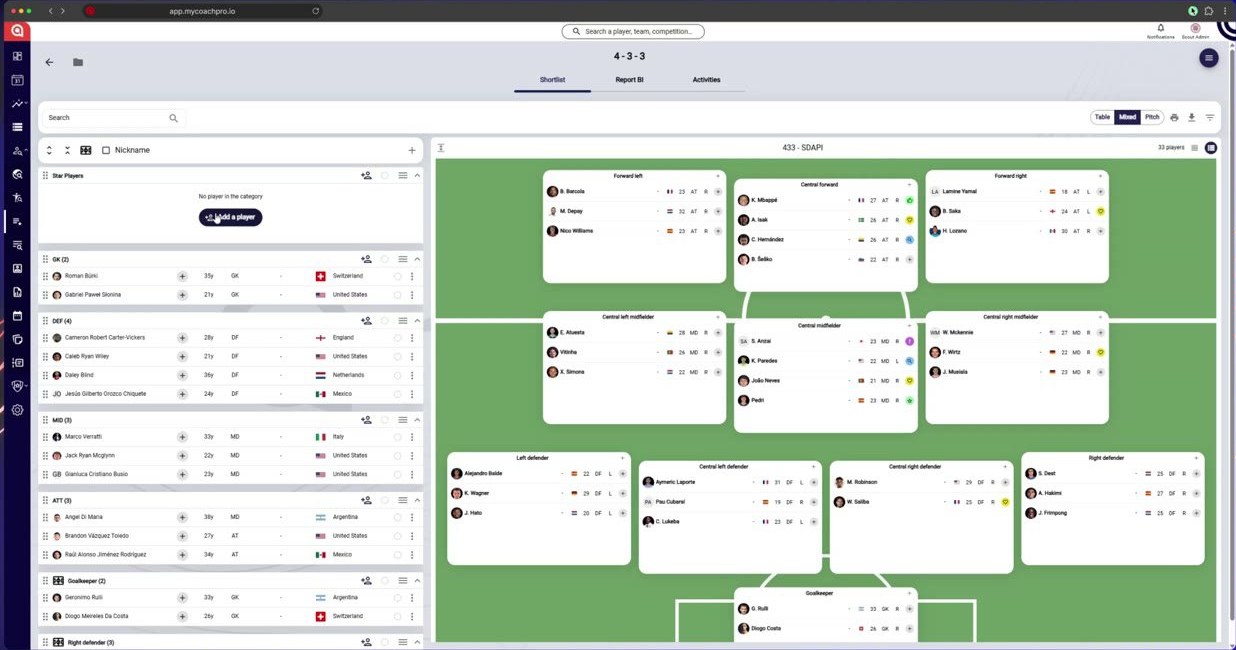
Players are grouped by category, on the table and the pitch
-
Move a player by drag and drop.
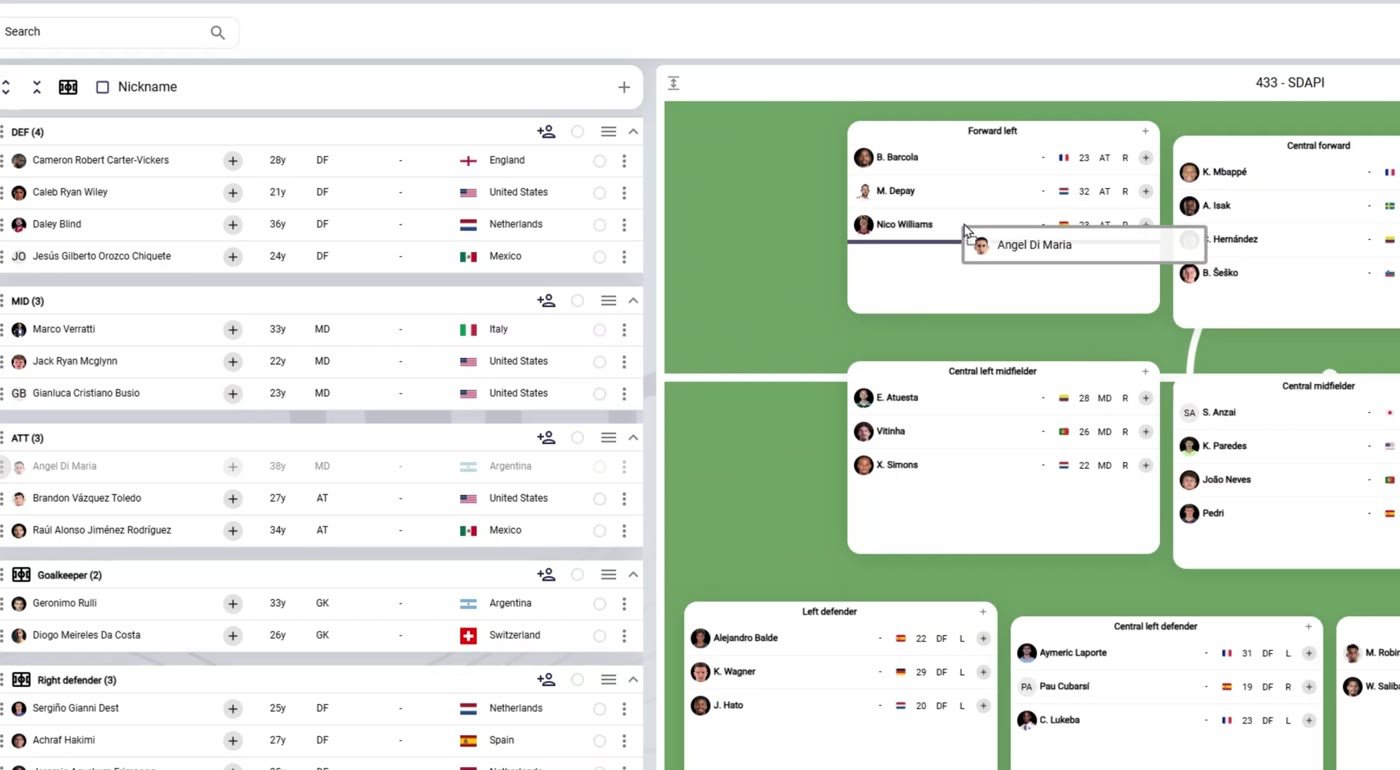
Move a player by drag and drop
-
Change a player's status.
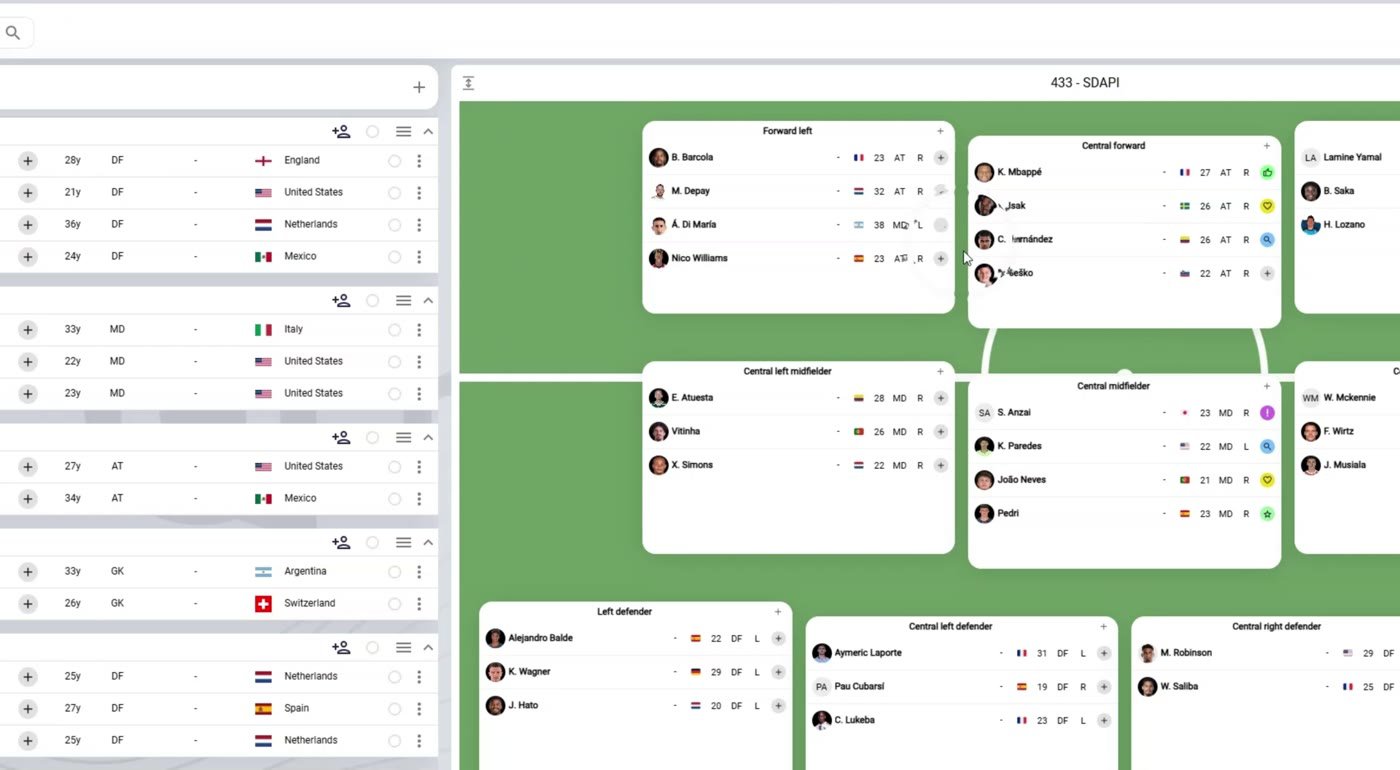
Change a player's status
-
Switch between the Table, Mixed and Pitch views.
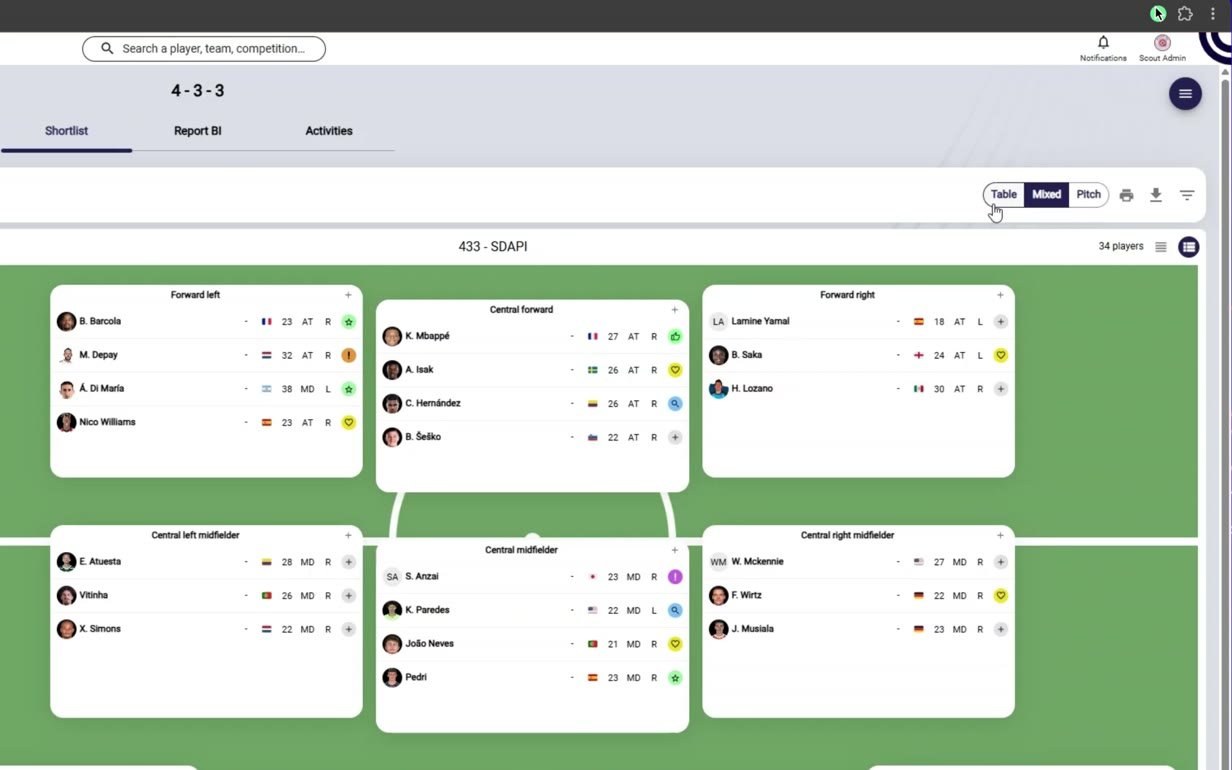
Switch between the Table, Mixed and Pitch views
Share and file
-
To share a shortlist, click Manage access.
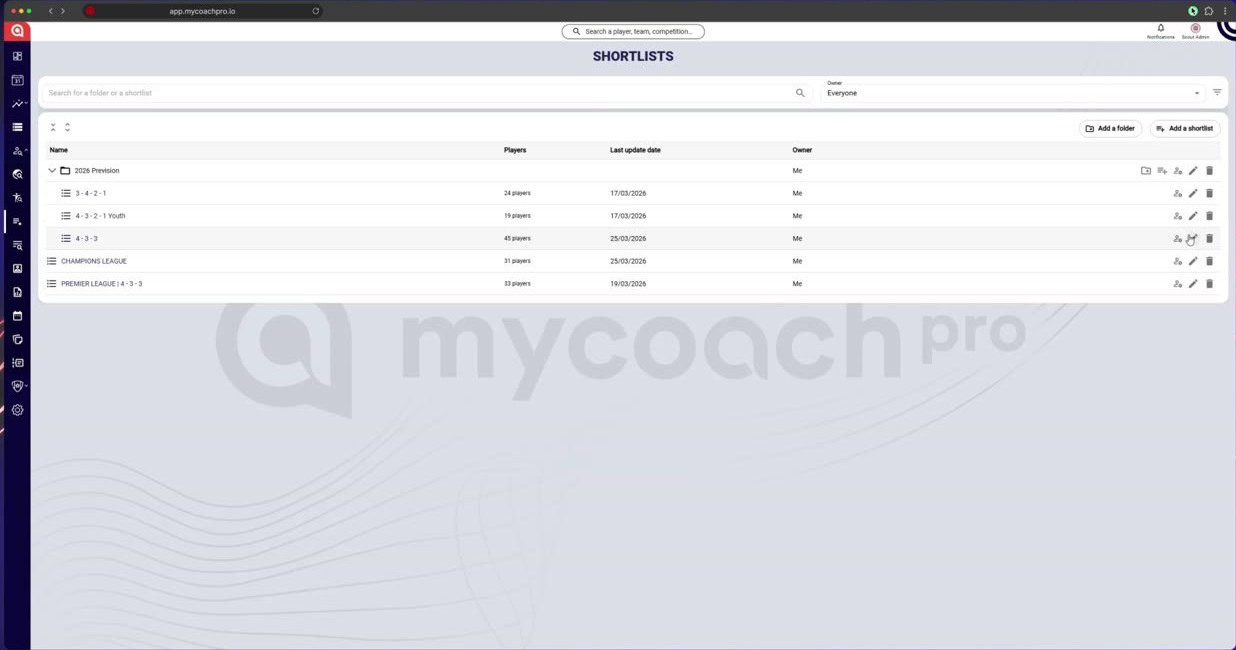
To share a shortlist, click Manage access
-
Add a user or a group, choose their role, then click Save.
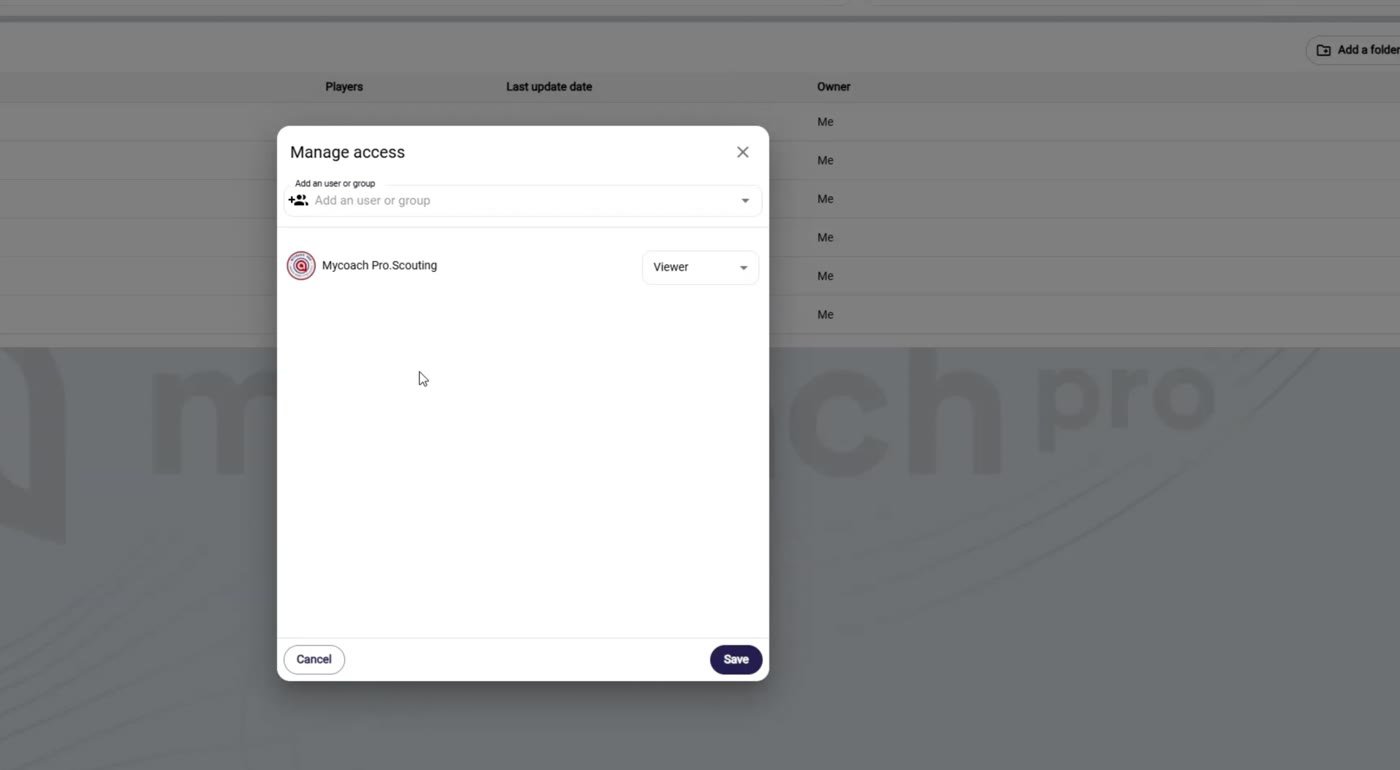
Add a user or a group, choose their role, then Save
-
Drag a shortlist into a folder to file it.
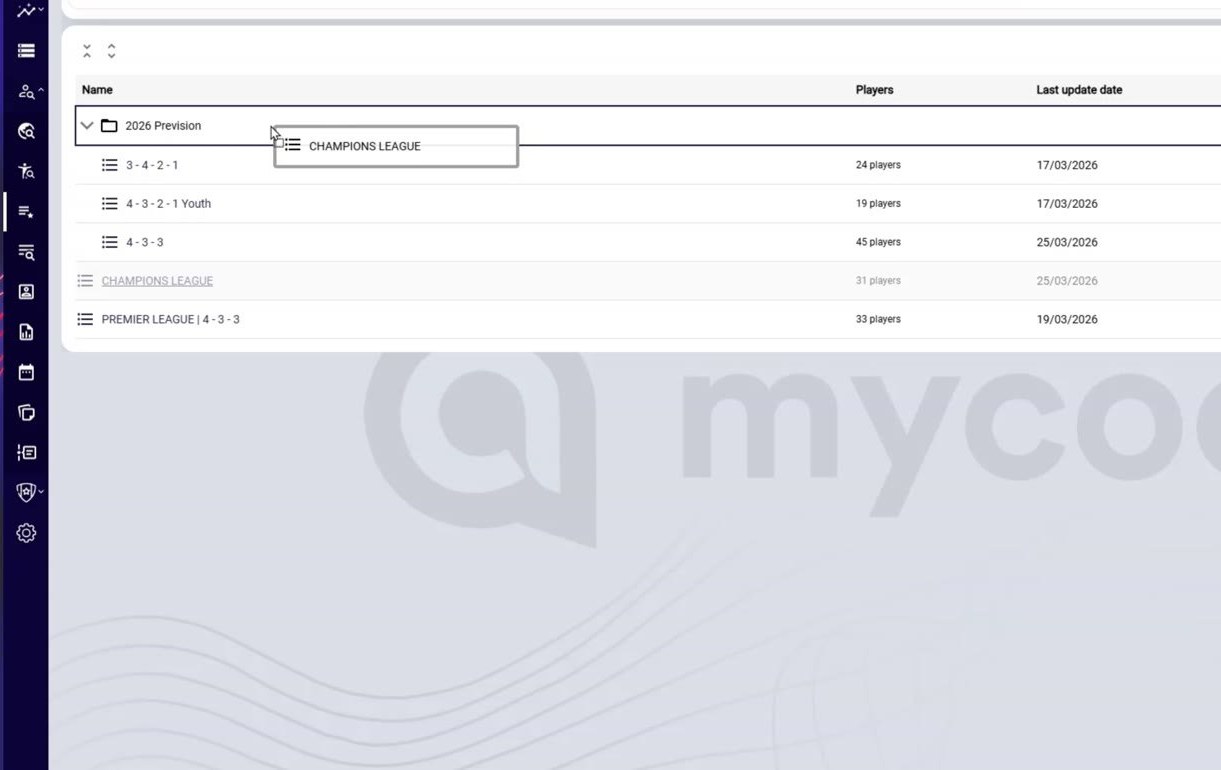
Drag a shortlist into a folder to file it
To evolve a shortlist without changing the original, duplicate it.
Need help
Email support@mycoachpro.io with any questions about managing your shortlists.