Fill in a report
When an observation is assigned to you, you receive a notification. From the match page, you fill in the report for the players to observe.
An observation is assigned to you either directly on a match or through observation planning.
Fill in a report step by step
-
Open the new assignment notification.
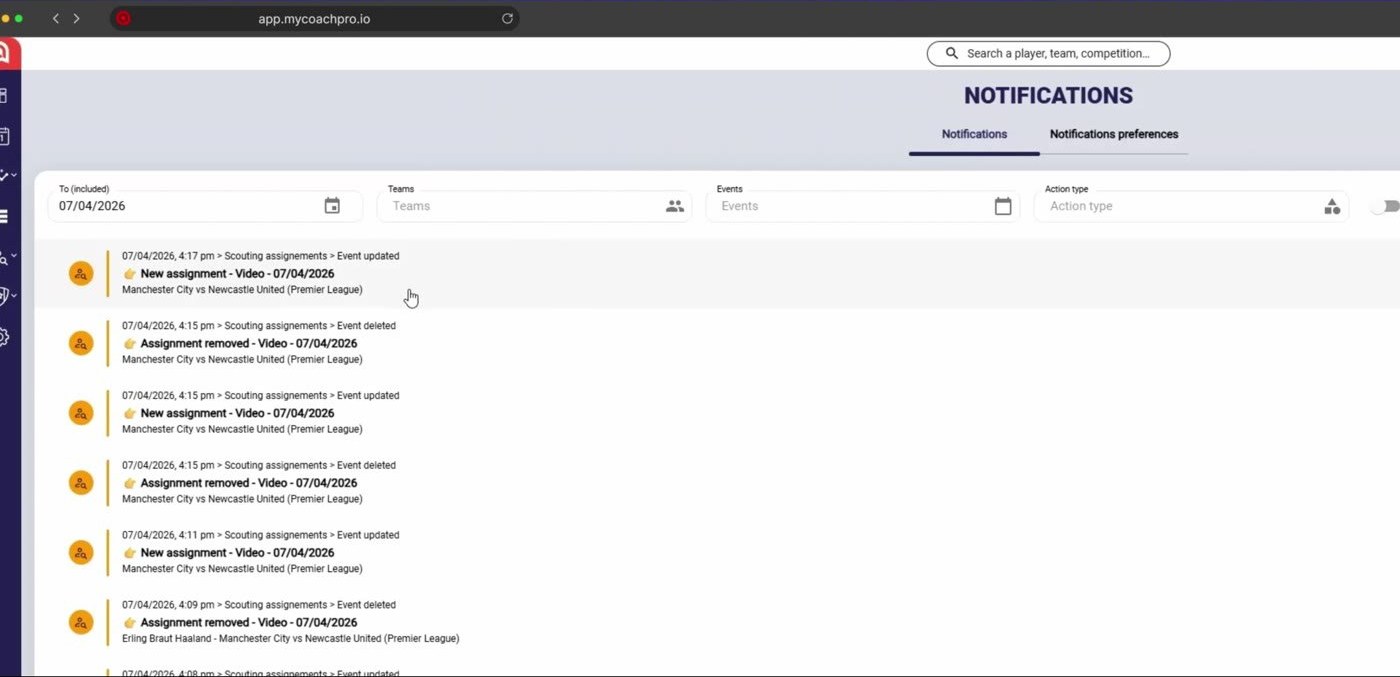
Open the new assignment notification
-
The match page opens on your assignment.
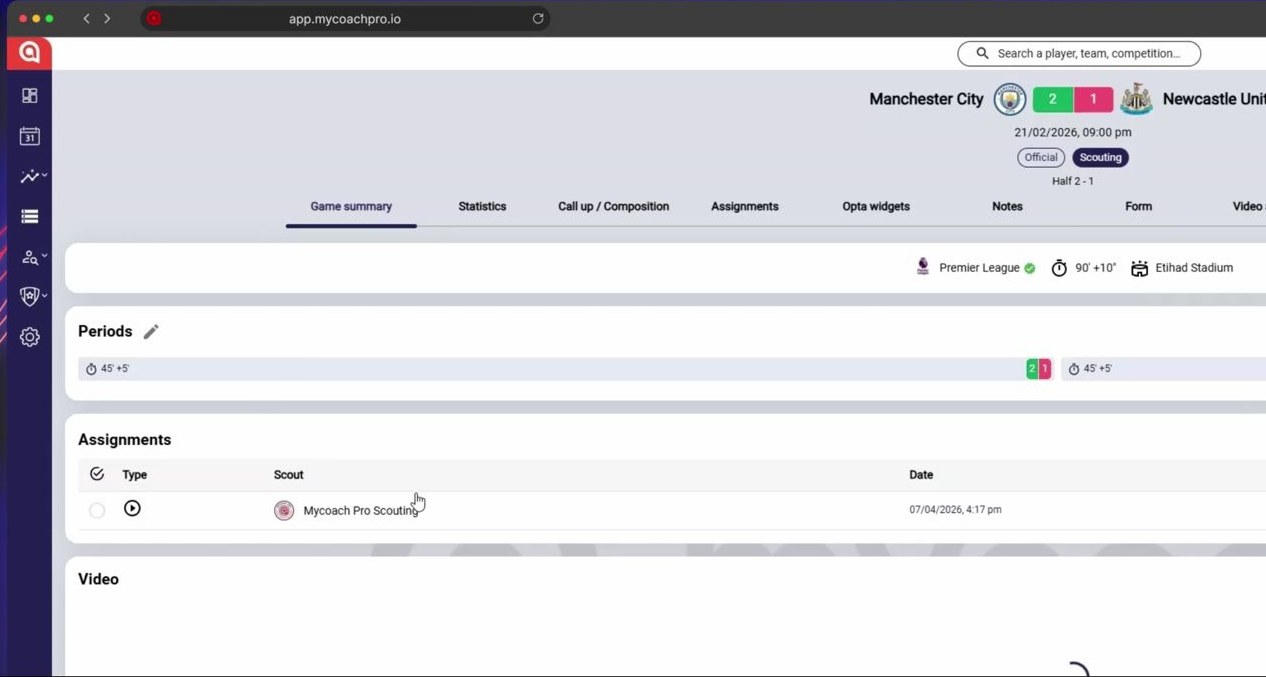
The match page opens on your assignment
-
Open the report and select the player.
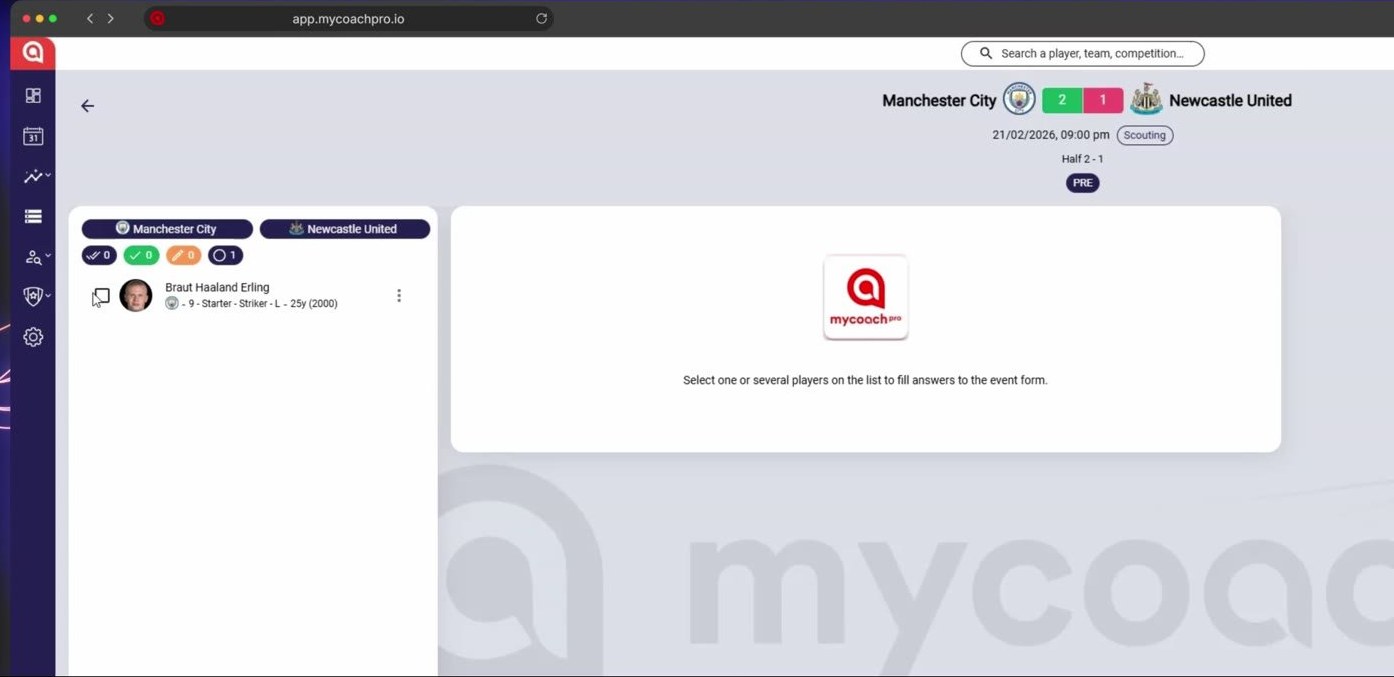
Open the report and select the player
-
Fill in the report. Its questions depend on the report template your club uses.
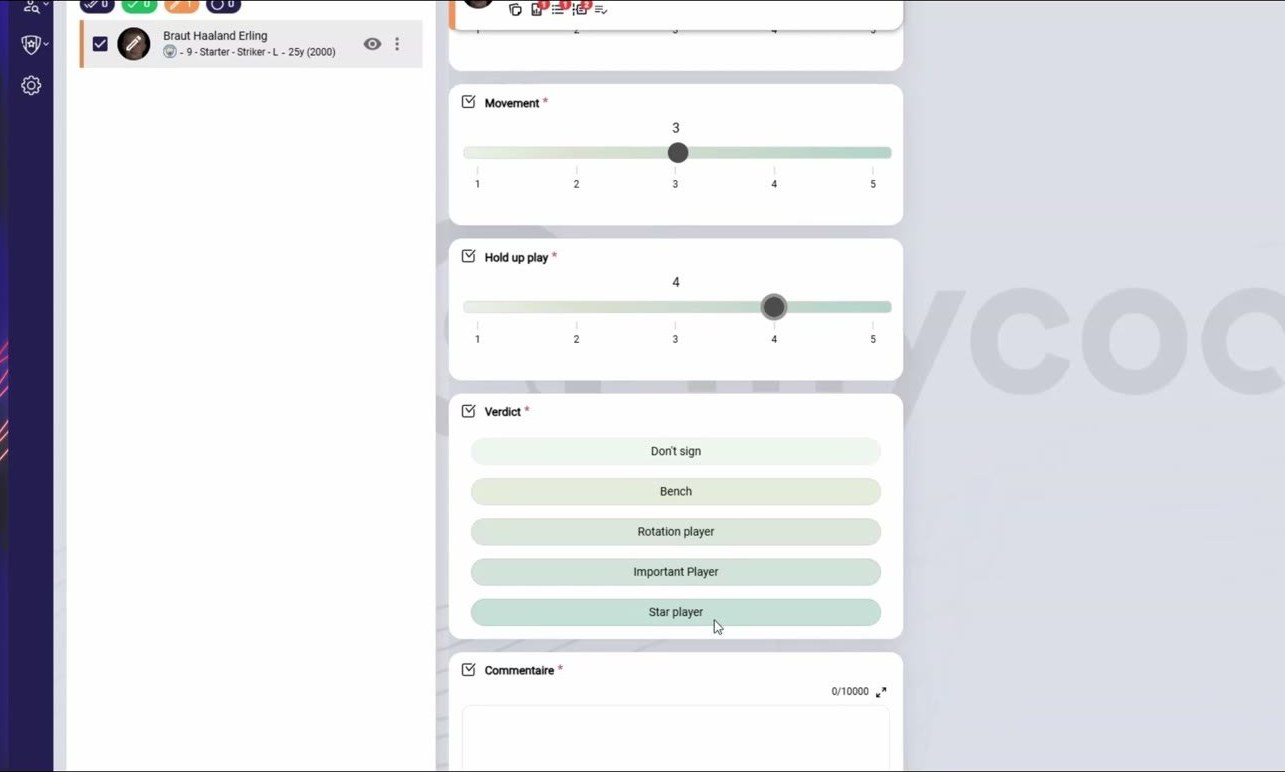
Example of a report
-
Confirm your answers.
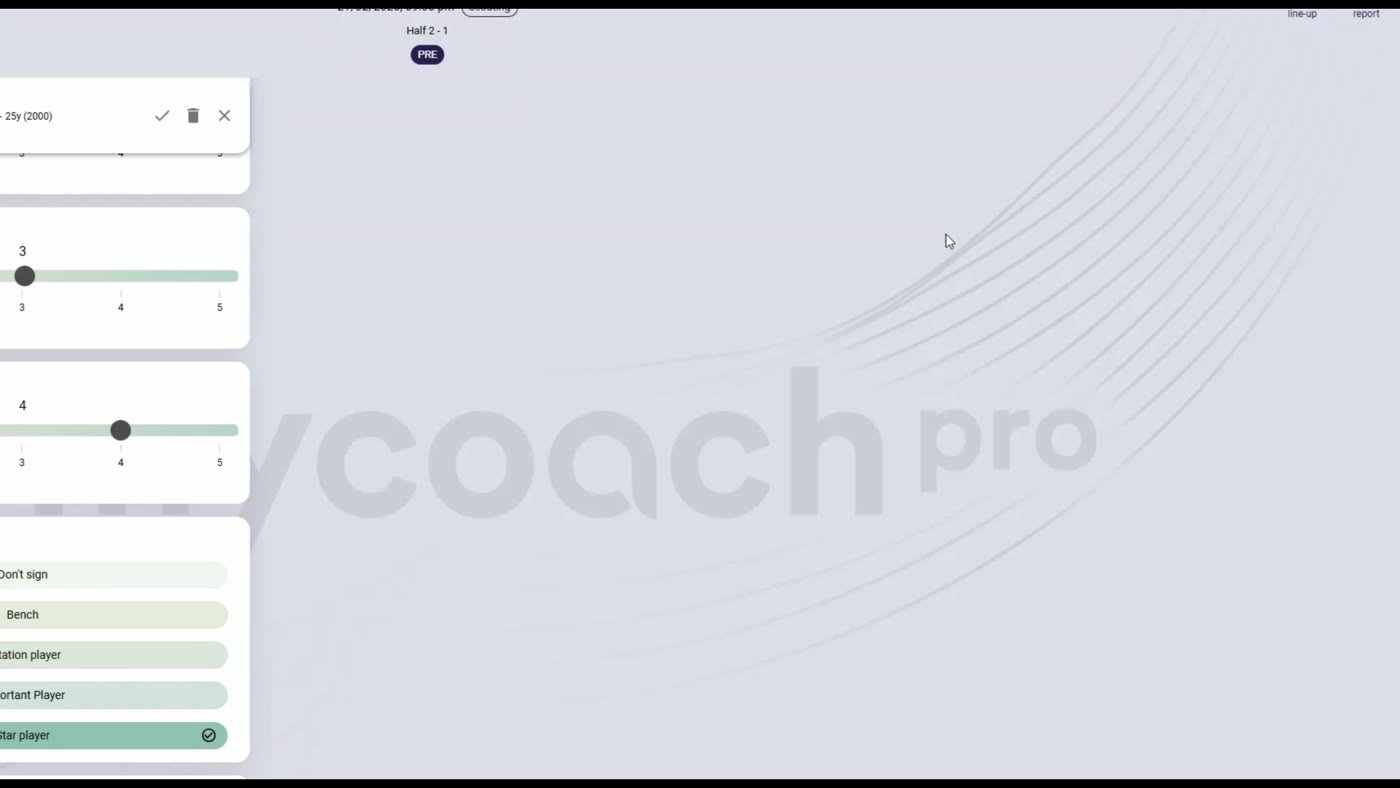
Confirm your answers
-
Save, with the Create a report option if needed.
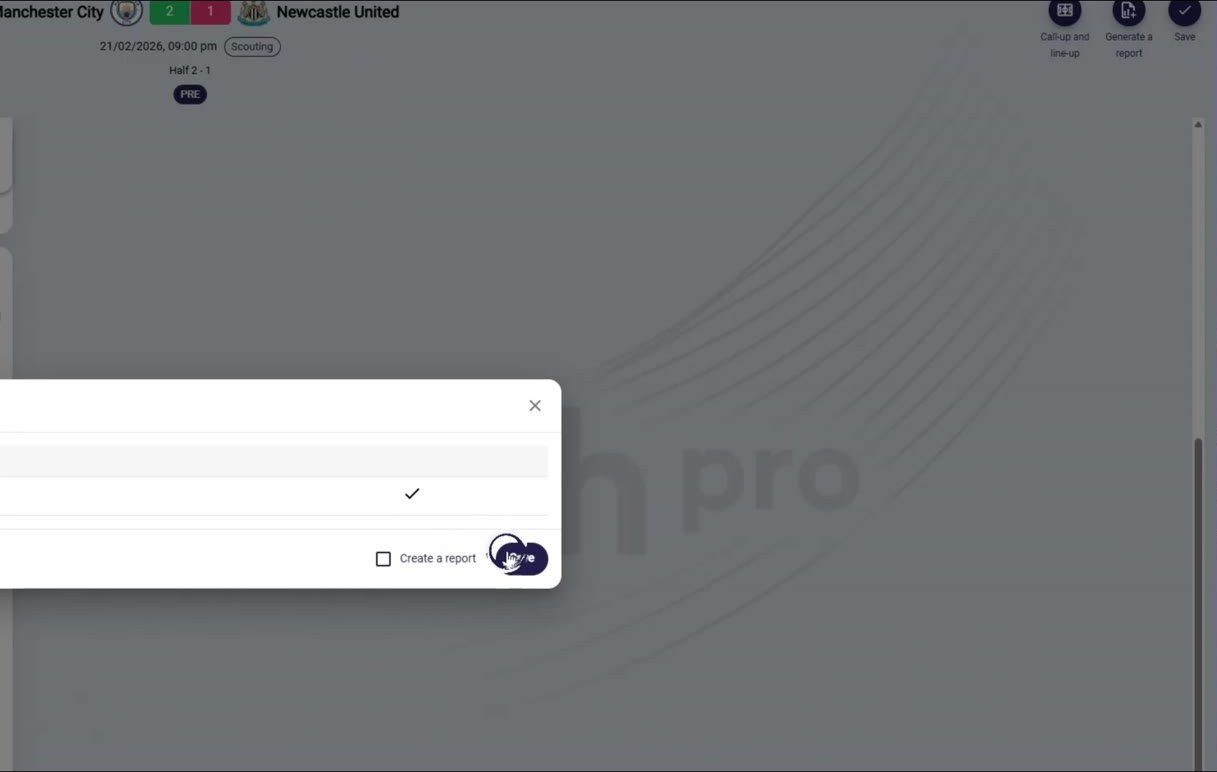
Save, with the Create a report option if needed
-
Your answers are saved.
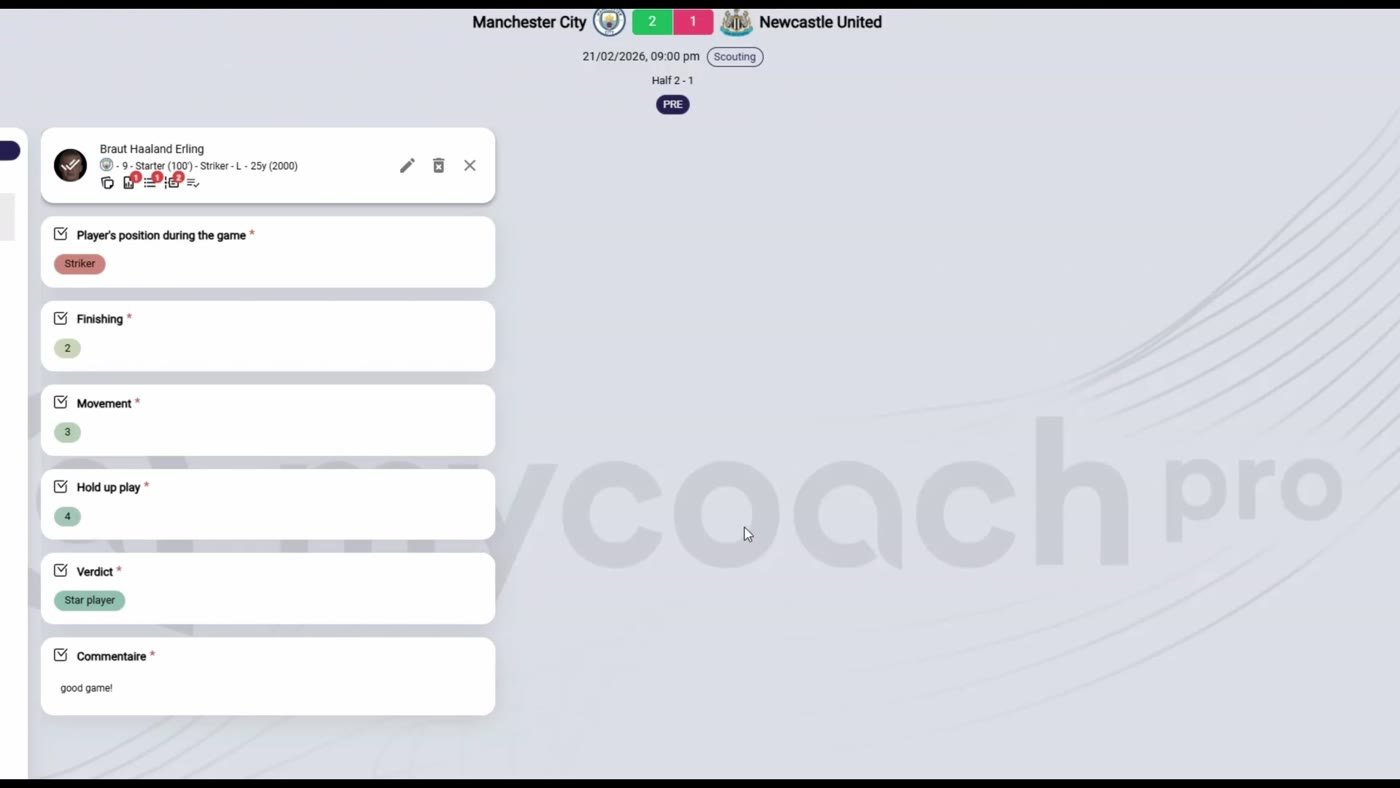
Your answers are saved
Need help
Email support@mycoachpro.io with any questions about reports.