Getting started with the mobile app
First login to the MyCoach Pro AMS app: activate your account from the welcome email, create your password, install the app, then sign in.
This guide is intended for players who are logging in to the MyCoach Pro AMS app for the first time.
Activate your account
-
Open the welcome email: it contains your username and a button to create your password. Click this button.
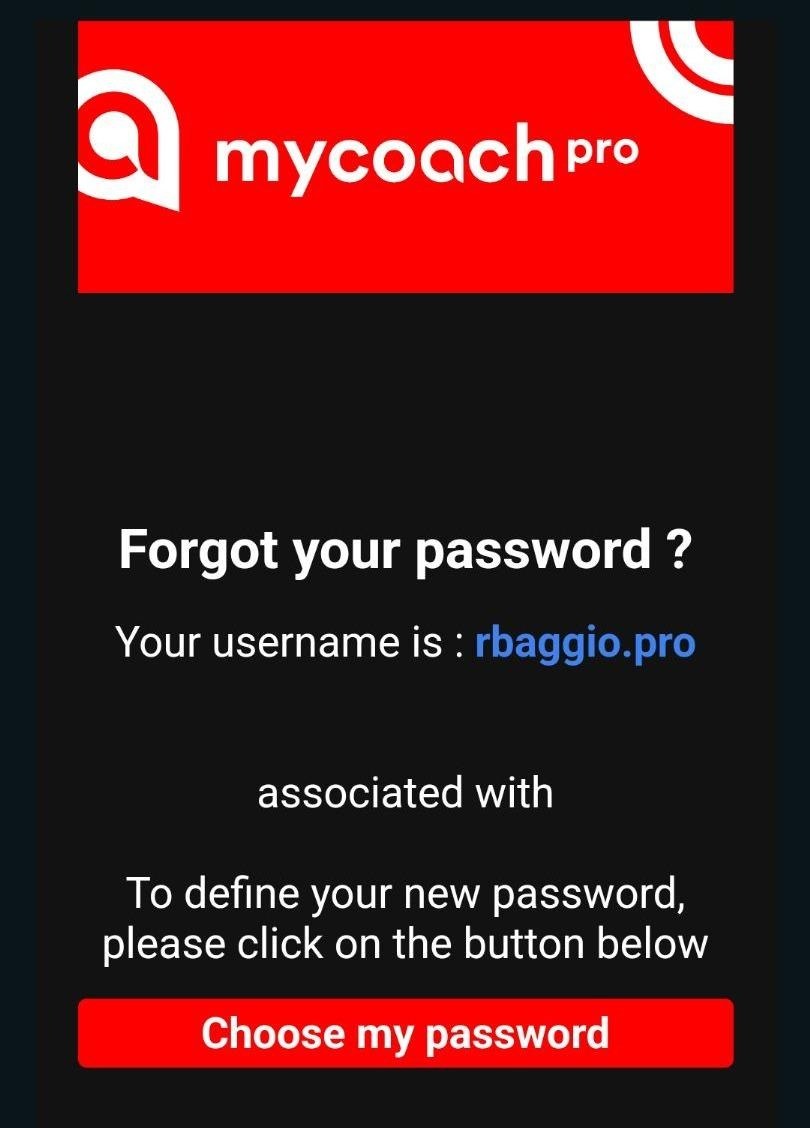
The welcome email
Username and linkYour username may differ from your email address. The password creation link is valid for 24 hours.
Create your password
-
Enter your password, confirm it, then click SEND.
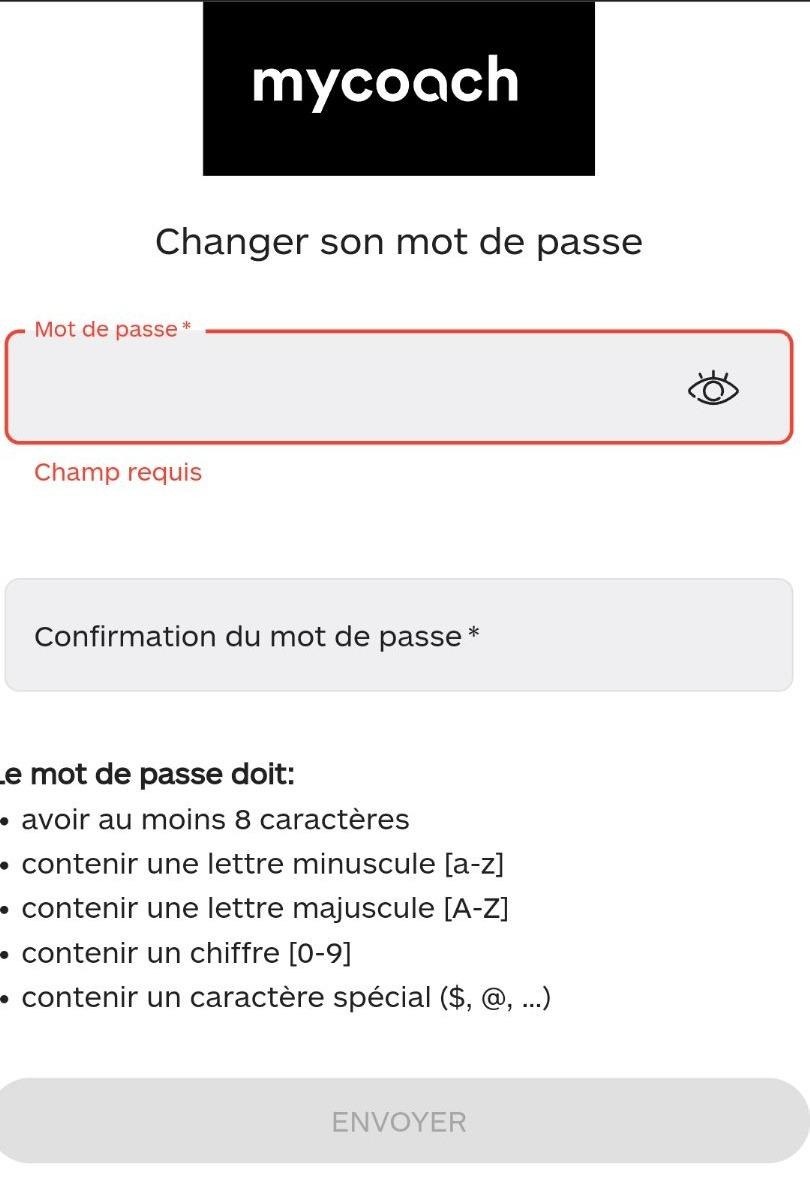
The password creation page
Password rulesThe password must contain at least:
- 8 characters;
- 1 lowercase and 1 uppercase letter;
- 1 digit;
- 1 special character ($, @, …).
-
Your password is created: the confirmation page offers to download the app.
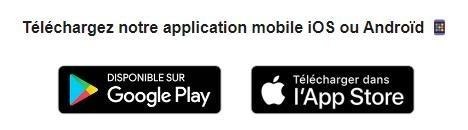
The app download links
Install the app
-
Install MyCoach Pro AMS from the App Store (iOS) or Google Play (Android).
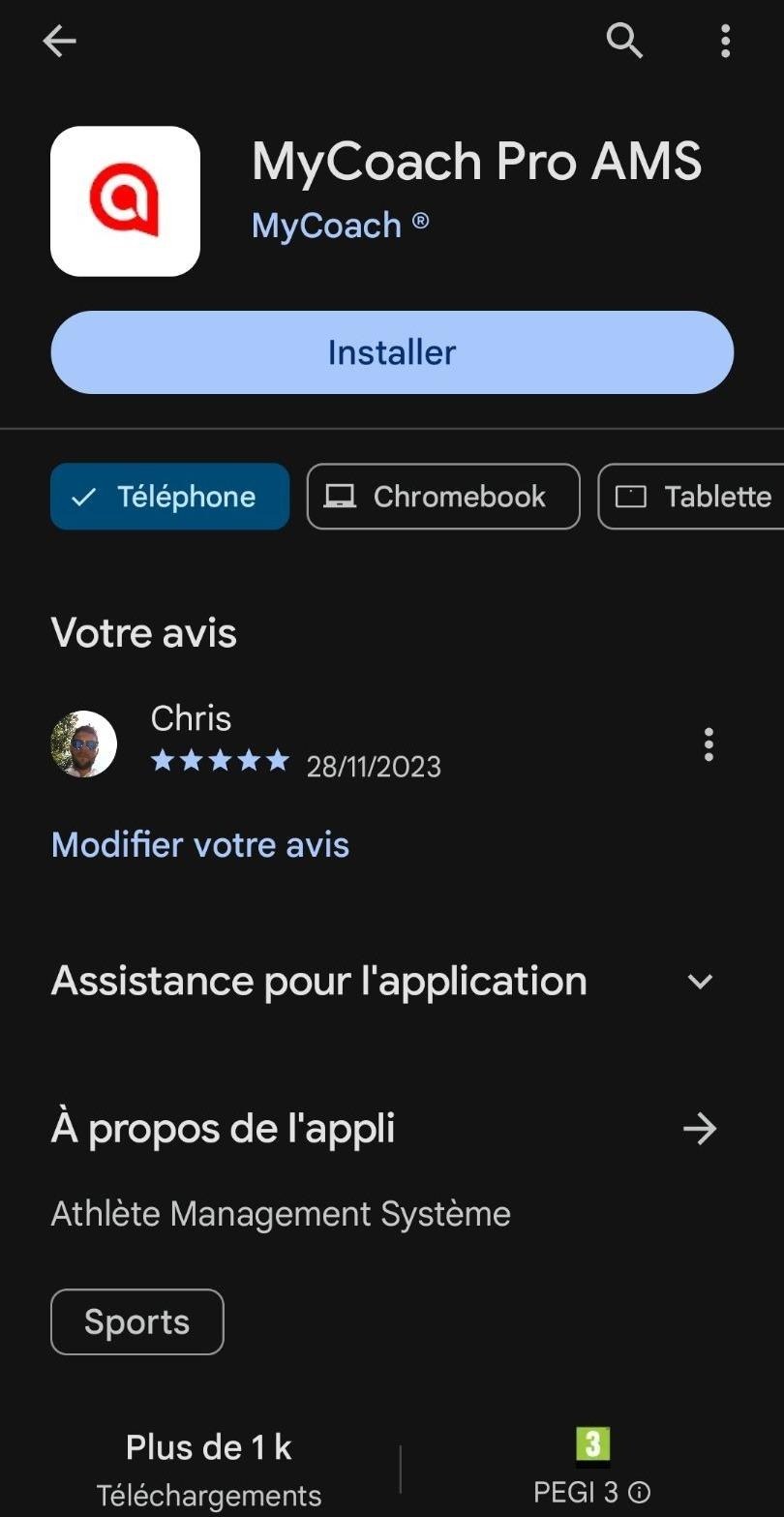
MyCoach Pro AMS on Google Play
Sign in
-
Open MyCoach Pro AMS, enter your username and password, then tap Sign in.
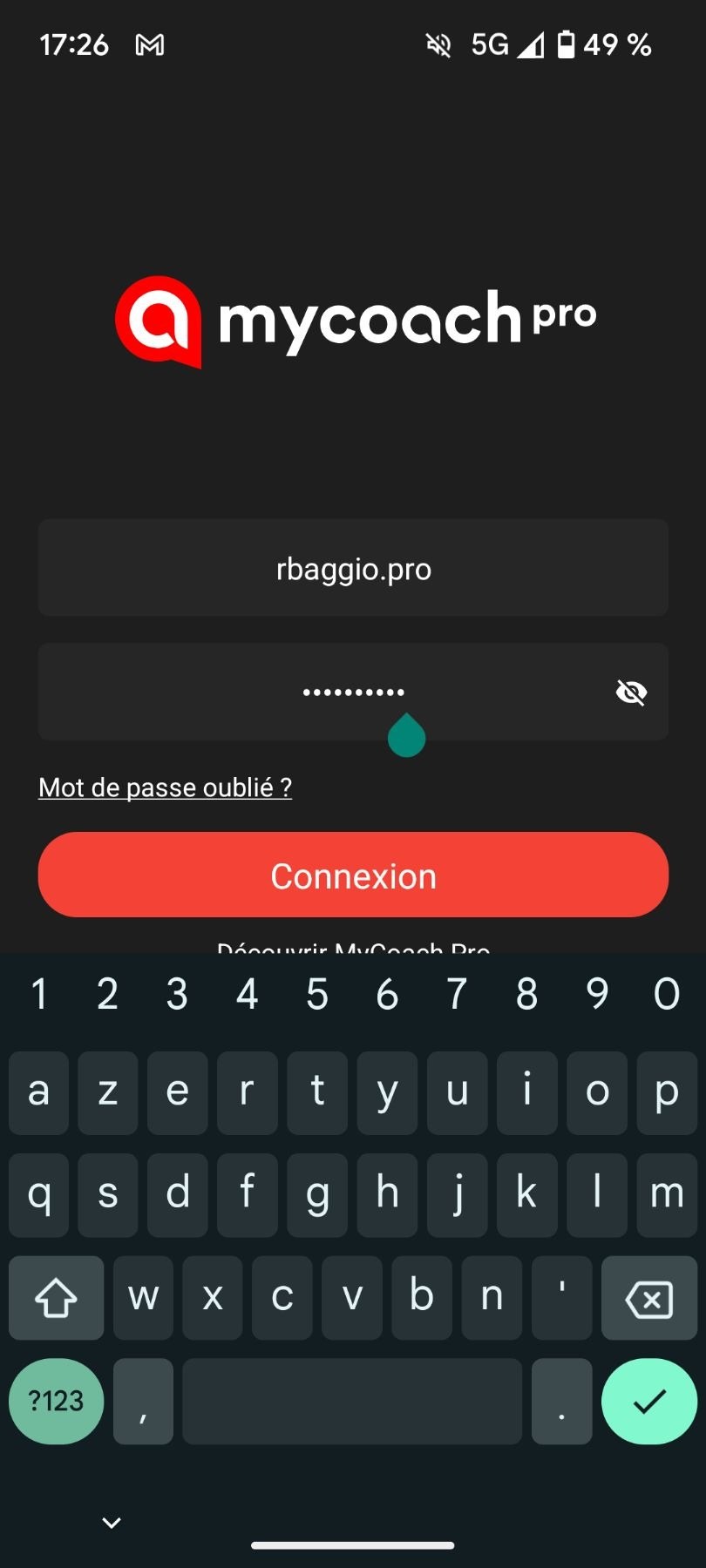
The login screen
Login issue?Make sure your username is correct: it may differ from your email address. If in doubt, contact your staff.
-
When the app asks, tap Allow so you never miss an invitation or a form request.
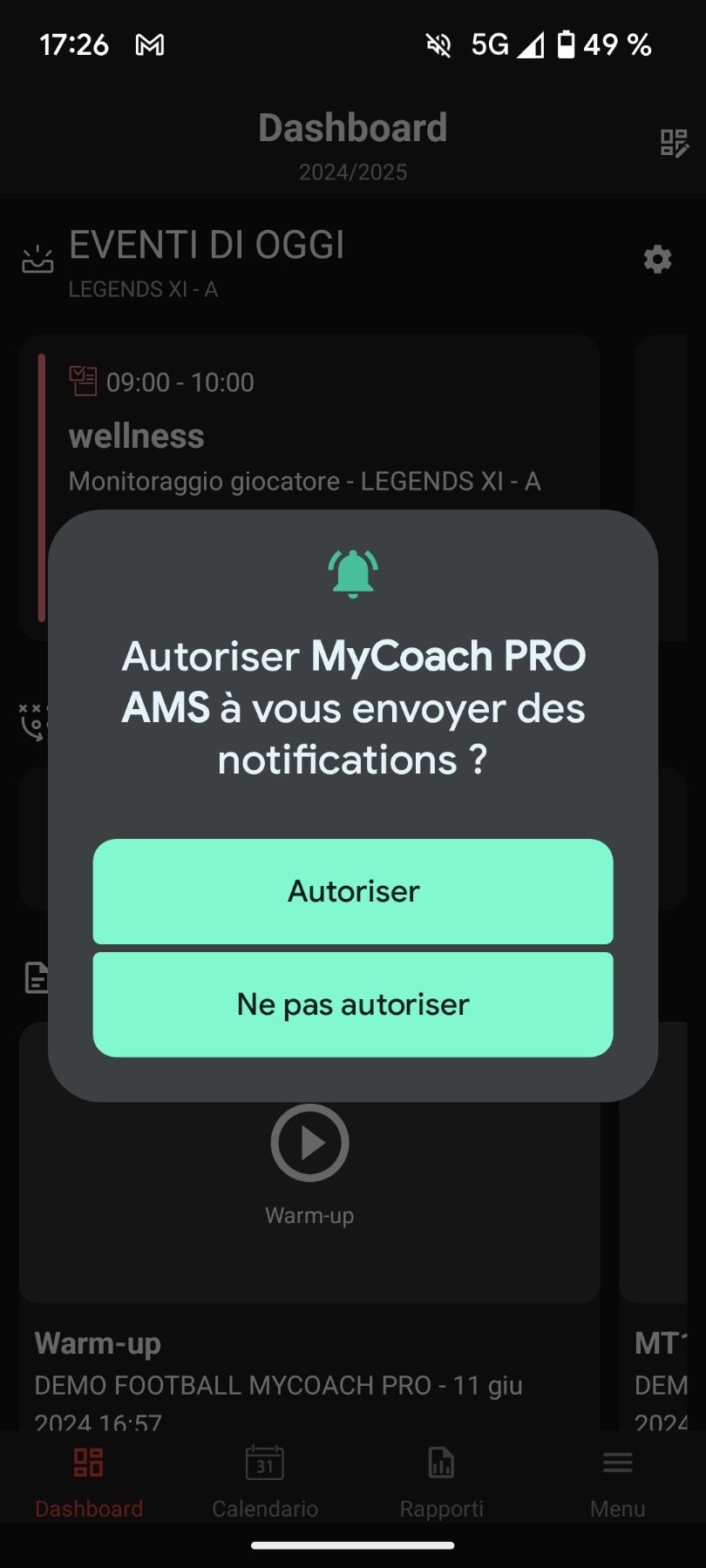
The notification permission request
Not receiving notifications?
Need help
Email support@mycoachpro.io with any questions about your first login to the mobile app.