Create an RPE form from a template
Create an RPE form from a MyCoach Pro template, customize it by adding a question, then set it as the default form for your sessions.
Open the form configuration
-
In the left side panel, click the Insights module: it takes you directly to the Forms sub-module.
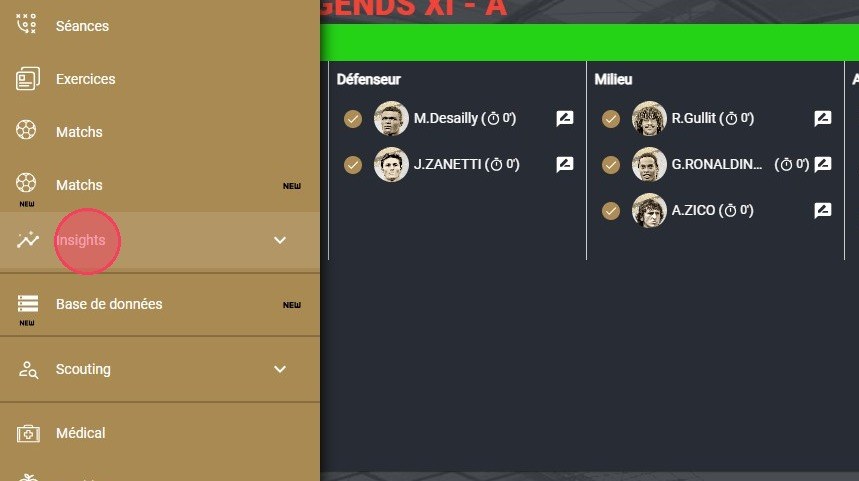
The Insights module
-
Click the CONFIGURATION tab, which is where forms are managed.
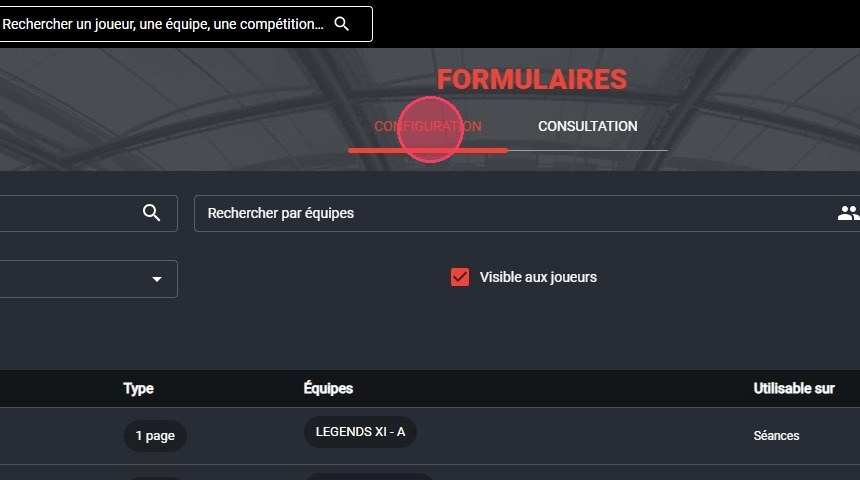
The Configuration tab
Required permissionsAccess to form configuration requires specific access levels and permissions.
Create the form from a template
-
Click the ADD button.
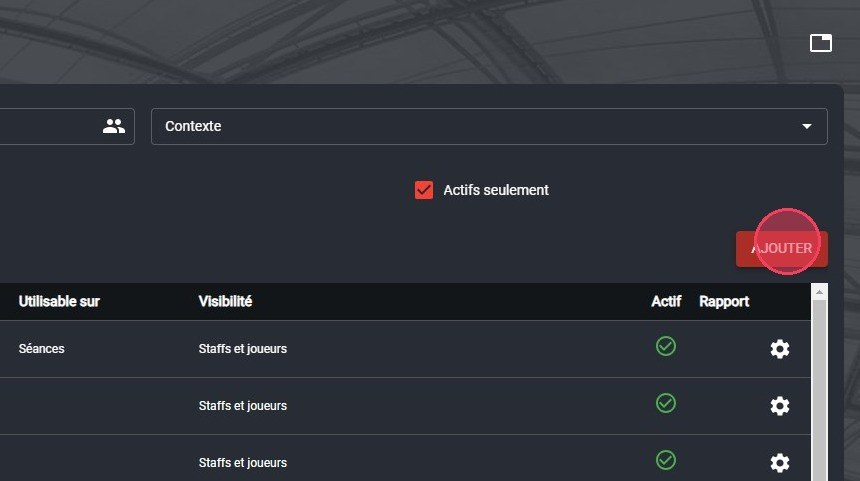
The Add button
-
Select Duplicate from template, then click the Form field.
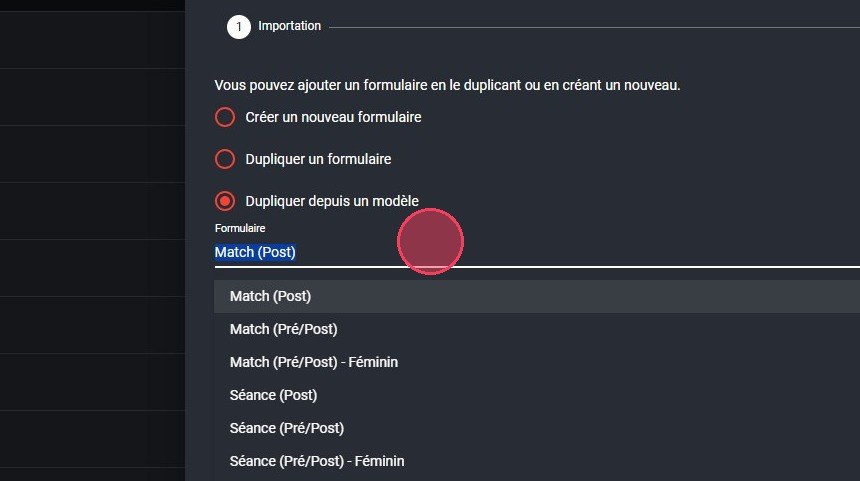
The Duplicate from template option
-
Select the template to duplicate. For a post-session RPE form, choose for example the Session (Post) template.
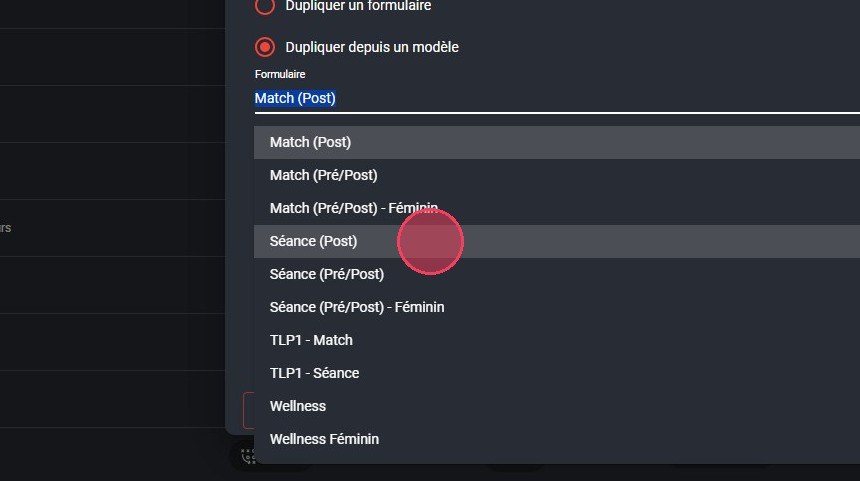
Choosing the template
Pre-built templatesMyCoach Pro provides several pre-built form templates. They are a good starting point, and you can edit them as needed.
-
Choose the default language and the languages to import for translations.
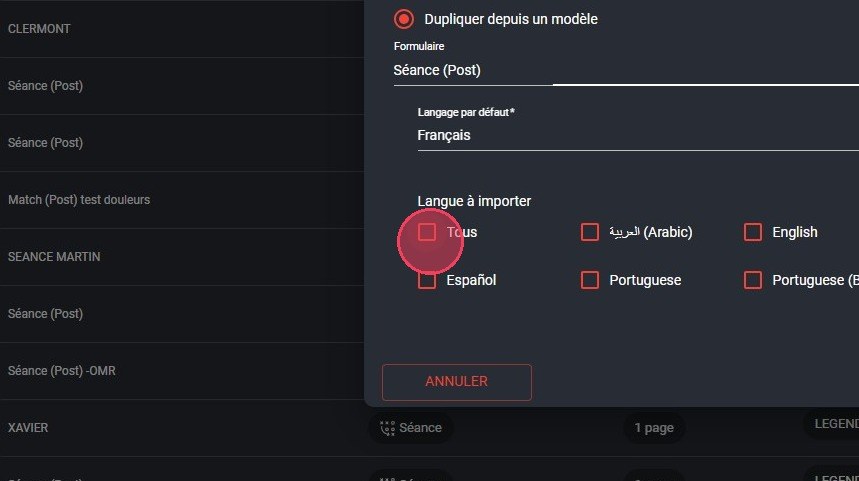
Choosing the languages
-
Click Next.
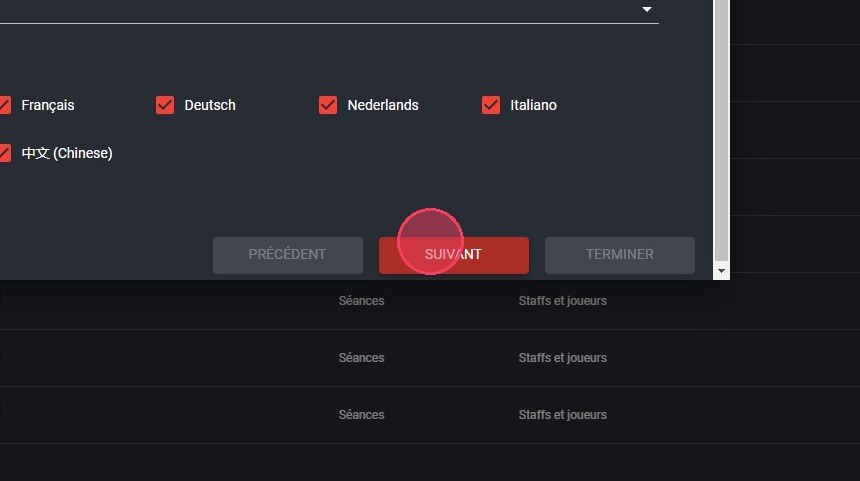
The Next button
-
Configure the form, then click FINISH:
- Name: the name of your form;
- Team: the team this form belongs to;
- Context: the type of event on which the form will be used;
- Visible to players: makes the form visible to your players on an event;
- Type: how the form is displayed on mobile (single page or one question at a time);
- Usable by: who can use the form (staff, player or both).
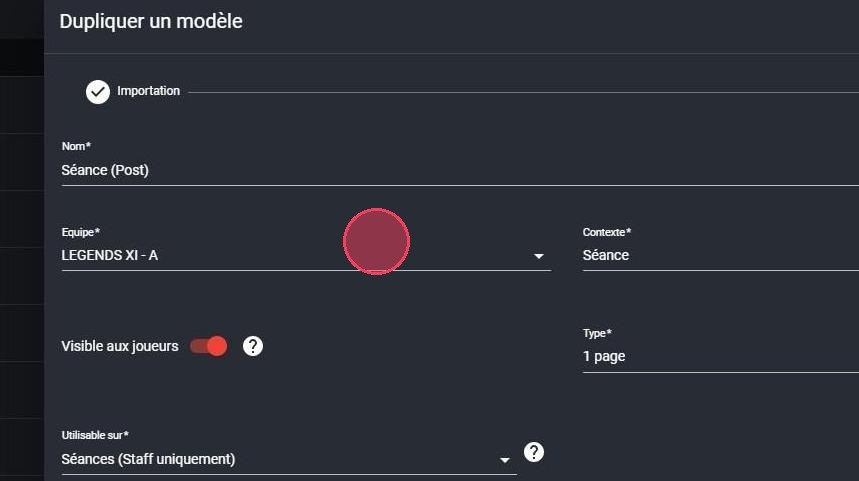
The form settings
-
Once the form has been created, click the CONFIGURE button to customize it.
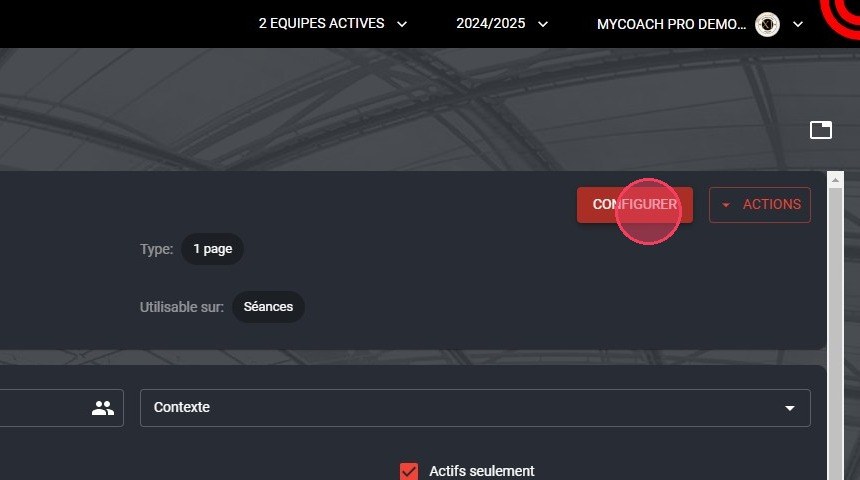
The Configure button
-
For this post-session form, choose the POST phase.
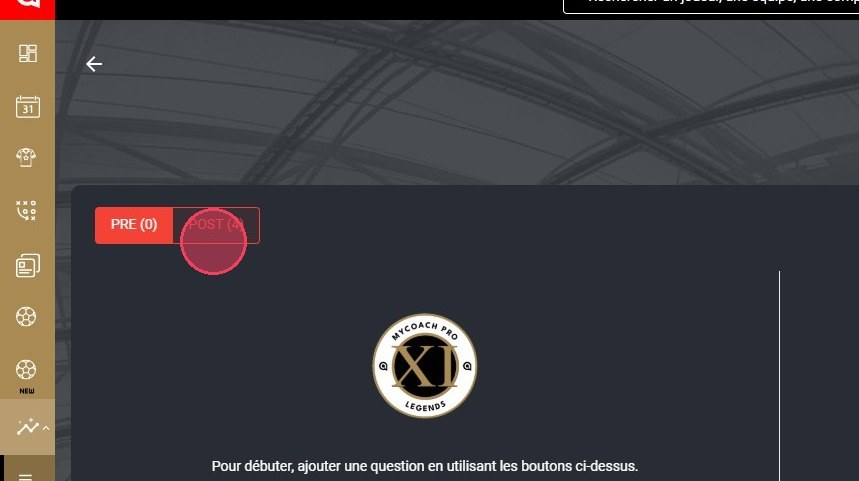
The POST phase
Add a question
-
Click the ACTIONS button.
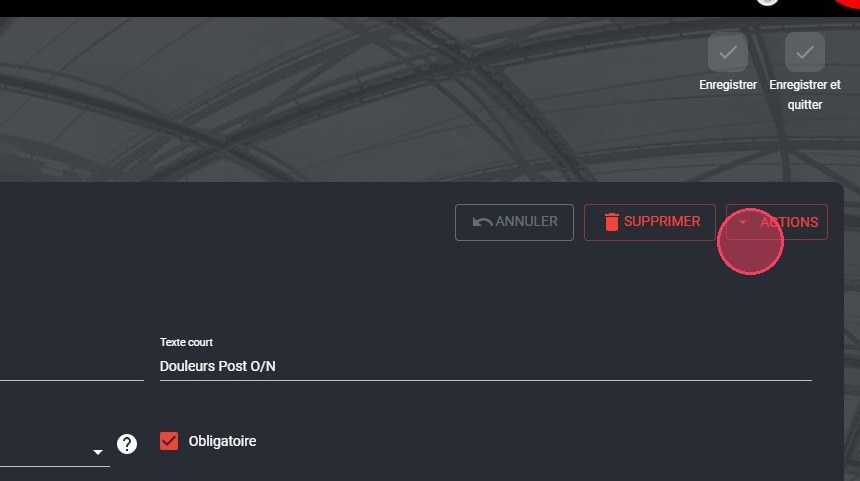
The Actions button
-
Choose the Generate a numeric question option.
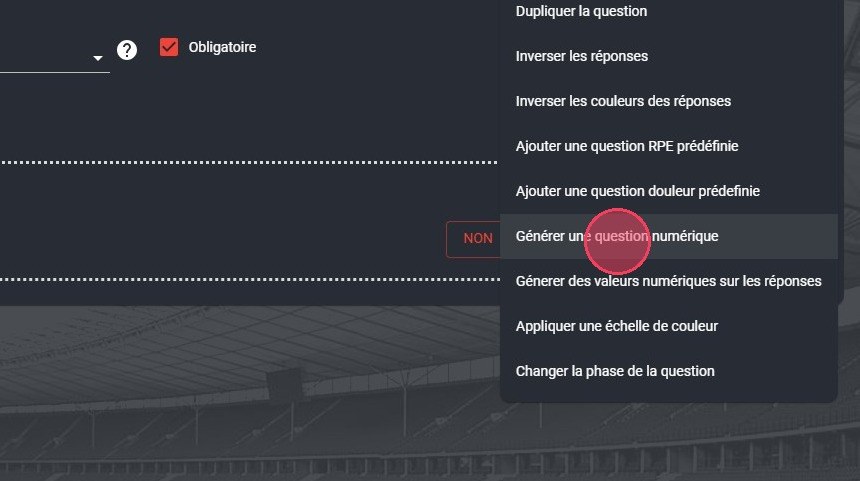
The Generate a numeric question option
-
Configure the question: minimum and maximum answer, step, alert thresholds and color scheme.
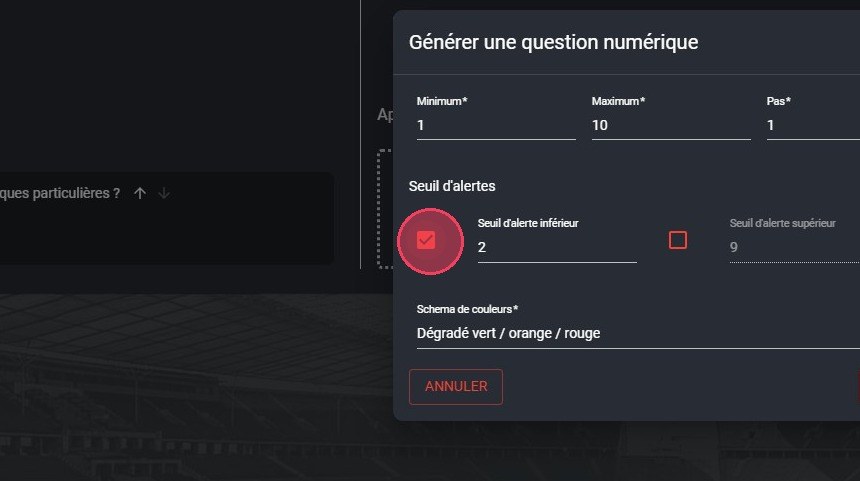
The numeric question settings
-
Click CREATE.
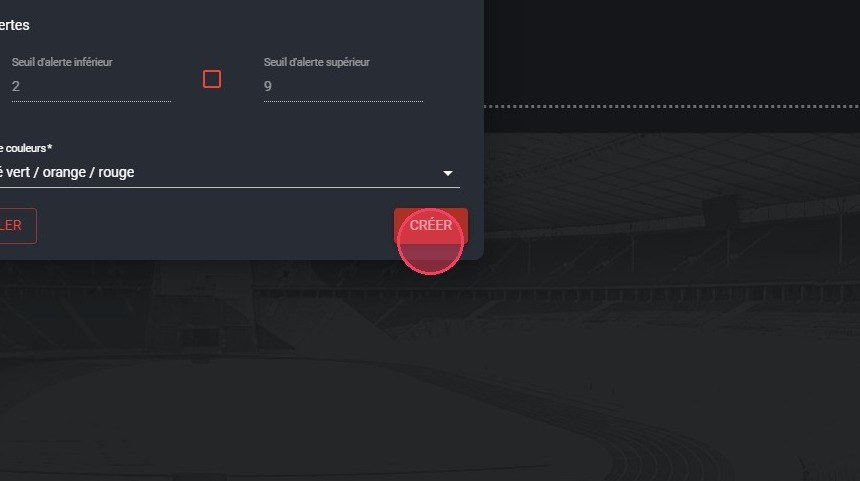
The Create button
-
Select the new question in the list of questions.
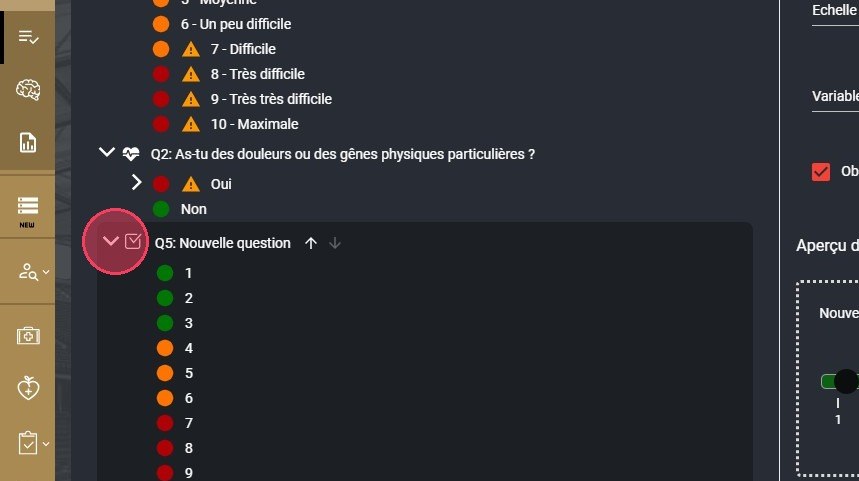
The new question
-
Rename the question in the Long text field.
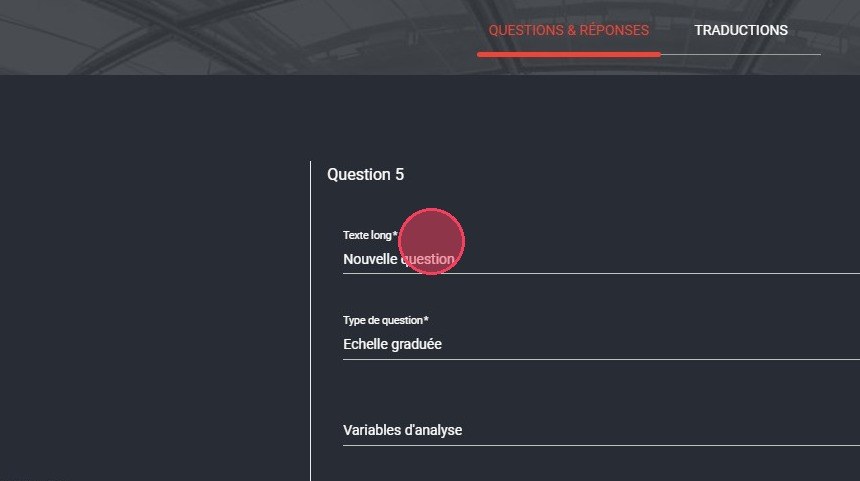
The Long text field
-
Enter a short version of the question in the Short text field.
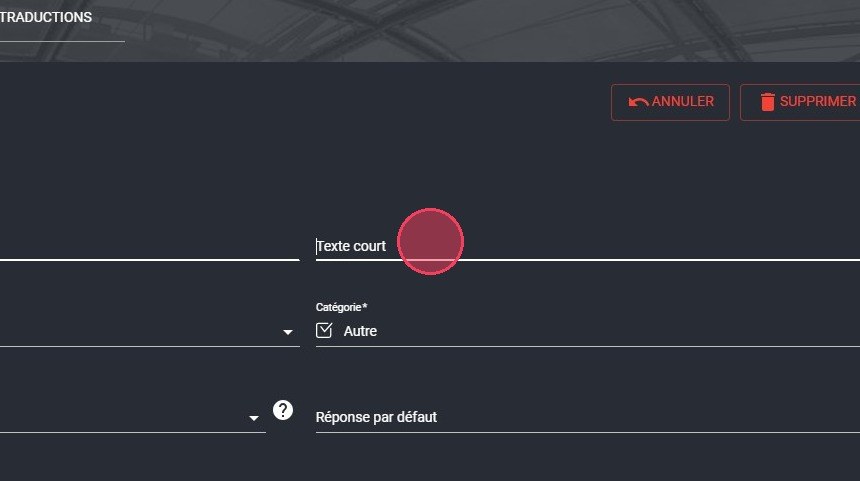
The Short text field
-
Click the Analysis variables field.
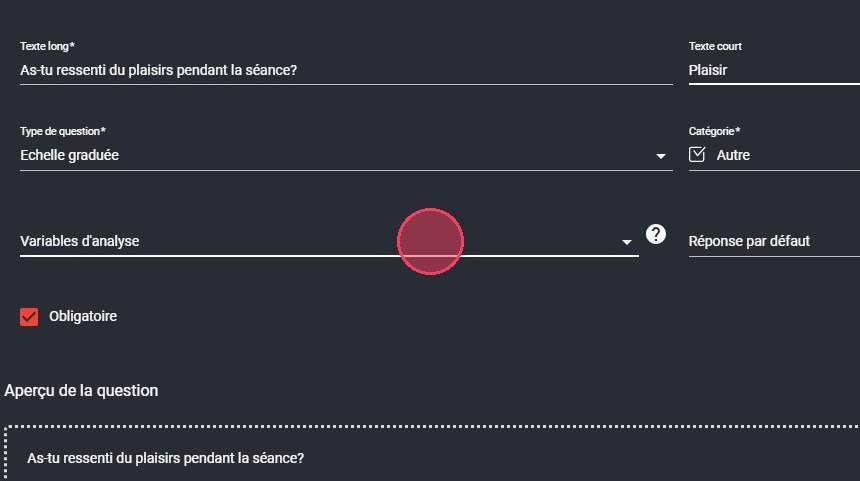
The Analysis variables field
-
Search for and select the corresponding analysis variable.
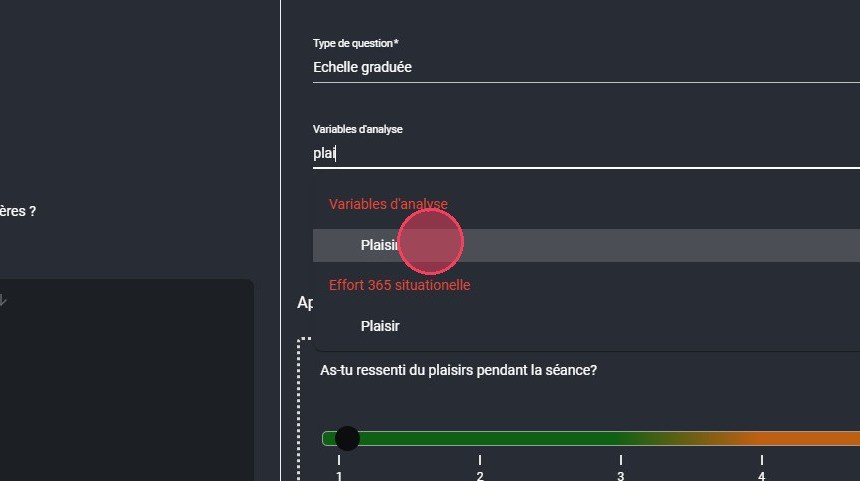
Selecting the analysis variable
Analysis variablesAnalysis variables are an essential part of forms: they report the data collected through your forms and let you analyze it in Report BI.
-
Once your form is finished, click Save and exit.
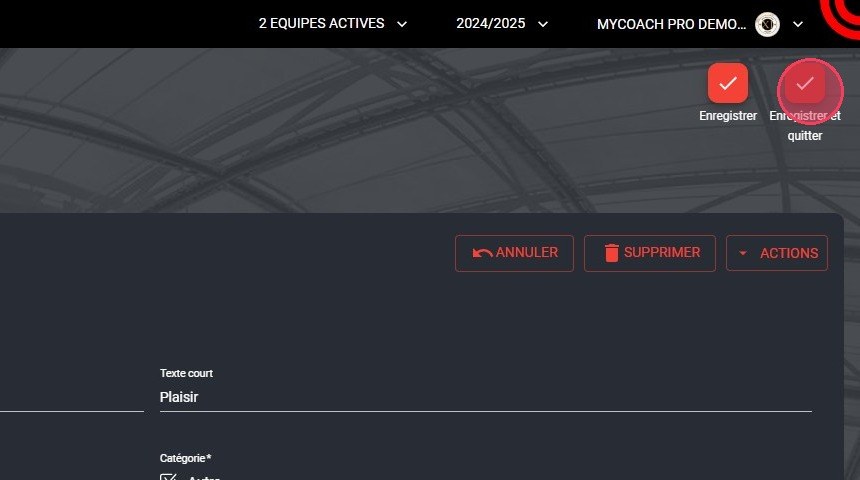
The Save and exit button
Set the form as default
If needed, set this form as the default one so that it is automatically selected when creating a session.
-
On the form's page, click the ACTIONS button.
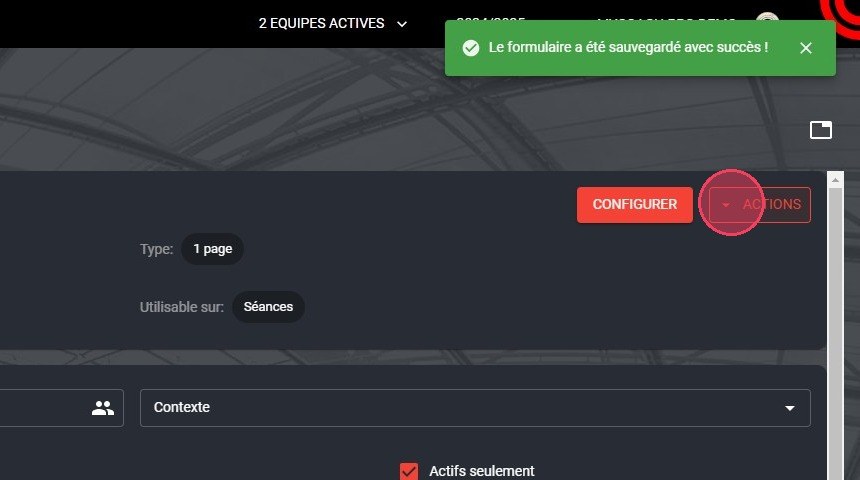
The form's Actions button
-
Choose Set as default.
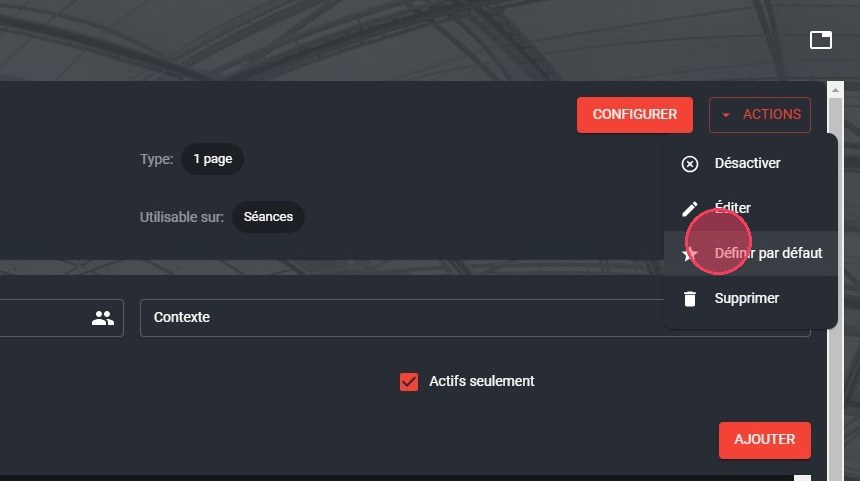
The Set as default option
-
Confirm by clicking SAVE.
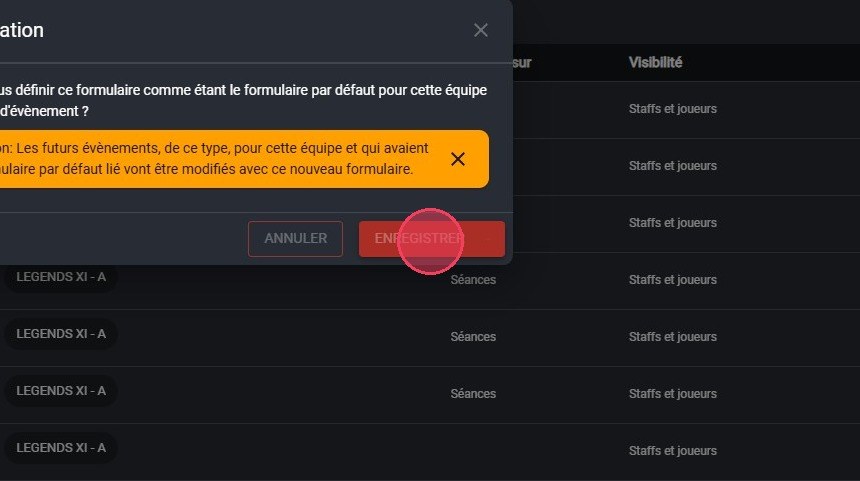
The confirmation
Future eventsFuture events of this type, for this team, that had a default form linked to them will be updated with this new form.
You can also duplicate an existing form or manage its translations.
Need help
Email support@mycoachpro.io with any questions about creating forms.