Configuring your widgets
The Home page is your first point of contact with MyCoach Pro when you log in. It is customisable per user: switch to edit mode to add, set up or delete widgets to suit your needs.
Switch to edit mode
-
Go to the Home page.
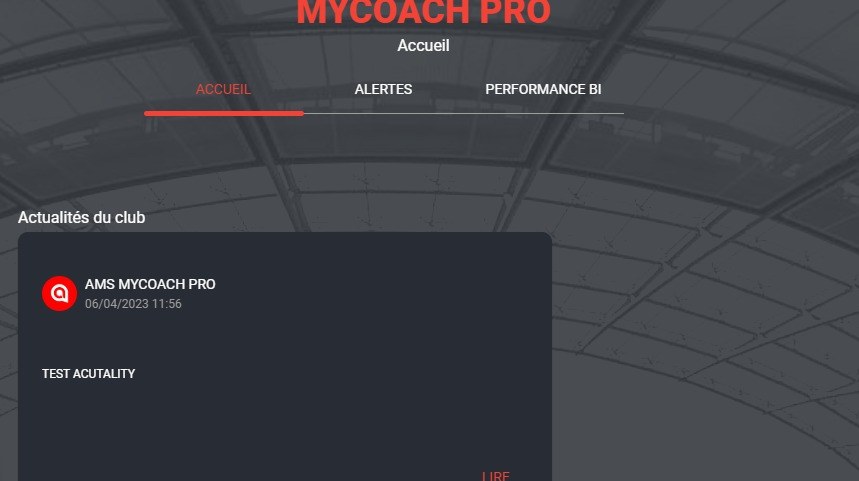
The Home page
-
Click the Edit home button.
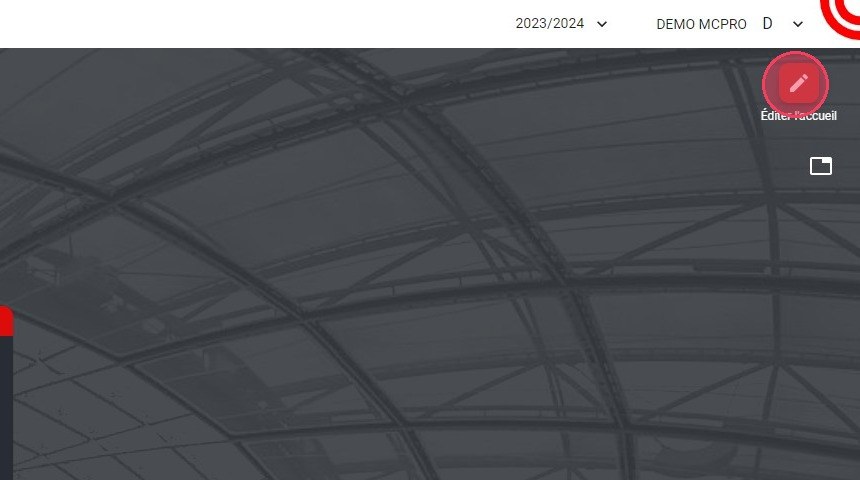
The Edit home button
Add a widget
-
At the very bottom of the page, click the + button to display the list of available widgets.
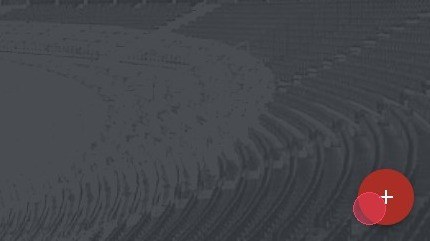
The + button
Available widgetsThe list of widgets varies according to your rights and access level.
-
Select the widget to add, for example Fitness Status (requires access to the medical module).
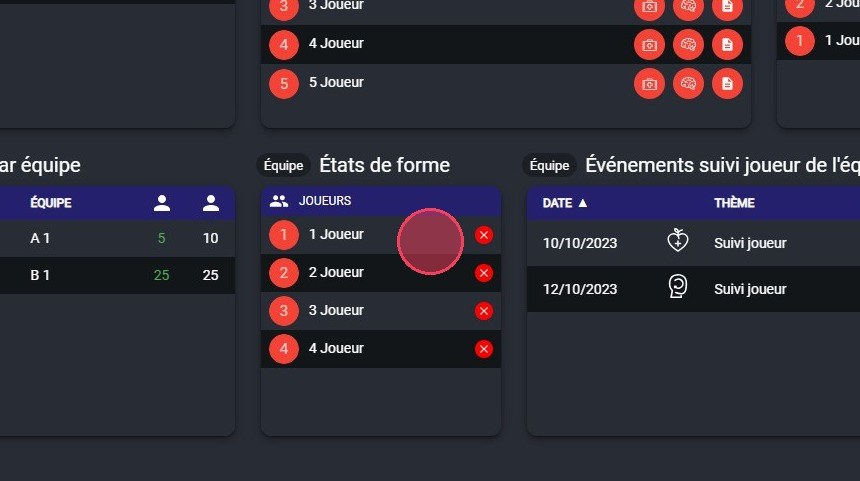
The Fitness Status widget
-
Click NEXT.
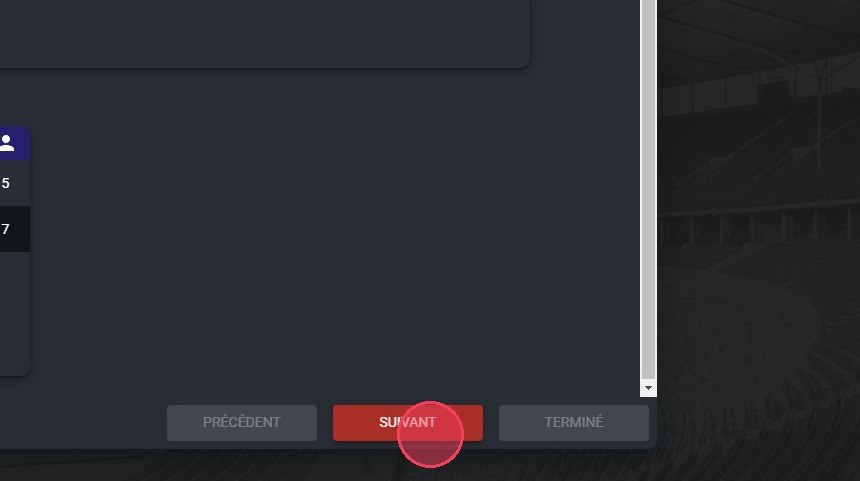
The Next button
-
Enter the Widget title.
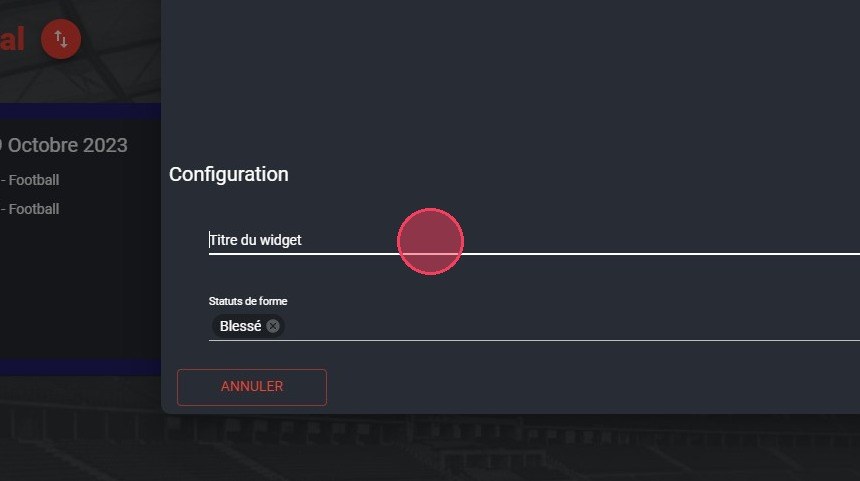
The Widget title field
-
Select the Fitness statuses you want to see on this widget.
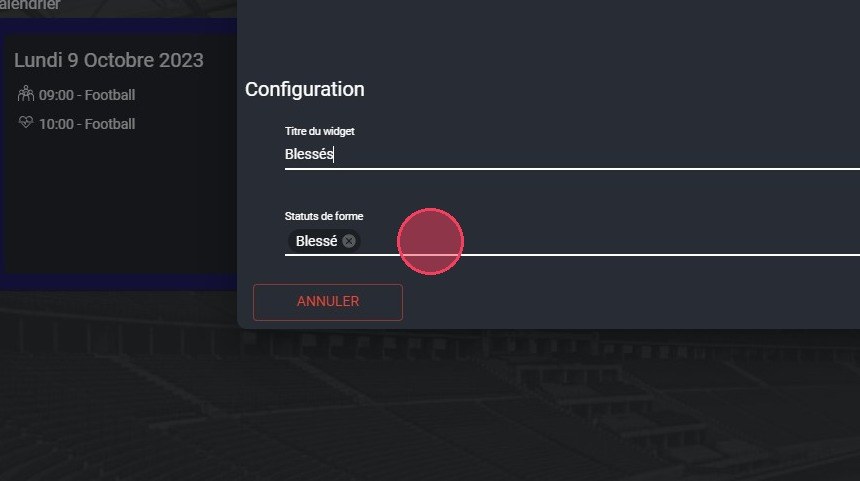
The fitness status selection
-
Choose the Widget size.
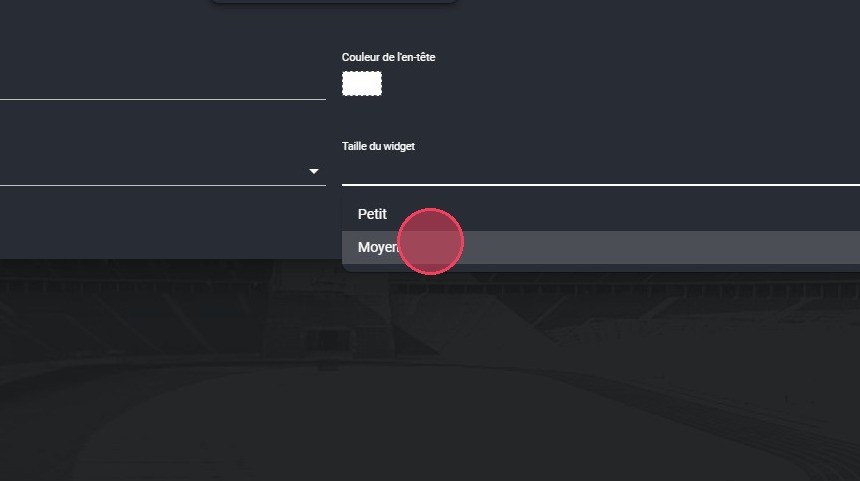
The widget size selection
-
Choose the Header colour to better identify the widget.
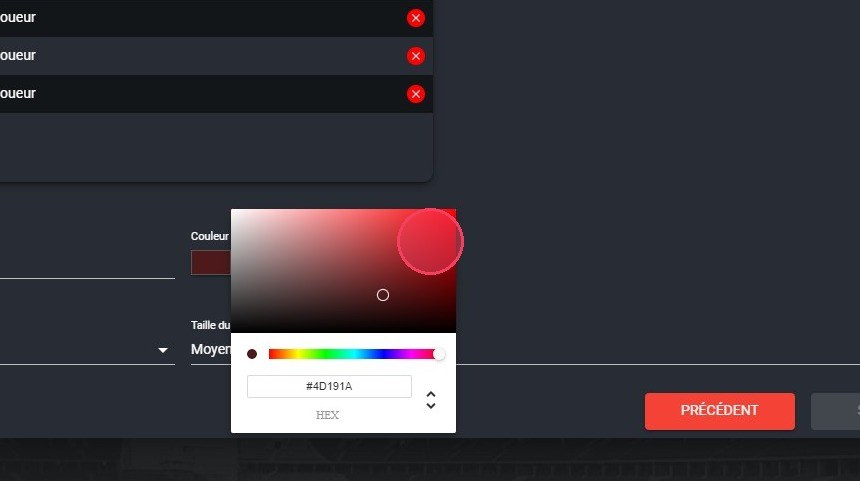
The header colour selection
Spot your widgetsUse a meaningful colour, for example red for a widget showing injured players.
-
Once your widget is configured, click DONE.
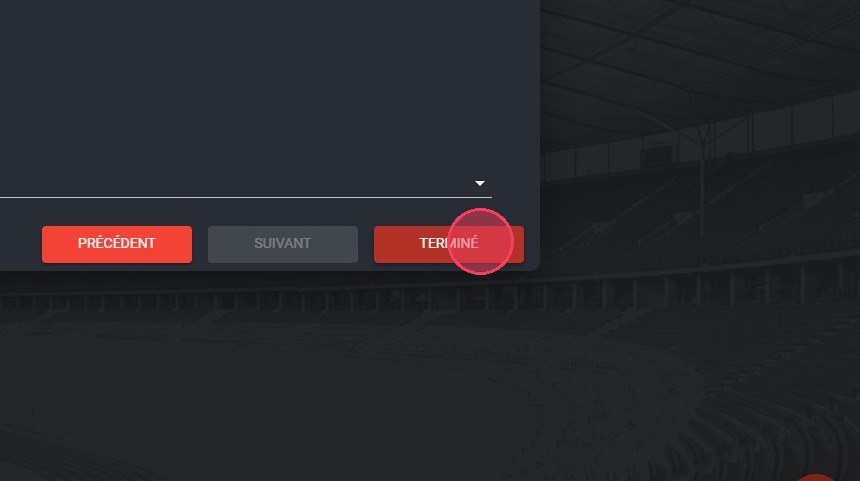
The Done button
Delete a widget
Delete the widgets you do not need to avoid cluttering your home page with unnecessary information.
-
Click the bin icon of the widget to delete.
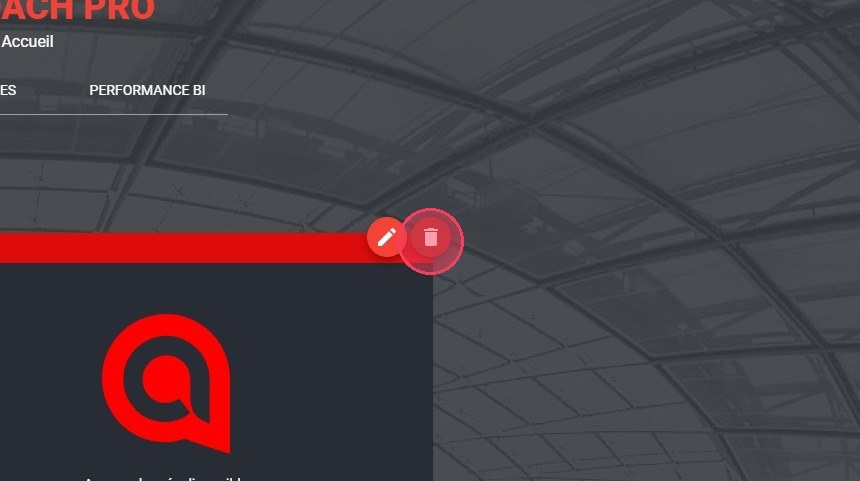
The widget bin icon
-
Confirm the deletion by clicking OK.
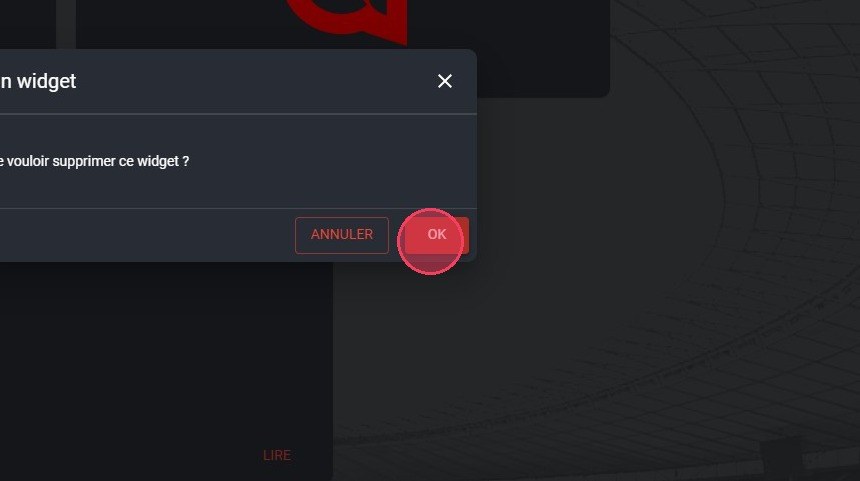
The deletion confirmation
Exit edit mode
-
Click the Exit edit mode button in the top right corner.
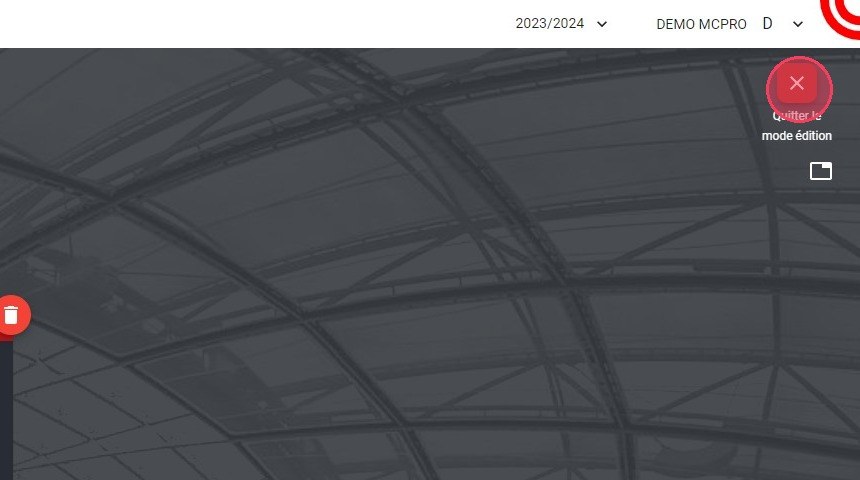
The Exit edit mode button
See the details of the Calendar, Fitness Status and Shortcuts widgets.
Need help
Email support@mycoachpro.io with any questions about configuring your home page.