Create a medical prescription
Create a prescription for a player from the Medical module: set its date, add one or more medications, then configure their dosage.
Open the form
-
In the module panel, click the Medical module.
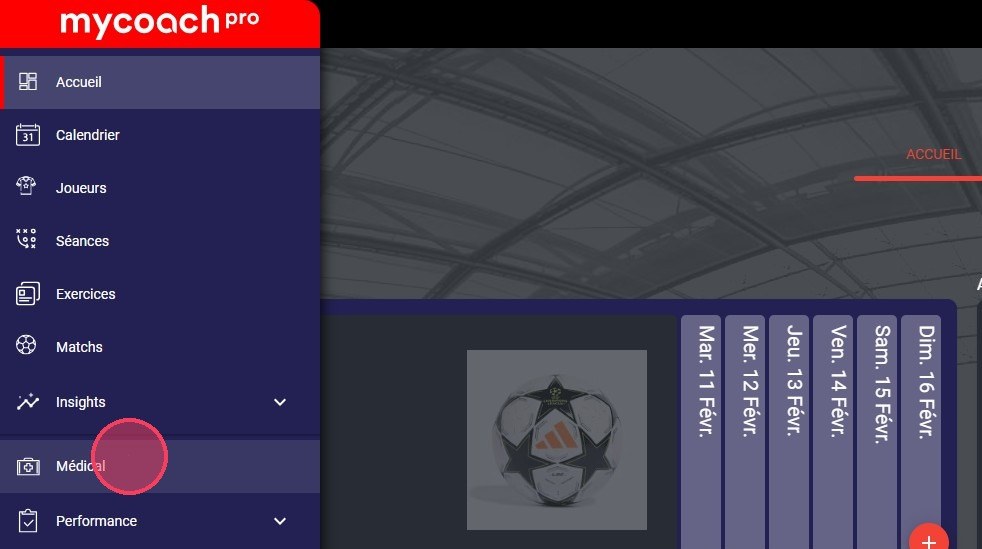
The Medical module
-
Click the + icon next to the player to open the submenu.
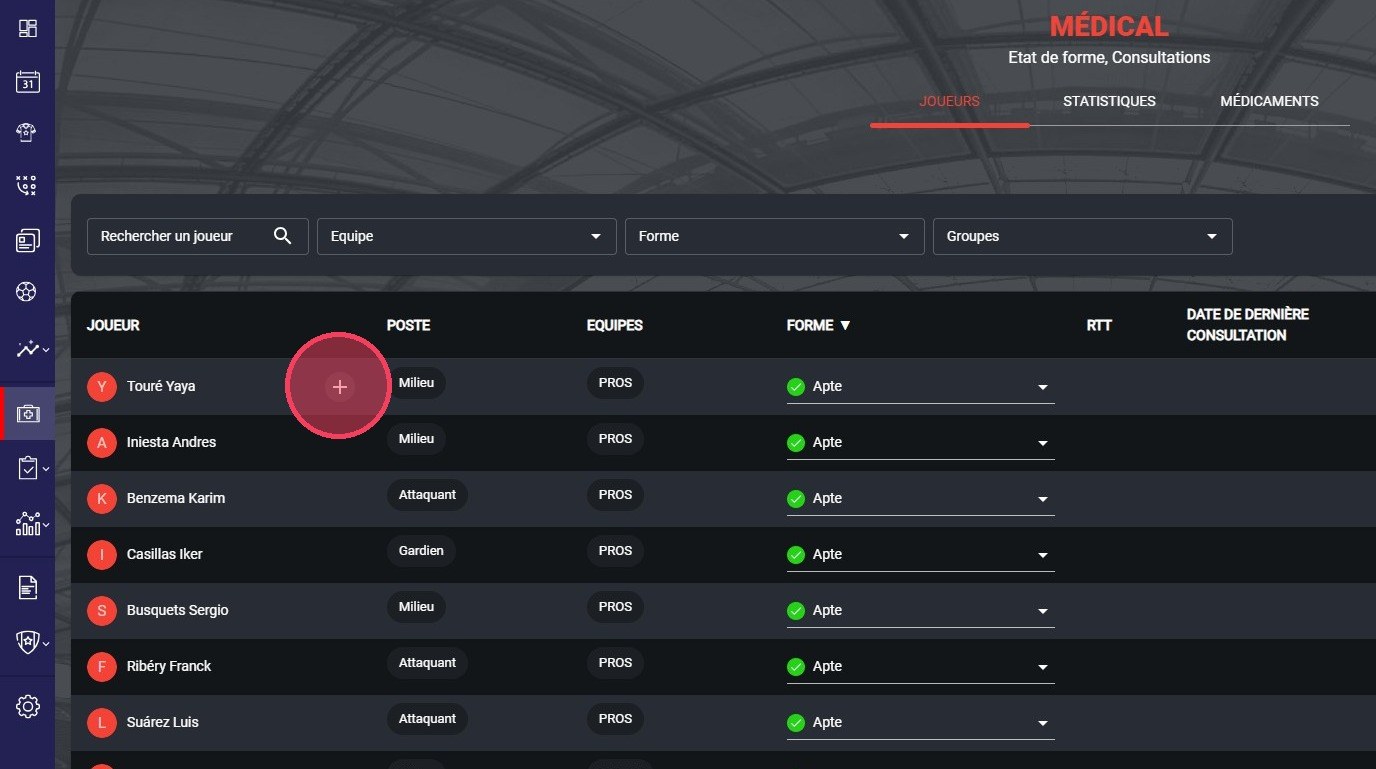
The + icon next to the player
-
Click Add a prescription.
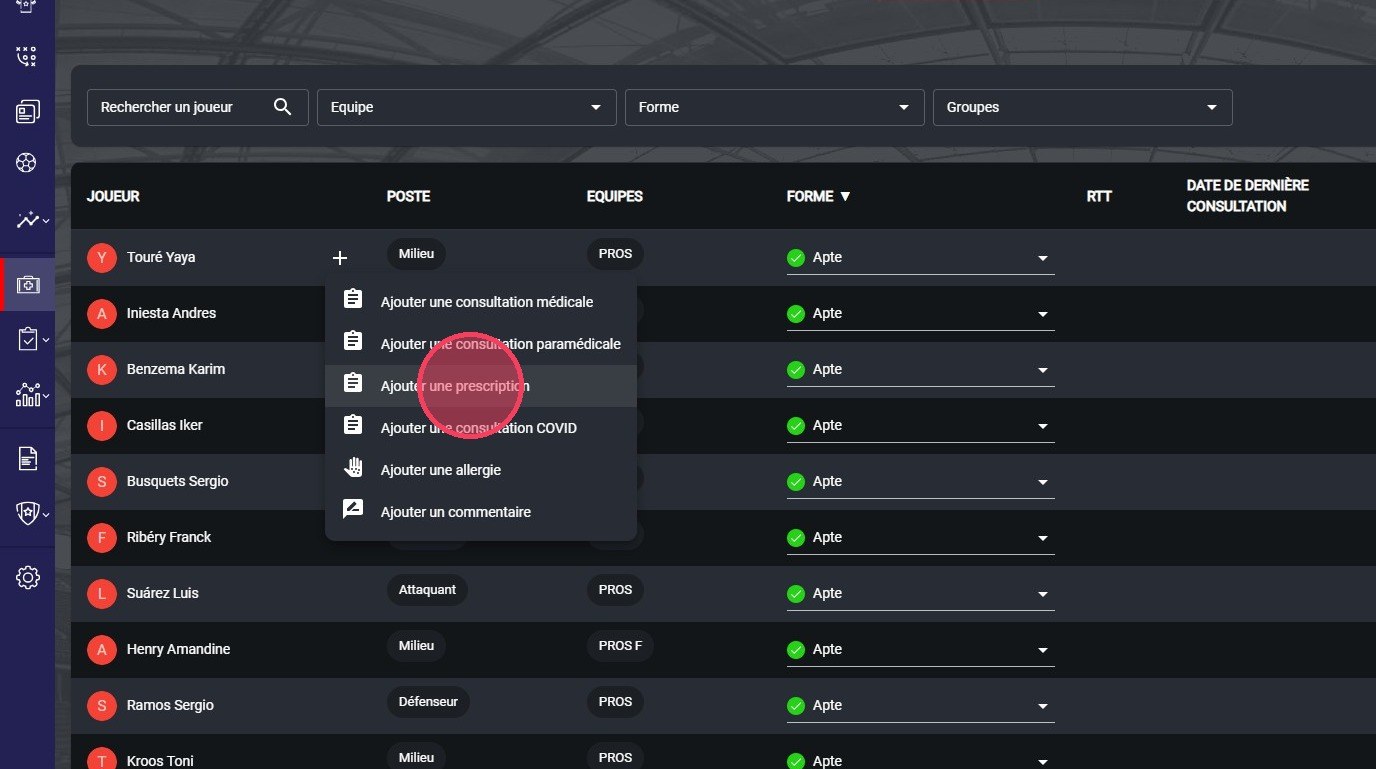
The Add a prescription option
Fill in the prescription
-
Choose the Prescription date.
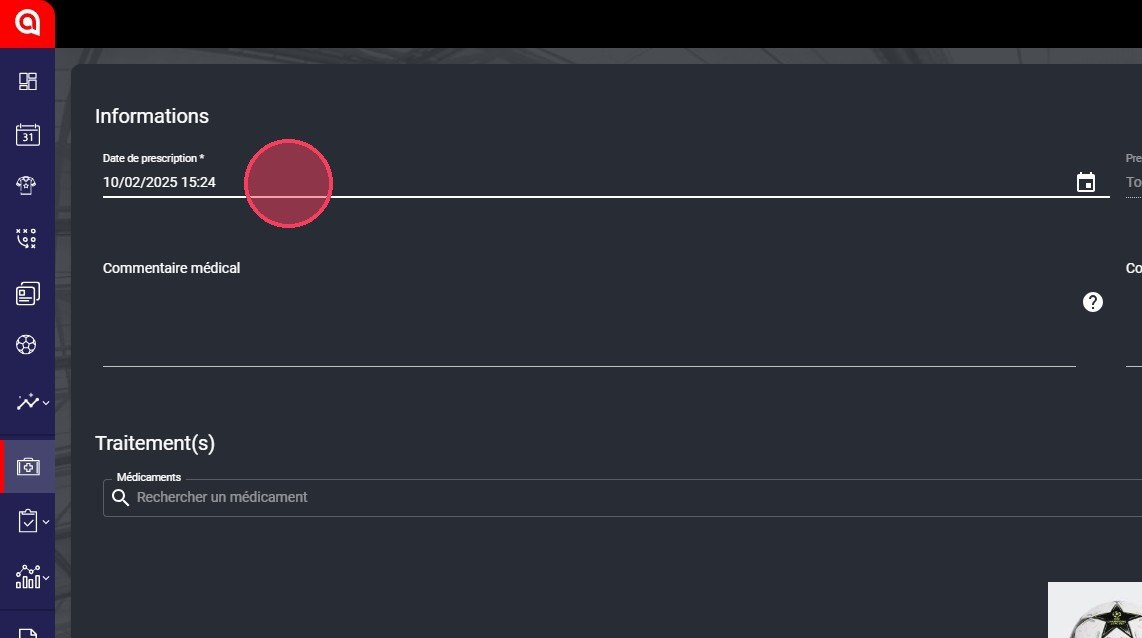
The Prescription date field
-
If needed, fill in the Medical comment and Shared comment fields.
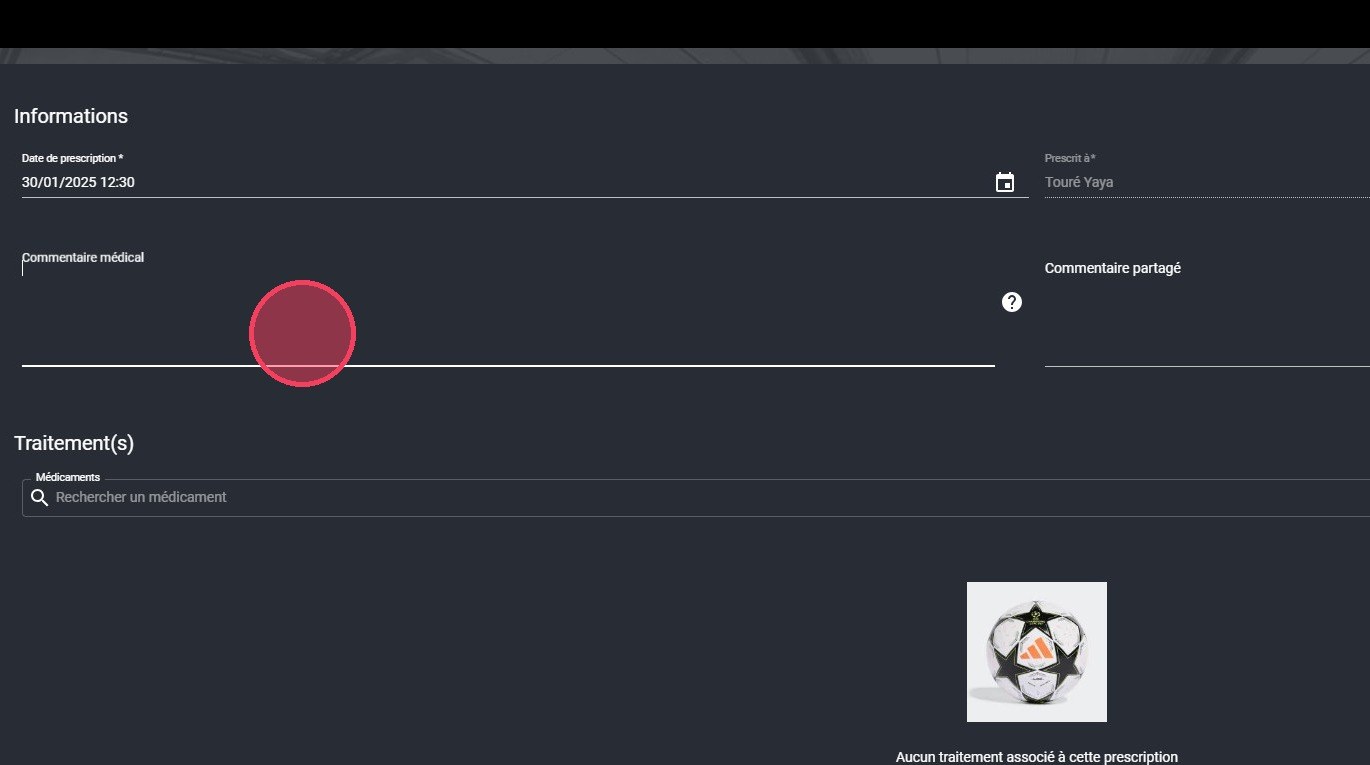
The prescription comment fields
Medical commentThe medical comment is only visible to users with the Medical permission enabled on their account.
Add a medication
-
Add a medication in one of these two ways:
- 1: pick it from the existing list by clicking the Search for a medication field;
- 2: create it by clicking the + button, which opens the medication creation window (see Add a medication).
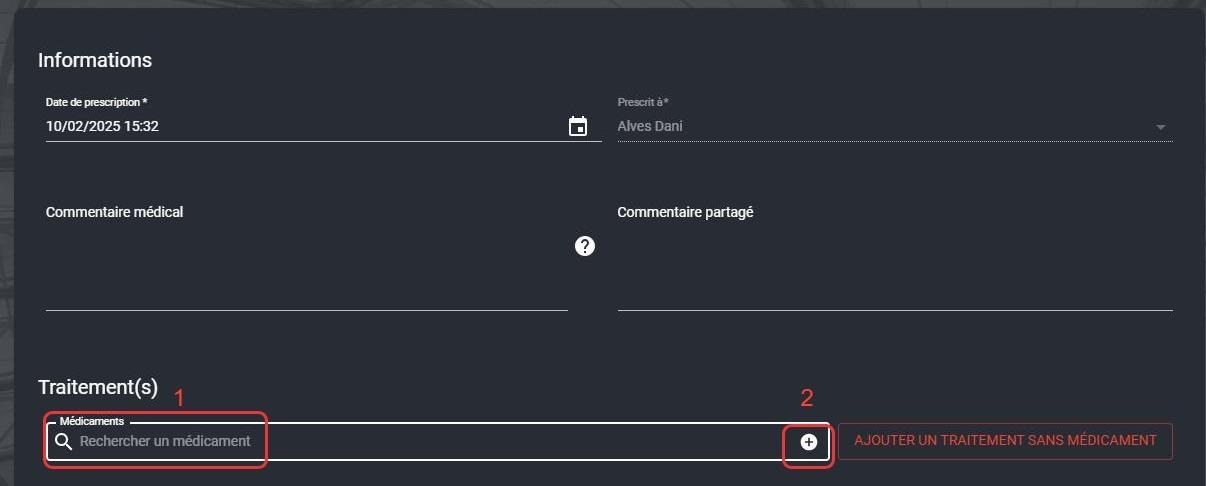
The Search for a medication field and the + button
Without medicationYou can also create a prescription without medication by clicking ADD A TREATMENT WITHOUT MEDICATION.
-
If you chose option 1, select a medication from the list.
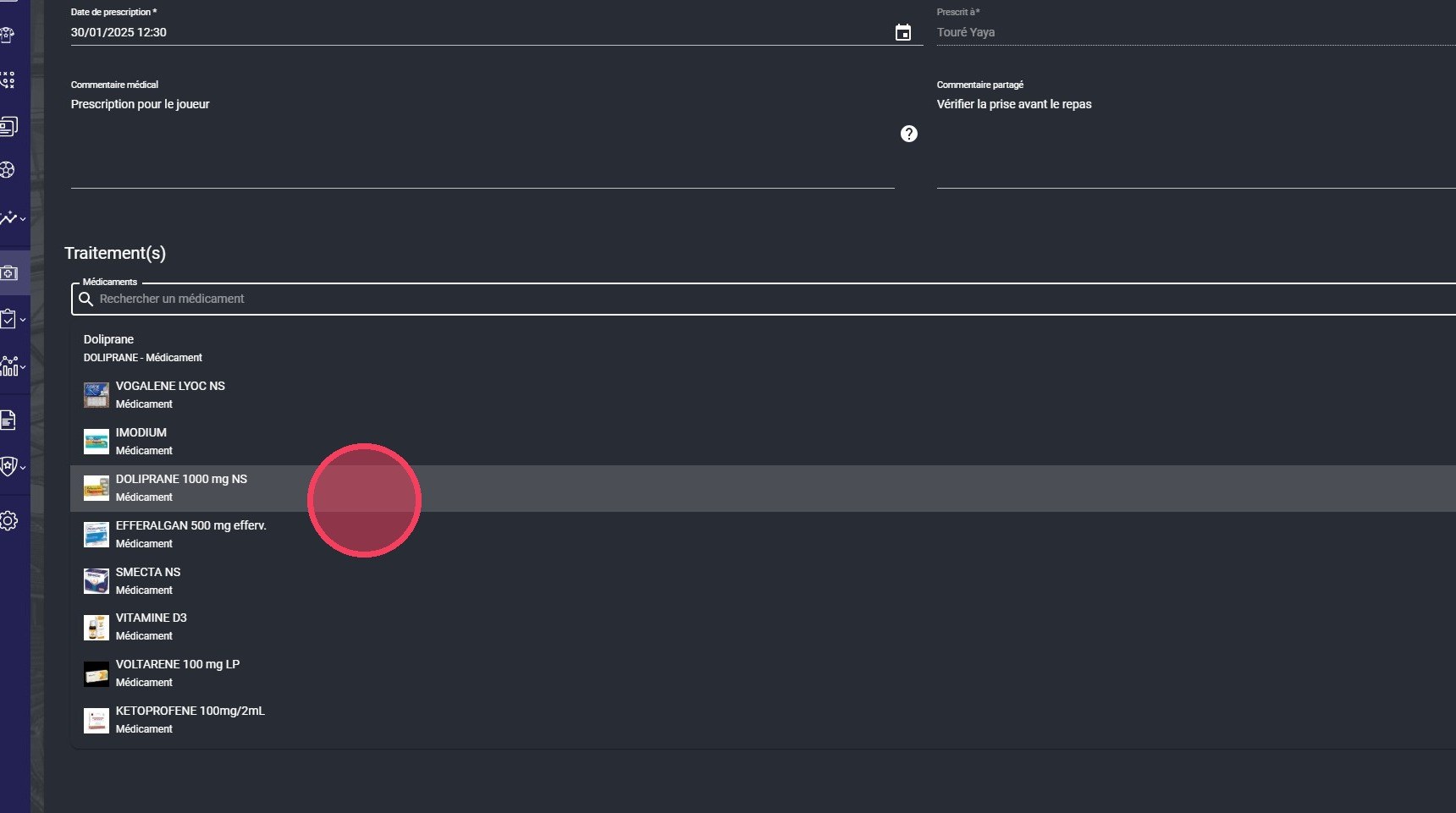
Selecting a medication
Configure the dosage
-
In the window that opens, choose a Predefined configuration for the dosage, or click Custom to configure it manually, as in the following example.
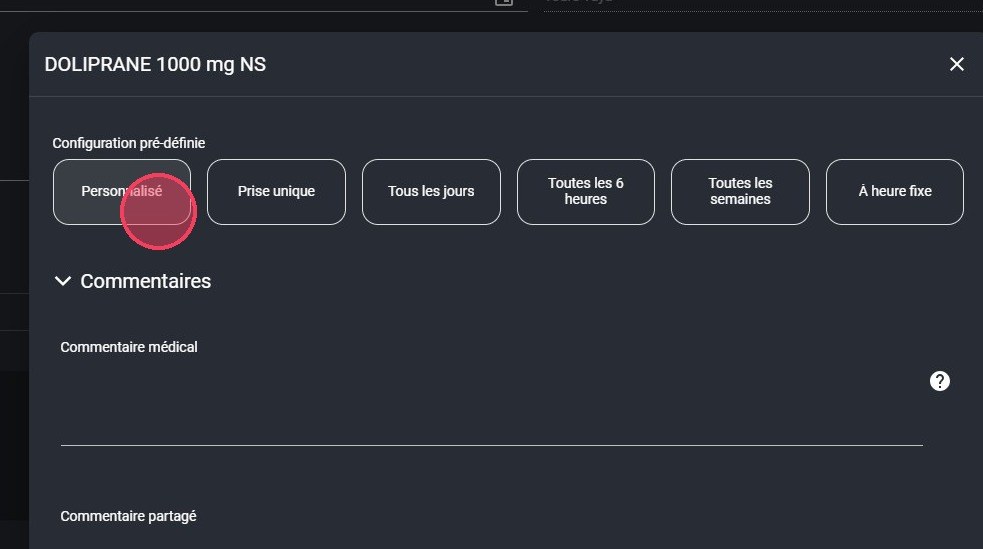
The predefined configurations
-
If needed, fill in the Medical comment and Shared comment fields for this medication.
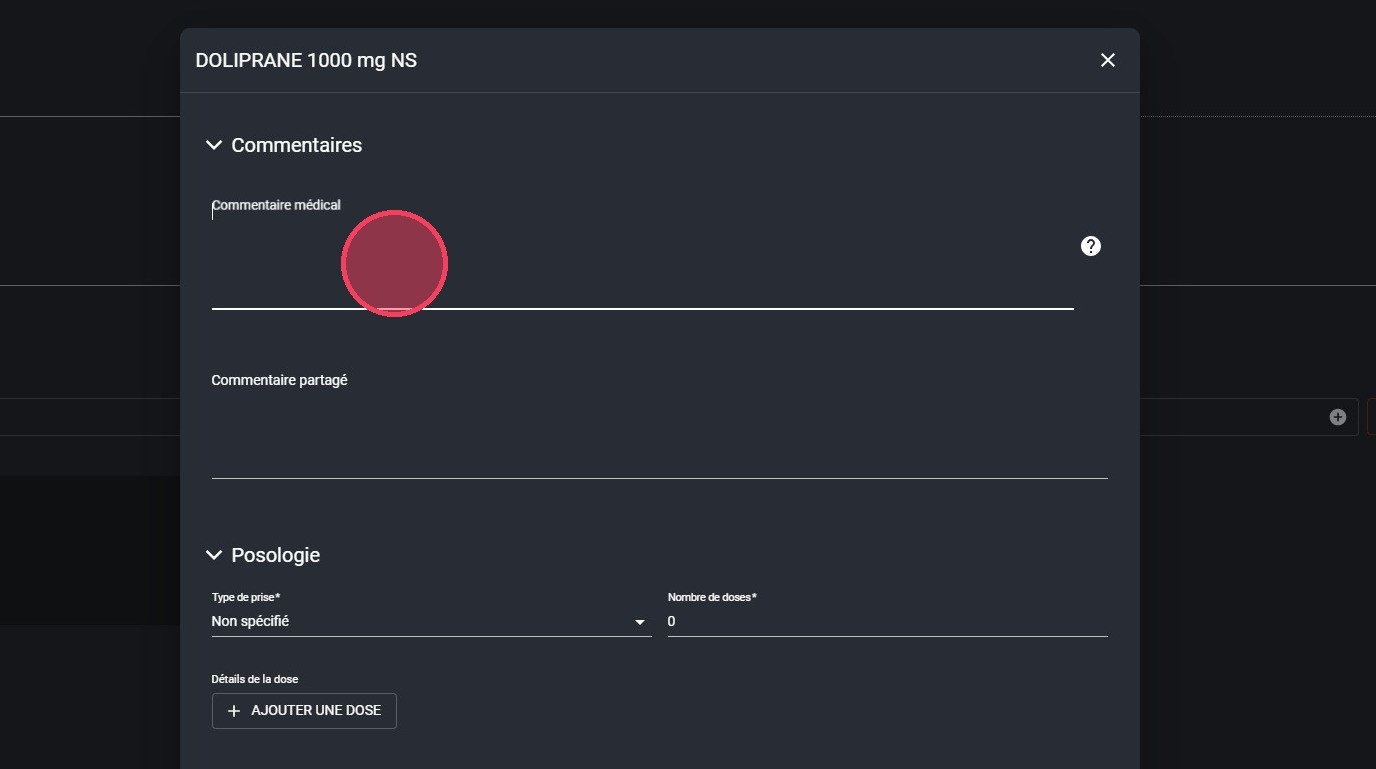
The medication comment fields
Medical commentThe medical comment is only visible to users with the Medical permission enabled on their account.
-
Choose the Intake type from the available options (Not specified, Fixed-interval intake, Fixed-time intake, Single intake).
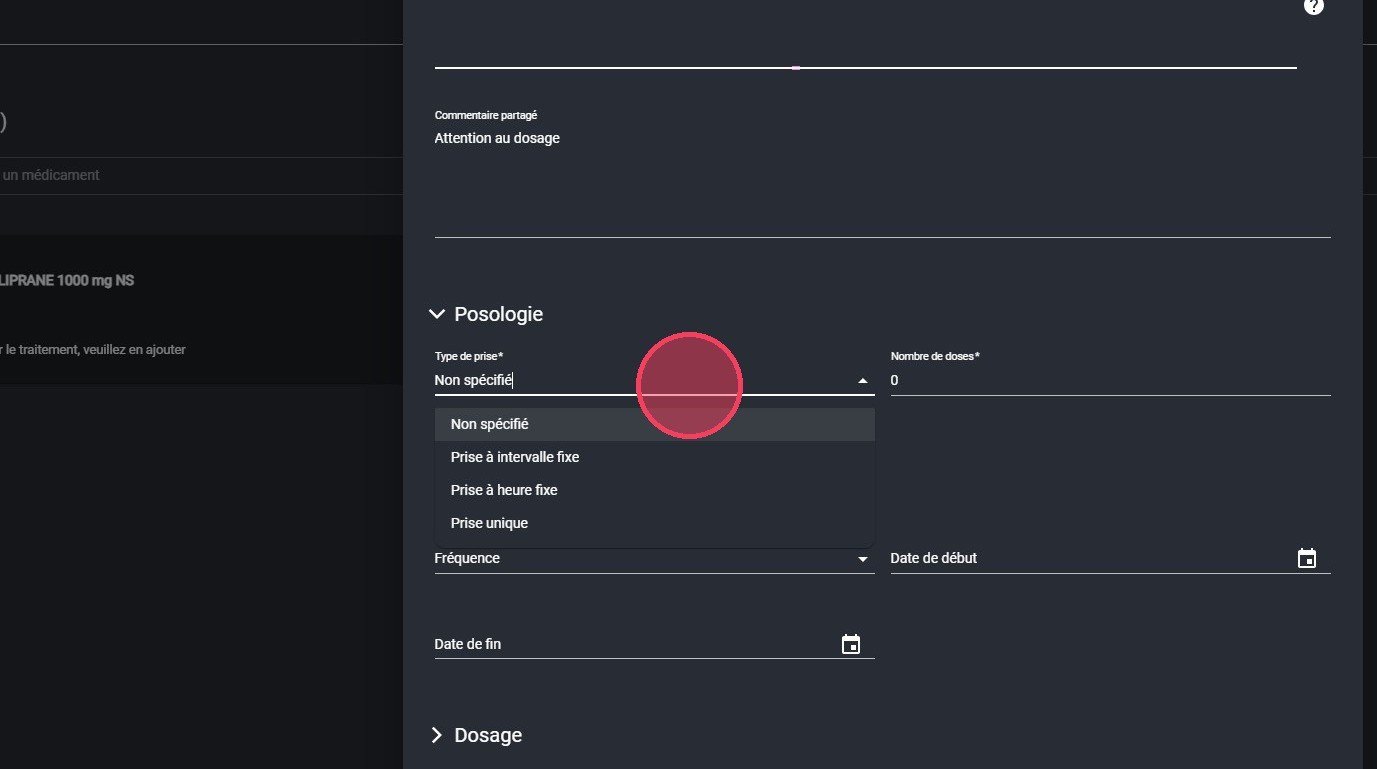
The Intake type list
-
Fill in the Dose details: the quantity and the interval in hours between two intakes.
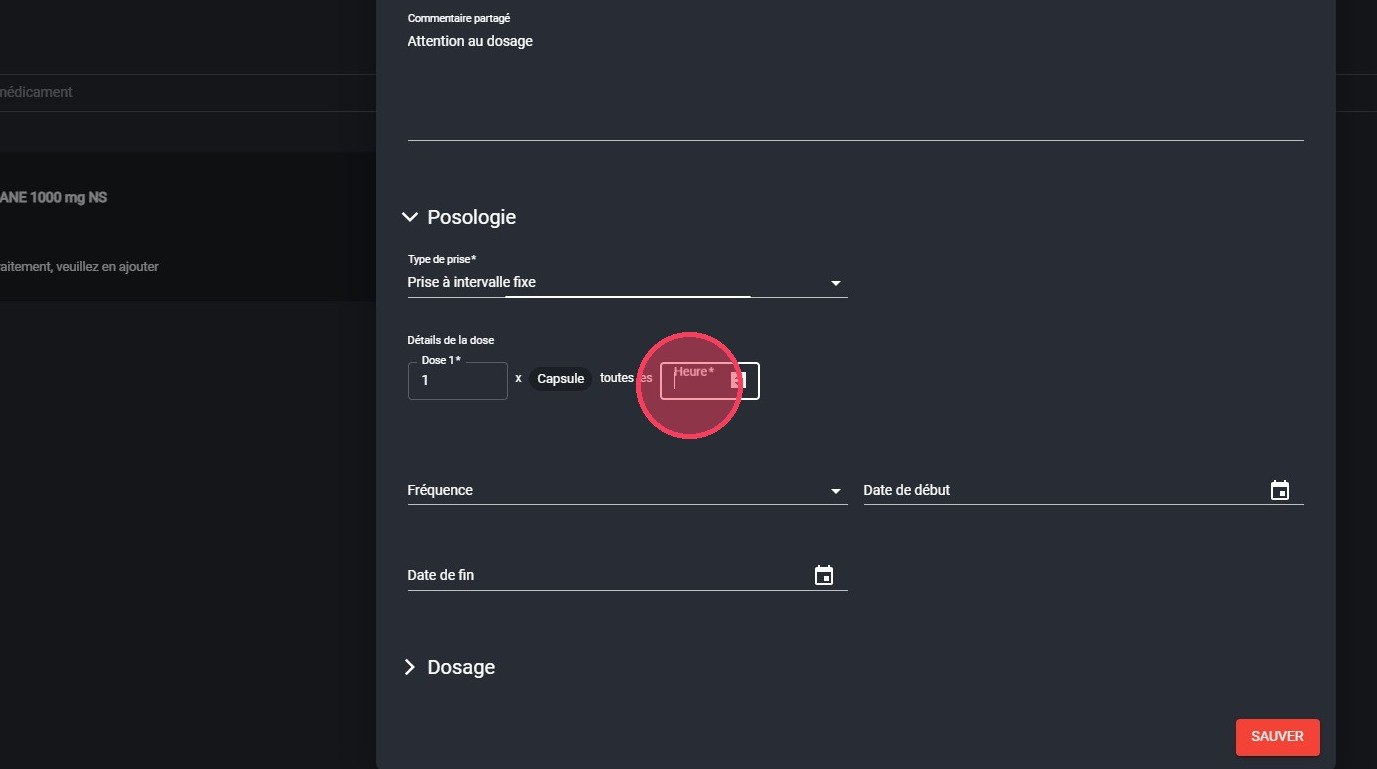
The dose details
-
Choose the Frequency (Every day or Every week).
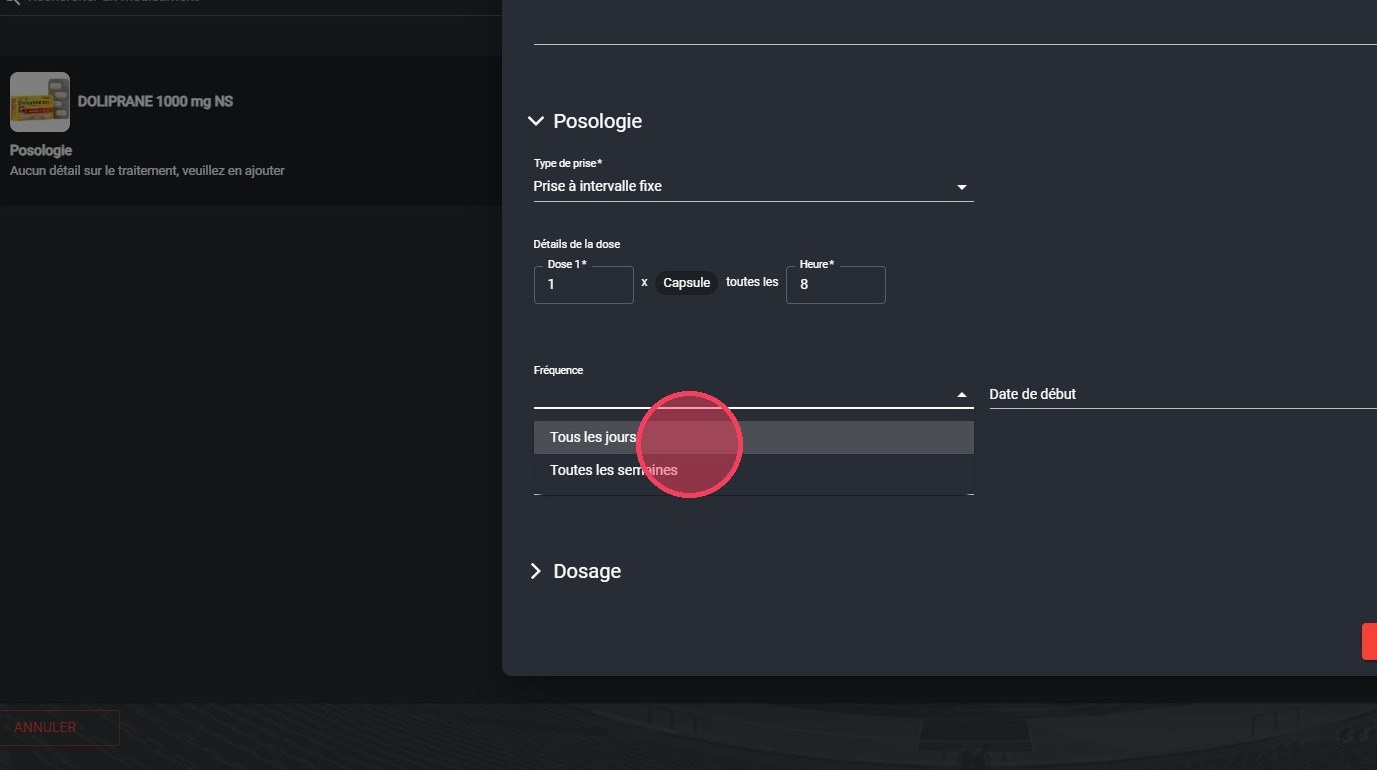
The Frequency list
-
Enter the treatment length in the For x day(s) field.
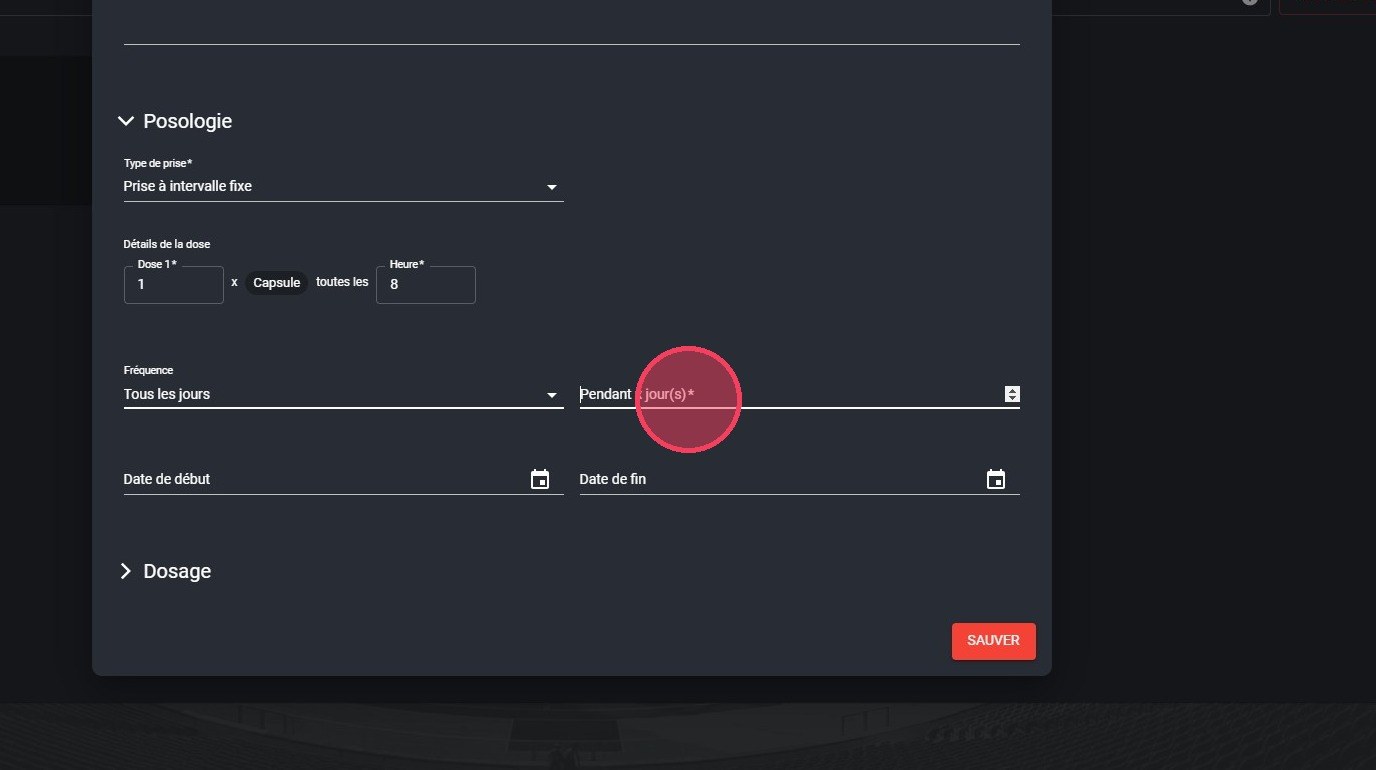
The For x day(s) field
-
Choose the intake Start date.
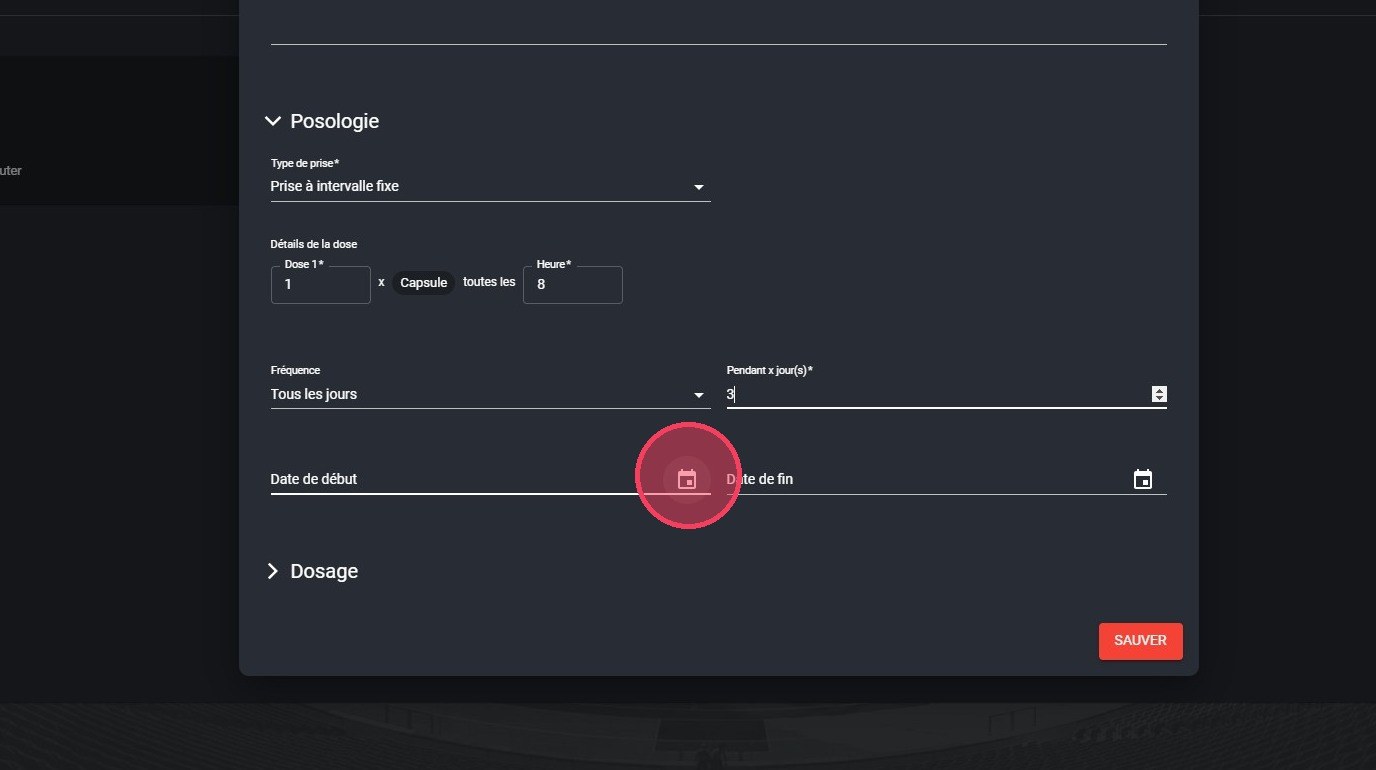
The Start date field
-
If needed, complete the Dosage section, then click SAVE to finish configuring this medication.
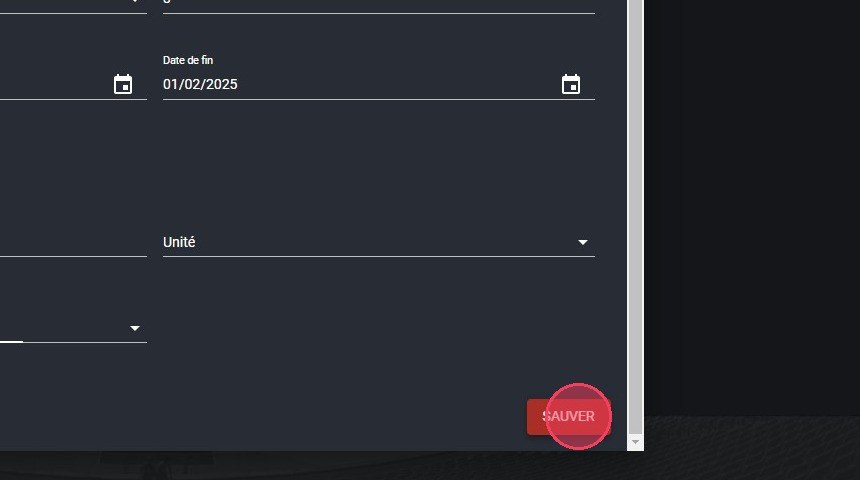
The Save button
Several medicationsTo add another medication, start again from step 7.
Finish the prescription
-
Click FINISH to complete the prescription.
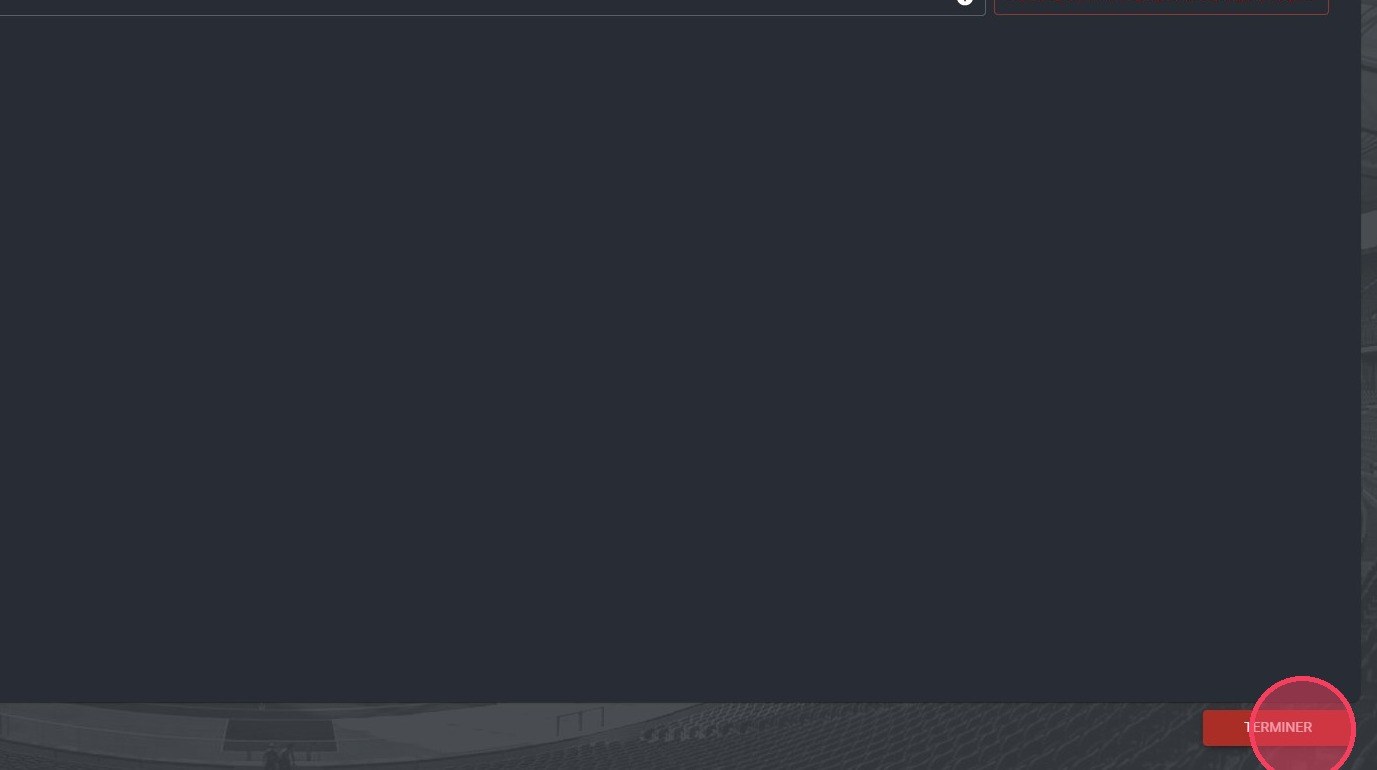
The Finish button
Need help
Email support@mycoachpro.io with any questions about medical prescriptions.